
In Primavera P6
Change Group Row Fonts and Colors
Change group row fonts and colors is View, Group and Sort; Font & Color cell; Font or Color

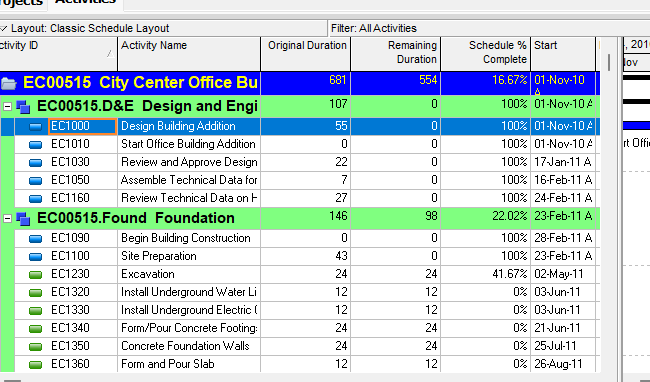
What a planner means
Change group row fonts and colors is Oracle Change group row fonts and colors. View, Group and Sort; or Layout Options bar → Group and Sort. Double-click the Font & Color cell. Font button for a new font. Color button for a new color. It is a how-to. It is not stored as its own table. It does not create, edit, or delete a relationship. It is not Format grouping bands, not Change Activity Table font, color, and row height, not Group activities by field, not Sort activity information in the Activity Table, not Sort activities, not The Activity Table view object, not Define Activity Table columns, not Table Font and Row, not TASKPRED, not EPPM Configuring Activity View Grouping copied onto Professional, and not Microsoft grouping-bar format.
Oracle does print a how-to titled Change group row fonts and colors. Oracle does not print a menu item named Change group row fonts and colors. The menu that how-to prints is View, Group and Sort. Do not invent View > Change group row fonts and colors. Do not invent View, Group and Sort By on this how-to. That By wording is on Format grouping bands / Group activities by field / Sort activities, not this page.
Oracle Change group row fonts and colors (Professional):
- "Choose View, Group and Sort. You can also click the Layout Options bar and choose Group and Sort."
- "Double-click the Font & Color cell you want to change."
- "To change a font, click the Font button, then select a new font."
- "To change a color, click the Color button, then select a new color."
That how-to fetched prints no Group and Sort By, no Customize, no Font box / Color box, no Show Title, no Show ID/Code, no Show Name/Description, no OK, no Apply, no Save, no Table Font and Row, and no row height. Do not invent those on this how-to.
Format grouping bands is a different how-to. View, Group and Sort By, or View, Group and Sort By, Customize. Font box / Color box. Show Title / Show ID/Code / Show Name/Description. Do not collapse that page onto this how-to.
Change Activity Table font, color, and row height is a different how-to. View, Table Font and Row. That is the table body, not the group row. Do not collapse them.
The Activity Table is a different object. Table-format view. See Display the Activity Table.
Professional vs EPPM
Professional — View, Group and Sort / Layout Options bar → Group and Sort; Font & Color cell; Font button; Color button. No Save on that page.
EPPM web — Oracle Configuring Activity View Grouping: Activities page; Views list; Customize View; Manage Views Grouping tab; Save and Apply. Tip: "The band color you select will display in the table and the Activity Network." Also "Click the View menu, then select Group." That page fetched does not print View, Group and Sort, Font & Color, Font button, or Color button. Do not copy Professional Font & Color onto EPPM. Do not copy EPPM Customize View / Grouping tab / Save and Apply onto Professional.
Primavera Cloud is a different product. Do not copy it here.
XER
The how-to is not an XER table. Oracle’s project XER map TOC has no GROUPFONT / GROUPCOLOR / FONCOLOR / LAYOUTGROUP table. Do not invent a view %T. Changing a group-row font or color does not write TASK. A Viewer cannot reconstruct that the planner used this how-to.
Microsoft Project
Microsoft Project can format grouping rows. Do not map that as P6 Change group row fonts and colors. Do not claim MPXJ writes a real MPP.
Don't
- Invent View > Change group row fonts and colors, or invent View, Group and Sort By / Show Title / OK on this how-to.
- Collapse this onto Format grouping bands or Change Activity Table font, color, and row height.
- Copy EPPM Customize View / Grouping tab / Save and Apply onto Professional, or Professional Font & Color onto EPPM.
- Invent a GROUPFONT XER table, or reconstruct the how-to from TASK rows.
- Map MSP grouping-bar format as this how-to.
- Claim MPXJ writes a real MPP.