
In Primavera P6
Display the Activity Table
Display the Activity Table is View, Show on Top, Table; Oracle prints The Activity Table, not a Display how-to

What a planner means
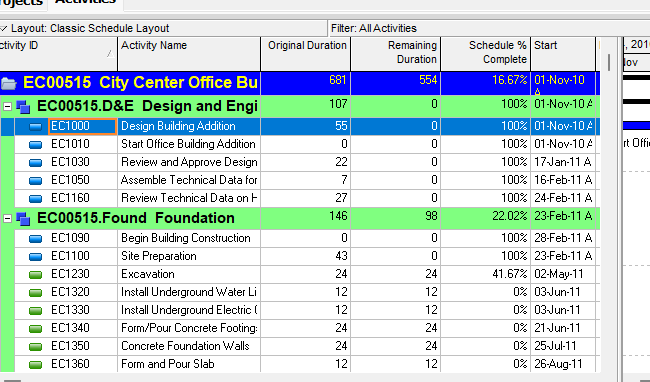
Display the Activity Table is opening The Activity Table. Oracle The Activity Table: "Use the Activity Table to view the open project's activity information in table format." The command that shows or hides the table view is View > Show on Top > Table (Top Layout toolbar). It opens the table. It is a how-to / view object. It is not stored as its own table. It does not create, edit, or delete a relationship. It is not View activity relationships in the Activity Table (Predecessor Details / Successor Details columns), not Columns / Define Activity Table columns, not Change activity information in the Activity Table, not Add / Copy / Cut / Sort in the Activity Table, not Table Font and Row, not Display the Gantt Chart, not Display the Activity Network, not Display Trace Logic, not Display the Activity Usage Spreadsheet, not Display window details, not View the WBS Show on Top Table, not Chart View, not a Tracking Project Table, not TASKPRED, not EPPM Working with Activities / About the Activity Table and Grid View / Configuring Activity View Columns copied onto Professional, and not Microsoft Task Sheet / View > Tables.
Oracle does not print a how-to titled Display the Activity Table. G48902 client_help display_the_activity_table.htm is 404. The G48902 TOC Activity Table section lists The Activity Table, Define Activity Table columns, Customize activity column titles, Change activity information in the Activity Table, Sort activity information in the Activity Table, Change group row fonts and colors, and Change Activity Table font, color, and row height. That section has no Display the Activity Table. Compare Gantt Chart (has Display the Gantt Chart), Activity Network (has Display the Activity Network), Trace Logic (has Display Trace Logic), and Activity Usage Spreadsheet (has Display the Activity Usage Spreadsheet). Do not invent a menu item named Display the Activity Table. Do not invent View > Display the Activity Table. Do not invent that Oracle printed "Choose View, Show on Top, Table" / "Click the Layout Options bar and choose Show on Top, Table" as a Display the Activity Table how-to.
Oracle The Activity Table (Professional; the_activity_table.htm):
- "Use the Activity Table to view the open project's activity information in table format."
- "You can customize Activity Table columns, fonts, and colors."
- "You can also filter, sort, and group the Activity Table."
You can use the Activity Table to:
- "Create a list of activities and activity information quickly when you don't need to see the information graphically over time."
- "Group activities in categories that share a common attribute. For example, focus on activities by resource, responsibility, or date. Once you organize activities into groups, you can summarize or "roll up" project data to simplify their presentation."
- "Sort activities to arrange them in an order you specify. For example, to view activities chronologically, you might sort them by early start date."
To make the Activity Table fit your needs exactly, you can:
- "Change the information displayed in columns to show scheduling data, resource and cost data, user-defined fields, or any data item you select, including calculated data."
- "Format specific information to call attention to it by using the filter, group and sort, and table display features."
Quote those. Quote open project's activity information, table format, columns, fonts, and colors, filter, sort, and group, graphically over time, resource, responsibility, or date, summarize or "roll up", early start date, scheduling data, resource and cost data, user-defined fields, calculated data, and filter, group and sort, and table display features. That object page fetched prints no View, Show on Top, Table, no Layout Options bar, no Top Layout toolbar, no "With the Activities window active, do one of the following:", no Show on Bottom, no split bar, no "Shows or hides the table view in the top layout", no Predecessor Details / Successor Details, no Available Columns section, no Double-click, no Edit > Add, no Copy From, no Table Font and Row, no click a column label, no Projects / Resources / WBS windows, no Chart View, no Activity Usage Spreadsheet, no privilege, no Save, and no menu item named Display the Activity Table. Do not invent those on this object page.
The open command is on the Top Layout toolbar, not on The Activity Table page. Oracle Top Layout toolbar: "Shows or hides the table view in the top layout." Displays by default. Enabled when active window is Activities, Projects, Resources, WBS. Corresponding menu: View > Show on Top > Table. Quote Shows or hides the table view in the top layout, Activities, Projects, Resources, WBS, and View > Show on Top > Table. That toolbar page fetched prints no how-to titled Display the Activity Table, no The Activity Table, no "open project's activity information in table format", no Layout Options bar, no Show on Bottom, and no hide-the-Gantt split-bar tip. The Activity Table page fetched prints none of the toolbar's Shows or hides the table view / View > Show on Top > Table sentences. Opening the table is the toolbar/menu command. The object page describes the table. Do not copy the toolbar extra sentence onto The Activity Table. Do not invent that The Activity Table printed View > Show on Top > Table.
Show on Top Table in Projects / Resources / WBS is not The Activity Table. The toolbar Table icon is enabled for those windows too. Oracle View the WBS: "To view the WBS as a table in column format, choose View, Show on Top, Table." Tip: "You can also select the same View commands by clicking the Display Options bar." That is the WBS table. The Activity Table page fetched prints open project's activity information, not WBS / Projects / Resources. Do not collapse View the WBS Show on Top, Table onto The Activity Table.
View Menu Show on Top is the family, not this title. Oracle View Menu Show on Top: "Enables you to choose the type of layout you want to display in the top portion of the active window. The available options correspond to the currently active window." Enabled: Activities, Projects, Resources, Resource Assignments, Work Breakdown Structure. Corresponding toolbar: Top Layout Toolbar. That row fetched prints no Table and no Display the Activity Table. Do not invent that it did.
Layout Options bar is not printed on The Activity Table. Display the Gantt Chart / Display the Activity Network / Display the Activity Usage Spreadsheet how-tos print Click the Layout Options bar and choose Show on Top…. Oracle Activities window: "Use the Layout Options bar, the View menu on the Menu bar, the Top Layout toolbar, and Bottom Layout toolbar to choose the layouts you want to display in the window." Oracle Using the Status Bar and Layout Options bar: "Click the Options bar to display a menu of the commands available for that window or dialog box." Those pages fetched print no Show on Top, Table as a Display the Activity Table how-to. The Activity Table page fetched prints no Layout Options bar. Do not invent "Click the Layout Options bar and choose Show on Top, Table" as a sentence Oracle printed on a Display the Activity Table page.
Bottom Layout has no Table. Oracle Bottom Layout Toolbar lists Details, Activity Usage Spreadsheet, Activity Usage Profile, Resource Usage Spreadsheet, Resource Usage Profile, Trace Logic, and No Bottom Layout. It fetched prints no Table and no Activity Table. Display the Gantt Chart prints Show on Top or Show on Bottom, Gantt Chart. Display the Activity Usage Spreadsheet prints Show on Top or Show on Bottom. This table open is Show on Top only. Do not invent View, Show on Bottom, Table.
View activity relationships in the Activity Table is a different how-to. View, Columns (or Layout Options bar → Columns). Select Predecessor Details and/or Successor Details in the Available Columns section, then click. That how-to fetched prints no Show on Top and no Table. The Activity Table page fetched prints no Predecessor Details / Successor Details. Opening the table is not adding those two columns. Do not collapse them. See View Activity Relationships in the Activity Table.
Columns / Define Activity Table columns is a different object. View, Columns / Layout Options bar → Columns. Oracle Columns dialog: "Use the Columns dialog box to specify which columns you want to display and their order." The Activity Table page says you can customize columns; it does not print View, Columns or Available Options. Opening the table is not the column list. See Columns.
Change activity information in the Activity Table is a different how-to. Oracle: "To change activity information, double-click the information you want to change." Note: "You may need the required security privileges to edit certain activity information." The Activity Table page fetched prints no Double-click. See Edit Activity.
Add activities in the Activity Table is a different how-to. Select an activity within the group; Edit toolbar or Edit. "The new activity is placed according to the sorting options selected for the layout." Optional New Activity wizard. The Activity Table page fetched prints no Edit > Add. See Add Activity.
Sort activity information in the Activity Table is a different how-to. "To sort the display, click a column label." Up arrow = ascending; down arrow = descending. The Activity Table page says you can sort (example: early start date). It fetched prints no click a column label and no up/down arrow. See Group and Sort.
Table Font and Row is a different object. View, Table Font and Row. Font / Color / row height / Show Icons. The Activity Table page says you can customize fonts and colors. It fetched prints no View, Table Font and Row. See Table Font and Row.
Display the Gantt Chart is a different how-to. "With the Activities, Projects, or Work Breakdown Structure windows active, do one of the following:" View, Show on Top or Show on Bottom, Gantt Chart; Layout Options bar → Show on Top or Show on Bottom, Gantt Chart; Top Layout toolbar. Tip: "To hide the Activity Table and display only the Gantt Chart, drag the split bar that separates the Activity Table from the Gantt Chart all the way to the left." That hide-the-Activity-Table split-bar tip is on Display the Gantt Chart, not on The Activity Table. The Activity Table page fetched prints no Gantt Chart, no split bar, and no Show on Top or Show on Bottom. Do not copy that tip onto this note as if The Activity Table printed it. See Display the Gantt Chart.
Display the Activity Network is a different how-to. "With the Activities window active, do one of the following:" View, Show on Top, Activity Network; Layout Options bar; Top Layout toolbar. Tip: hide the left pane. Quote left pane, not Activity Table. The Activity Table page fetched prints no Activity Network and no left pane. See Display the Activity Network.
Display Trace Logic is a different how-to. View, Show on Bottom, Trace Logic / Layout Options bar / Bottom Layout toolbar. That is Show on Bottom. This table open is Show on Top. See Display Trace Logic.
Display the Activity Usage Spreadsheet is a different how-to. View, Show on Top or Show on Bottom, Activity Usage Spreadsheet. Oracle The Activity Usage Spreadsheet: "The left pane displays the Activity Table, including all the columns, grouping, sorting, and filtering options defined for the Activity Table. The right pane displays timescaled spreadsheet data for each activity." That view contains the Activity Table on the left. It is not this table-only open. See Activity Usage Spreadsheet.
Display window details is a different how-to. "To display details for a window, such as Projects or Activities, choose View, Show on Bottom, Details, or click on the Bottom Layout toolbar." That is Show on Bottom Details, not Show on Top Table. See the unused Display window details note (do not file here).
Chart View is a different command. Top Layout toolbar: "Shows or hides a chart view." Enabled when Projects, Resources, WBS. Corresponding menu: View > Show on Top > Chart View. That is not Table. Table on that toolbar page is enabled when Activities, Projects, Resources, WBS.
Tracking Project Table is a different object. Enterprise > Tracking; layout type Project Table. Create a Project Table: View, Layout, New → Project Table. That is Tracking, not Activities The Activity Table. See Tracking.
Oracle Activities window Available activity layouts: The Activity Table. Working with the Activity Table names Add activities in the Activity Table, Change activity information in the Activity Table, Change Activity Table font, color, and row height, Change group row fonts and colors, Copy and paste activities in the Activity Table, Customize activity column titles, Cut and paste activities in the Activity Table, Define Activity Table columns, Quickly enter the same text in multiple table rows, and Sort activity information in the Activity Table. It does not name Display the Activity Table. Working with the Gantt Chart names Display the Gantt Chart. Working with the Activity Network names Display the Activity Network. Working with Trace Logic names Display Trace Logic. Working with the Activity and Resource Usage Spreadsheets names Display the Activity Usage Spreadsheet. Do not invent that Working with the Activity Table listed Display the Activity Table. Do not collapse those titles.
Oracle Activities window also: "Use Activity Details or the Activity Table to define general and detailed information for each activity." "Use the Layout Options bar, the View menu on the Menu bar, or the Layout toolbar to customize activity layouts and how activities are displayed in the window. For example, you can customize columns of the Activity Table; group, sort, and filter activities; specify a timescale; customize Gantt Chart bars and Activity Network boxes; and more." Those sentences are the Activities window page, not The Activity Table page. The Activity Table page fetched prints none of them.
Oracle Viewing activity relationships lists five View how-tos. It does not list Display the Activity Table. Do not invent that it did.
Oracle Linking Activities with Relationships lists Create / Edit / Delete Gantt and Network. It does not list Display. Do not invent that it did.
The Professional The Activity Table page fetched does not print driving / non-driving, solid vs dashed, critical relationship color, a milestone diamond, status icons, Progress Spotlight, Grid View, Navigation Menu, or a 30-column maximum. Do not invent them.
Professional vs EPPM
Professional — The Activity Table object page above. Open command: View > Show on Top > Table / Top Layout toolbar Shows or hides the table view in the top layout (Activities, Projects, Resources, WBS). The Activity Table page is activity information in table format. That object page fetched prints no Save, no Grid View, no Navigation Menu, no Click Activities, no Customize View, and no 30-column max.
EPPM web — do not copy Professional View > Show on Top > Table / Top Layout toolbar / The Activity Table object sentences onto EPPM. Do not invent that EPPM prints a how-to titled Display the Activity Table.
Oracle EPPM Working with Activities: "the most common and direct way to work with project activities is on the Activities page and, specifically, in the Activity Table." Open Projects; Navigation Menu → Activities; Grid: "You can select activities and update them within the grid or on the detail windows."; Gantt: "Refer to the optional Gantt view to supplement your work in the table with a visual representation of the schedule."; Context menu; Expand Dock / Collapse Dock; Show/Hide Tabs. Administrator maximum number of activities; URL to the Activities Page. That page fetched does not print View > Show on Top > Table, Layout Options bar, Top Layout toolbar, or "Use the Activity Table to view the open project's activity information in table format." Do not invent that it did. Do not copy Working with Activities Grid / Navigation Menu / Expand Dock onto this Professional note.
Oracle EPPM About the Activity Table and Grid View: "The Grid View presents all WBS and activity information for the currently open projects in a familiar table format." "You can customize Grid View columns." Example: scheduling data, resource and cost data, user-defined fields, or any data items you select, including calculated data. Use the Grid View to create a list when you don't need the information graphically over time as in a Gantt chart; view all activities grouped by project and WBS; sort (example: a date field). That page fetched does not print View > Show on Top > Table, Layout Options bar, or Top Layout toolbar. Do not invent that it did. Do not invent that Professional printed Grid View, currently open projects, or grouped by project and WBS on The Activity Table.
Oracle EPPM Configuring Activity View Columns: Customize View → Columns tab; Available Columns / Selected Columns; "Click Save and Apply."; "You can display a maximum of 30 columns."; View menu → Columns. That page fetched prints no Display the Activity Table and no View > Show on Top > Table. Do not invent that it did. Do not copy Save and Apply / 30-column max onto Professional.
Primavera Cloud is a different product. Do not copy Cloud table / grid view onto P6 Professional or EPPM.
XER
None. Oracle's project XER map TOC has no DISPLAYTABLE / DISPLAY_ACTIVITY_TABLE / ACTIVITYTABLE / ACTIVITY_TABLE / TABLE / LAYOUT / VIEW table. This open does not write TASKPRED. Do not invent a view %T. Do not treat a TASKPRED row as "the planner used Display the Activity Table" or "the planner had Show on Top set to Table."
TASKPRED is the relationship. The Activity Table page fetched does not print those column names. Opening the table does not create a relationship. See TASKPRED (Activity Relationships).
What the table can display is ordinary TASK (or other table) values — not this open. Columns, fonts, colors, filter, group, and sort travel as .plf, not in a project XER. See Columns, Table Font and Row, Group and Sort, and Filters and Layouts Are a View, Not the Schedule.
A Viewer parse of one XER cannot reconstruct whether the planner used Show on Top Table, had the Activity Table visible beside the Gantt, used View activity relationships in the Activity Table, Display the Activity Usage Spreadsheet (left pane = Activity Table), or EPPM Grid View.
Microsoft Project
Desktop Project has a table (sheet portion of a view) and a Task Sheet view. They are not the same command as P6 View > Show on Top > Table / The Activity Table.
Microsoft Overview of Project views: "Gantt Chart views consist of a table and a bar chart." "Gantt Chart views display a list of your tasks on the leftmost side of the view, with a graphical representation of those tasks in bars that span a timescale on the rightmost side of the view." "Sheet views present information in rows and columns, similar to a spreadsheet." Task Sheet: "Enter, edit, and review task information in a spreadsheet format." "A table is a set of fields displayed in the sheet portion of a view as columns and rows. The default table displayed differs by view." Changing tables, filters, groups, or view details "does not add or delete information stored in Project, it merely presents a portion of the information in different ways."
Microsoft Update work on a project: "On the View tab, in the Task Views group, click the arrow on Other Views, then select Task Sheet." Then View tab, Data group, Tables → Work or Tracking.
Microsoft Enter costs for resources: "If you don’t see the Entry table, click View > Tables > Entry." "Choose View > Gantt Chart." "Choose Tables > Cost."
Quote Gantt Chart views consist of a table and a bar chart, Task Sheet, View tab … Other Views … Task Sheet, View > Tables > Entry, and a table is a set of fields displayed in the sheet portion of a view. P6 printed The Activity Table, open project's activity information in table format, and View > Show on Top > Table. Do not collapse them. Microsoft pages fetched print no View > Show on Top > Table, no Layout Options bar, no Top Layout toolbar, no "Use the Activity Table to view the open project's activity information in table format," and no "Shows or hides the table view in the top layout." Do not invent that they did. They are not the same command as P6 Display the Activity Table / The Activity Table. Do not map P6 View > Show on Top > Table to MSP View > Tables / Task Sheet / Gantt left table as the same how-to. Do not claim MPXJ writes a real MPP.
Don't
- Treat this as View activity relationships in the Activity Table, Columns / Define Activity Table columns, Change activity information, Add / Copy / Cut / Sort, Table Font and Row, Display the Gantt Chart, Display the Activity Network, Display Trace Logic, Display the Activity Usage Spreadsheet, Display window details, View the WBS Show on Top Table, Chart View, Tracking Project Table, TASKPRED, EPPM Working with Activities / Grid View / Configuring Activity View Columns copied onto Professional, or MSP Task Sheet / View > Tables.
- Invent that Oracle printed a how-to titled Display the Activity Table, or a menu item named Display the Activity Table.
- Invent that The Activity Table printed View, Show on Top, Table / Layout Options bar / Top Layout toolbar / "do one of the following" / Show on Bottom / split bar / Predecessor Details / Double-click / Edit > Add.
- Collapse the toolbar's Shows or hides the table view in the top layout / View > Show on Top > Table onto The Activity Table object page, or collapse The Activity Table's table-format / roll-up / early-start sentences onto the toolbar.
- Collapse View the WBS Show on Top, Table / Display Options bar onto The Activity Table.
- Collapse Display Gantt hide the Activity Table split-bar tip onto The Activity Table page.
- Collapse Display Usage Spreadsheet left pane displays the Activity Table onto this table-only open.
- Collapse Display Network left pane onto Activity Table.
- Invent Show on Bottom, Table, or that Bottom Layout Toolbar listed Table.
- Invent that Working with the Activity Table or Viewing activity relationships listed Display the Activity Table.
- Copy Professional View > Show on Top > Table / Top Layout toolbar / The Activity Table object sentences onto EPPM, or copy EPPM Grid View / Navigation Menu / Expand Dock / Save and Apply / 30-column max onto Professional.
- Invent a DISPLAYTABLE / DISPLAY_ACTIVITY_TABLE / ACTIVITYTABLE / TABLE / LAYOUT XER table, or treat a TASKPRED row as "the planner used Display the Activity Table."
- Claim a Viewer reconstructed that the planner last used Show on Top Table or had the Activity Table visible from an XER.
- Map P6 View > Show on Top > Table / The Activity Table to MSP Task Sheet / View > Tables / Gantt left table as the same how-to.
- Invent that Microsoft printed View > Show on Top > Table or The Activity Table.
- Claim MPXJ writes a real MPP.
Sources
- Oracle The Activity Table [27 Aug 2026]
- Oracle same object [27 Aug 2026]
- Oracle Activity Table section TOC [27 Aug 2026]
- Oracle P6 Professional Help TOC [27 Aug 2026]
- Oracle Top Layout toolbar [27 Aug 2026]
- Oracle View Menu [27 Aug 2026]
- Oracle Bottom Layout Toolbar [27 Aug 2026]
- Oracle Activities window [27 Aug 2026]
- Oracle Using the Status Bar and Layout Options bar [27 Aug 2026]
- Oracle Using main windows [27 Aug 2026]
- Oracle View activity relationships in the Activity Table [27 Aug 2026]
- Oracle Define Activity Table columns [27 Aug 2026]
- Oracle Columns dialog box [27 Aug 2026]
- Oracle Change activity information in the Activity Table [27 Aug 2026]
- Oracle Add activities in the Activity Table [27 Aug 2026]
- Oracle Sort activity information in the Activity Table [27 Aug 2026]
- Oracle Change Activity Table font, color, and row height [27 Aug 2026]
- Oracle Display the Gantt Chart [27 Aug 2026]
- Oracle Display the Activity Network [27 Aug 2026]
- Oracle Display Trace Logic [27 Aug 2026]
- Oracle Display the Activity Usage Spreadsheet [27 Aug 2026]
- Oracle The Activity Usage Spreadsheet [27 Aug 2026]
- Oracle Display window details [27 Aug 2026]
- Oracle View the WBS [27 Aug 2026]
- Oracle Viewing activity relationships [27 Aug 2026]
- Oracle Linking Activities with Relationships [27 Aug 2026]
- Oracle Working with Activities [27 Aug 2026]
- Oracle About the Activity Table and Grid View [27 Aug 2026]
- Oracle Configuring Activity View Columns [27 Aug 2026]
- Oracle XER project map TOC [27 Aug 2026]
- Oracle XER TASKPRED [27 Aug 2026]
- Oracle Exporting and Importing Layouts [27 Aug 2026]
- Microsoft Overview of Project views [27 Aug 2026]
- Microsoft Update work on a project [27 Aug 2026]
- Microsoft Enter costs for resources [27 Aug 2026]
- Related [27 Aug 2026]