
In Primavera P6
Copy and Paste Data from Microsoft Excel Into P6 Professional
Copy and paste data from Microsoft Excel into P6 Professional is Range Paste

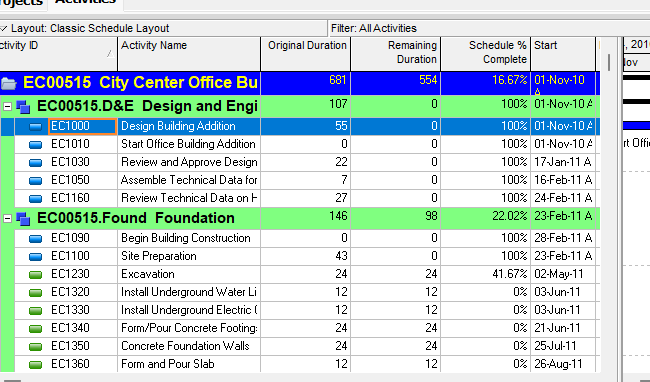
What a planner means
Copy and paste data from Microsoft Excel into P6 Professional is Oracle Copy and paste data from Microsoft Excel into P6 Professional. Copy a range in Excel. In P6 Professional, select the destination range (or a single cell), right-click → Range Paste. Decimal format in P6 must be dot; thousands separator comma. Excel numeric data must not include thousand separators. Time period labels, if showing, should be the default settings in admin preferences. It is a how-to. It is not stored as its own table. It does not create, edit, or delete a relationship. It is not the Resource Usage Spreadsheet object note, not Copy and paste resource spreadsheet data to Microsoft Excel, not File, Import of XLS/XLSX, not TASKPRED, not EPPM copied onto Professional, and not Microsoft Project import.
Oracle does print a how-to titled Copy and paste data from Microsoft Excel into P6 Professional. Oracle does not print a menu item named Copy and paste data from Microsoft Excel into P6 Professional. The path that how-to prints is right-click Range Paste. Do not invent View > Copy and paste data from Microsoft Excel into P6 Professional.
Oracle Copy and paste data from Microsoft Excel into P6 Professional (Professional):
- "Before copying data from Excel into P6 Professional, it is important to ensure that the data in Excel and the configuration of P6 Professional are optimal."
- "If time period labels are showing in P6 Professional, they should be set to the default settings in admin preferences."
- "Your decimal format must be set to dot and thousands separator to comma in P6."
- "Ensure that any numeric data does not have thousand separators included."
- "In P6 Professional, select the range into which you want to paste the data, then right click and choose Range Paste."
- "Open Excel and select and copy the range of cells you want to paste into P6 Professional."
- "You cannot paste data from Excel into grouping bands or read-only cells."
- "You cannot copy and paste data between Excel and P6 Professional using the Range Copy and Range Paste functionality if your layout uses a timescale comprising financial periods."
- "You can also select a single cell in P6 Professional to paste a range of cells copied from Excel. If you choose Range Paste on a single cell in P6 Professional, the data copied from Excel will be pasted into a range beginning at the cell you selected."
That how-to fetched prints no OK, no Apply, no Save, no Yes, and no File, Import. Do not invent those on this how-to.
The Resource Usage Spreadsheet is a different object note. Leave Resource Usage Spreadsheet as the object. This how-to sits on the Resource Usage Spreadsheet help TOC. Do not invent that Range Paste works only there.
Copy and paste resource spreadsheet data to Microsoft Excel is a different how-to. That page is Edit, Copy out of Resource Assignments; reporting only. Do not collapse this onto that page. See Copy and Paste Resource Spreadsheet Data to Microsoft Excel.
File, Import of XLS/XLSX is a different how-to. Do not collapse Range Paste onto import.
Professional vs EPPM
Professional — copy in Excel; right-click Range Paste in P6. No paste into grouping bands or read-only cells. No Range Copy / Range Paste when the timescale is financial periods. No OK / Apply on this how-to page.
EPPM web — the Professional how-to page is the source for this note. Do not invent an EPPM Range Paste command. Do not copy Professional Range Paste onto EPPM.
Primavera Cloud is a different product. Do not copy it here.
XER
The how-to is not an XER table. Oracle’s project XER map TOC has no RANGEPASTE table. Do not invent a view %T. Range Paste can write cells the planner is allowed to edit (this page does not name TASK or TASKRSRC). A Viewer cannot reconstruct that the planner used this how-to.
Microsoft Project
Microsoft Project can paste from Excel. Do not map that as P6 Copy and paste data from Microsoft Excel into P6 Professional. Do not claim MPXJ writes a real MPP.
Don't
- Invent View > Copy and paste data from Microsoft Excel into P6 Professional, OK, Apply, Save, Yes, or File, Import on this how-to.
- Collapse this onto Copy and paste resource spreadsheet data to Microsoft Excel, File, Import XLS/XLSX, or the Resource Usage Spreadsheet object.
- Copy Professional Range Paste onto EPPM.
- Invent a RANGEPASTE XER table.
- Map MSP Excel paste as this how-to.
- Claim MPXJ writes a real MPP.