
In Primavera P6
Fill Down Copies First-Selected-Row Text Down a Table Column
Fill Down copies first-selected-row text down a table column (Edit > Fill Down); not Range Copy, Dissolve, or Renumber; no XER table

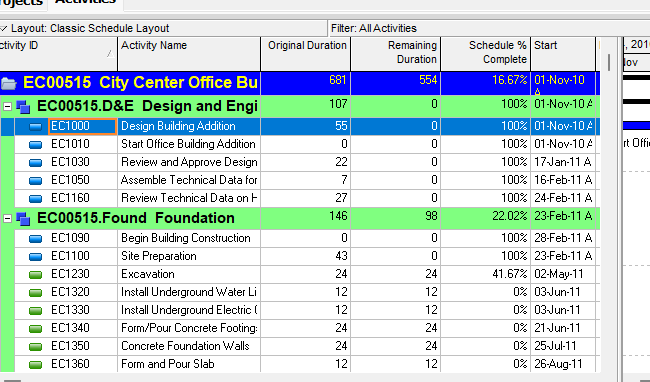
What a planner means
Fill Down (Edit > Fill Down in Professional) is a command. It is not Dissolve, not Renumber Activity IDs, not Update Progress, not Global Change, not Range Copy / Range Paste, not Cut/Copy/Paste of a data object, and not Find/Replace. Oracle Edit Menu: "When you select multiple rows in a table, choosing this command copies text from one row to successive rows in a column." It is not stored data.
Oracle how-to: "In some table format display columns, you can use the Fill Down feature to quickly enter the same text in successive rows." "To copy text from one row to successive rows within a column, select the row containing the text you want to copy and the rows you want to copy the text to, then choose Edit, Fill Down."
Professional — Edit Menu: enabled when the active window is "All windows with table views." Corresponding toolbar: Edit Toolbar. Edit Toolbar: same "copies text from one row to successive rows in a column" sentence; Ctrl+E; Edit > Fill Down; icon not shown by default ("To show icons on the toolbar that do not display by default, you must customize the toolbar."); enabled when "All except Reports and Tracking." Do not collapse the Edit Menu "All windows with table views" sentence and the toolbar "All except Reports and Tracking" sentence into one invented window list. Hot keys: Alt-E, W.
Oracle printed no field catalog for Fill Down. The only worked example is activity name. Oracle Fill Down Function Example / how-to: "Using the Fill Down function, you can quickly copy the activity name Design external interfaces from activity A1350 to activities A1840, A1850, and A1860." Do not invent that Fill Down can or cannot write duration, dates, codes, calendar, WBS, constraints, or any other column. Oracle said "some" table-format display columns and "text."
How-to tips Oracle names (quote Oracle):
- "The rows you select to copy to can be next to each other as shown in the preceding graphic, or not directly adjacent, as shown in the following graphic."
- "The Fill Down feature can also be used to copy text to rows above the first row you select. The text will always be copied from the first row you select to the subsequent rows you select. Select multiple rows by pressing the Ctrl key as you click each row you want to copy to."
Range Copy is a different command. The same how-to then says: "You can also copy the values in a range of cells from one row of a spreadsheet to another part of the same row, or to a range of cells on another row." That sibling page is Copy and paste a range of cells: Range Copy (Shift+Ctrl+C) / Range Paste (Shift+Ctrl+V); "In some spreadsheets"; "only the values in those cells are copied, not the labels"; "read-only cells are automatically skipped." It is not Edit > Fill Down. See Resource Usage Spreadsheet for Range Paste from Excel.
Resource Assignments spreadsheet fill down / fill across is a different surface. Oracle Resource Assignments window: use the shortcut (right-click) menu "to fill data down or across." Those restrictions (gray / not editable; Budgeted or Remaining early units only; Day/Hour, Day/shift, Only Ordinal dates, Financial periods; Remaining on a completed activity) are printed for that timescaled spreadsheet. They are not printed on the Edit > Fill Down how-to, Edit Menu, or Fill Down Function Example. Do not copy them onto Edit > Fill Down. See Resource Usage Spreadsheet.
Renumber Activity IDs is a different Edit command. Oracle Edit Menu: Renumber Activity IDs "Opens the Renumber Activity IDs dialog box. Use the Renumber Activities IDs dialog box to specify how to renumber selected activity IDs." Activities only. Fill Down does not open that dialog.
Dissolve, Update Progress, and Global Change are different commands. Dissolve is Edit > Dissolve (remove an activity and join preds to succs — Dissolve Removes an Activity and Joins Its Predecessors to Its Successors). Update Progress is Tools > Update Progress (Update Progress Estimates On-Schedule Progress for a New Data Date). Global Change is Tools > Global Change If/Then (Global Change).
EPPM web — Oracle printed Fill Down as a context-menu item, not Edit > Fill Down. Same one-liner on the pages fetched: "Copies the data from the first cell selected to all other selected cells in the same column. Use CTRL or SHIFT to select multiple cells."
- EPS Grid View: that sentence plus "To see this menu item, select a project or project template."
- Assignments Grid View (Projects section): that sentence. Getting Here: Projects → Assignments → Grid View.
- Activity Codes - Project (Enterprise Data): that sentence.
Oracle's About the Activity Table and Grid View page fetched does not print Fill Down, Edit > Fill Down, Ctrl+E, or Alt-E, W. Do not copy Professional Edit > Fill Down / Edit Toolbar / Ctrl+E / Alt-E, W / "All windows with table views" / the A1350 activity-name example onto EPPM. Do not invent an EPPM Activities Edit menu. EPPM says first cell selected; Professional says first row you select. Do not collapse those.
XER
Fill Down is a command. It is not an XER table. After it runs you see changed values on the filled rows. Do not invent a FILLDOWN / FILL / FILL_DOWN table.
Oracle's project XER data map TOC lists no FILLDOWN, FILL, or FILL_DOWN table. Oracle did not name an XER column for "the planner used Fill Down."
A Viewer parse of one XER cannot reconstruct whether the planner used Fill Down, typed the values, pasted, or ran Global Change.
Microsoft Project
Desktop Project has Fill down. Microsoft keyboard shortcuts (sheet view): "Fill down a column" — Ctrl+D. Microsoft Project VBA Application.FillDown: "Fills the selected cells or rows with the values in the specified cell or row of the selection." Optional Down: True (default) "if values in the top cell or row of the selection are copied down to the other selected cells or rows"; False "if values in the bottom cell or row of the selection are copied up to the other selected cells or rows."
Microsoft Application.FillAcross: "Fills the selected cells or columns with the values in the specified cell or column of the selection." "The FillAcross method is only available in timephased cells of usage views." That is not FillDown.
The pages fetched do not print Edit > Fill > Down as a current menu path. Do not invent that path. Excel's Home > Fill > Down is Excel, not Project.
They are not the same command. P6 Fill Down is Edit > Fill Down / Ctrl+E / first row you select / "some table format display columns" / "text." Project FillDown is Ctrl+D / top (or bottom) cell or row of the selection. Do not map them as the same calculation or the same field list. Do not claim MPXJ can write a real MPP.
Don't
- Treat Fill Down as Dissolve, as Renumber Activity IDs, as Update Progress, as Global Change, as Range Copy / Range Paste, as Cut/Copy/Paste of a row, or as Find/Replace.
- Invent a FILLDOWN / FILL / FILL_DOWN XER table, or treat any TASK (or other) column as "the Fill Down flag."
- Invent which fields Fill Down can write. Oracle named "some" table-format columns, "text," and one activity name example.
- Collapse Edit Menu "All windows with table views" and Edit Toolbar "All except Reports and Tracking" into one invented window list.
- Copy Resource Assignments spreadsheet fill-down / fill-across restrictions onto Edit > Fill Down.
- Copy Professional Edit > Fill Down / Ctrl+E / Alt-E, W / A1350 example onto EPPM, or treat EPPM "first cell" as Professional "first row."
- Map P6 Fill Down to MSP FillDown / Ctrl+D / FillAcross as the same command.
- Claim MPXJ writes a real MPP.
- Claim a Viewer reconstructed that the planner last used Fill Down from an XER.
Sources
- Oracle Quickly enter the same text in multiple table… [27 Aug 2026]
- Oracle Fill Down Function Example [27 Aug 2026]
- Oracle Edit Menu [27 Aug 2026]
- Oracle Edit Toolbar [27 Aug 2026]
- Oracle Using Hot Keys [27 Aug 2026]
- Oracle Copy and paste a range of cells [27 Aug 2026]
- Oracle Resource Assignments window [27 Aug 2026]
- Oracle Grid View Format of the EPS Page [27 Aug 2026]
- Oracle Grid View Format of the Assignments Page [27 Aug 2026]
- Oracle Activity Codes - Project Page [27 Aug 2026]
- Oracle About the Activity Table and Grid View [27 Aug 2026]
- Oracle XER project map TOC [27 Aug 2026]
- Microsoft Keyboard shortcuts for Project [27 Aug 2026]
- Microsoft Application.FillDown method (Project) [27 Aug 2026]
- Microsoft Application.FillAcross method (Project) [27 Aug 2026]