
In Primavera P6
Sort Activity Information in the Activity Table
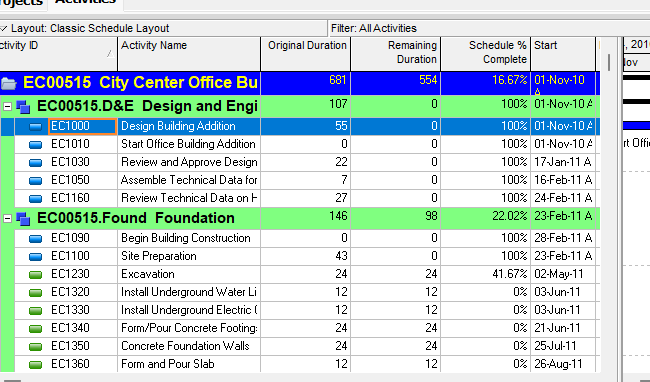
Sort activity information in the Activity Table is click a column label; up or down arrow

What a planner means
Sort activity information in the Activity Table is Oracle Sort activity information in the Activity Table. Click a column label. An up arrow means ascending (lowest to highest numerical, A to Z alphabetical). A down arrow means descending. It is a how-to. It is not stored as its own table. It does not create, edit, or delete a relationship. It is not Sort activities (View, Group and Sort By; Sort; Add), not the Sorting object page, not Group and Sort By, not The Activity Table view object, not Define Activity Table columns, not Customize activity column titles, not Change activity information in the Activity Table, not Change group row fonts and colors, not Filter By, not TASKPRED, not EPPM Configuring Activity View Sorting copied onto Professional, and not Microsoft column-header sort.
Oracle does print a how-to titled Sort activity information in the Activity Table. Oracle does not print a menu item named Sort activity information in the Activity Table. Do not invent View > Sort activity information.
Oracle Sort activity information in the Activity Table (Professional):
- "To sort the display, click a column label."
- "An up arrow in the column title indicates that the Activity Table is sorted in ascending order (lowest to highest for a numerical column or A to Z for an alphabetical column). A down arrow in the column title indicates that the Activity Table is sorted in descending order."
That how-to fetched prints no Project, Activities, no View, Group and Sort By, no Sort, no Add, no Field Name, no Sort Order, no hierarchical, no Apply, no OK, no Save, and no one-or-more-criteria sentence. Do not invent those on this how-to.
Sort activities is a different how-to. Project, Activities; View, Group and Sort By; Sort; Add; Field Name; Sort Order (ascending / descending / hierarchical); OK. Apply previews. Grouping first, then sorted. Do not collapse that dialog onto this column-click how-to.
The Sorting object is a different page. Chronological / alphabetical / numerical / hierarchical table. Do not copy that table onto this how-to.
The Activity Table is a different object. Table-format view. See Display the Activity Table.
Professional vs EPPM
Professional — Click a column label. Up arrow ascending; down arrow descending. No Save on that page.
EPPM web — Oracle Configuring Activity View Sorting: "Configure activity view sorting to determine the order in which activities will be displayed within a grouping band." Activities page; Views list; Customize View; Manage Views Sorting tab; Save and Apply. Tip: "To sort by a column it must be showing in the view." That page fetched does not print click a column label, up arrow, or down arrow. Do not copy Professional column-click onto EPPM. Do not copy EPPM Customize View / Sorting tab / Save and Apply onto Professional.
Primavera Cloud is a different product. Do not copy it here.
XER
The how-to is not an XER table. Oracle’s project XER map TOC has no SORT / SORTACT / TABLESORTED / LAYOUTSORT table. Do not invent a view %T. Clicking a column label does not write TASK. A Viewer cannot reconstruct that the planner used this how-to.
Microsoft Project
Microsoft Project can sort by clicking a column heading. Do not map that as P6 Sort activity information in the Activity Table. Do not claim MPXJ writes a real MPP.
Don't
- Invent View > Sort activity information, or invent Group and Sort By / Sort / Add / hierarchical on this how-to.
- Collapse this onto Sort activities or the Sorting object page.
- Copy EPPM Customize View / Sorting tab / Save and Apply onto Professional, or Professional column-click onto EPPM.
- Invent a SORT XER table, or reconstruct the how-to from TASK row order.
- Map MSP column-header sort as this how-to.
- Claim MPXJ writes a real MPP.