
In Primavera P6
Table Font and Row
Table Font and Row is View > Table Font and Row / Layout Options bar table font, color, and row height; .plf not XER; not Columns, Timescale Font & Color,…

What a planner means
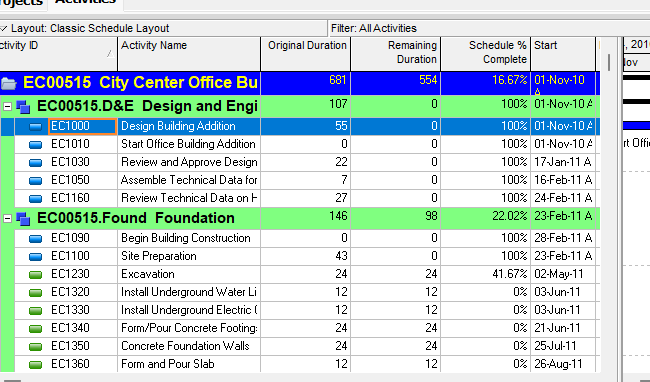
Table Font and Row (Oracle: the Table Font and Row dialog; View menu also prints Table, Font and Row) is a layout setting that formats the current table's text, background color, and row height. Oracle: "Use the Table Font and Row dialog box to change the appearance of text, color, and the height of rows in your display." "You can specify the font, background color, and row height for information displayed in a table." It is not Columns (Columns — which fields appear, in what order, title/width/alignment), not Group and Sort (Group and Sort — grouping bands and within-group sort; that dialog has its own Font & Color for group bands), not Timescale Font & Color (Timescale — "timescale and column headings"), not Line Numbers (View > Line Numbers — a sequential row-number column), not Chart Font and Colors (chart-view Font / Back Color / Box Color; disabled for table or Gantt), not Gantt bars (Gantt Bars Are Layout Bar Definitions, Not an XER Table), and not the TASK / TASKRSRC values a row can display. Changing Table Font and Row does not add or delete activities.
Professional — Oracle names these menus:
- View, Table Font and Row (Change Activity Table font, color, and row height; Change the work breakdown structure table display)
- Layout or Display Options bar → Table Font and Row (dialog page: "This dialog box is displayed when you click the Layout or Display Options bar and choose Table Font and Row.")
- Layout toolbar: "Opens the Table, Font and Row dialog box. Use the Table Font and Row dialog box to change the appearance of text, color, and the height of rows in your display. The available options vary for each window." Corresponding menu: View > Table Font and Row. Enabled for All. Displays by default. "You can also click the Display or Layout options bar in the active window to access most of the functionality available from this toolbar."
- View menu Table Font and Row: "Opens the Table, Font and Row dialog box." "The available options vary for each window." Enabled for All.
Oracle: "The options available depend on the window or dialog box from which you choose this command." Do not copy one window's field list onto another.
Oracle names these Table Font and Row dialog fields:
Background/Font and Color
- Font — "Enables you to change the font for the rows." Change Activity Table: "To specify a general table font, click the Font button."
- Color — "Enables you to change the color for the rows." Change Activity Table: "To select a background color, click the Color button."
- Row Height — "The size of the row. Type or select a new value."
- Show Icons — "Indicates you want to show the symbols that identify different types of information in the display."
Group Rows
- Level — "Each level in the hierarchy of information displayed on your screen."
- Font & Color — "The font and color for the group rows. Double-click the Font & Color column to change the font and color for the group rows."
Row Height (second section)
- Keep Current Row Heights — "Indicates you want to use the current row heights."
- Optimize height by row content — "Indicates you want each row's height determined by its content. If you choose this option, type or select the maximum number of lines that should be included in each row."
- Select height for all rows — "A value you specify that is used for all row heights."
- Show Icons — same sentence as above (dialog lists it again under this section).
- Apply — "Applies your changes without closing this dialog box."
- Default — "Applies the default table, font, and row settings."
The dialog pages fetched do not print a font-family or size list, a color token list, a row-height unit or numeric range, drag-to-resize rows, which symbols Show Icons draws, or that this Font formats column headings. Do not invent them. Timescale Font & Color is the command Oracle printed for "timescale and column headings."
Activities — Oracle Change Activity Table font, color, and row height: View, Table Font and Row. Font button; Color button. Row Height area:
- "To use the current row heights you set, mark the Keep Current Row Heights checkbox."
- "To automatically size row heights based on the cell content, clear the Keep Current Row Heights checkbox and choose Optimize row heights by content." "Mark the checkbox, Do not exceed X lines per row, to limit the amount of lines created by text wrapping and optimizing the row heights."
- "To specify a row height for all rows in the current layout, clear the Keep Current Row Heights checkbox and choose Select height for all rows." "Type a new row height in the field, or click the arrow buttons."
- "To display symbols, mark the Show Icons checkbox."
- OK.
That Activities page does not print Group Rows, Apply, Default, or a lone Row Height field. Do not invent them on Activities.
WBS table — Oracle Change the work breakdown structure table display: Project, WBS → View, Show on Top, Table → View, Table Font and Row. Font; Color; "To change the amount of space between rows, increase or decrease the number in the Row Height field."; Apply. That page does not print Keep Current Row Heights, Optimize, Do not exceed X lines, Select height for all rows, Show Icons, or Group Rows. Do not copy the Activities Row Height area onto WBS.
Tracking — Oracle Change the table font, color, and row height used in a tracking layout: Top Layout Display Options bar → Top Layout Options, Table Font and Row; Bottom Layout right-click → Table Font and Row. Font; Color; "Specify a row height for all rows in the current layout. Type a new row height in the field, or click the arrow buttons."; Show Icons; Group Rows Font & Color ("To specify a different font and background color for individual levels in the table, in the Group Rows section Font & Color column, double-click the level item, then click the Font or Color buttons."). That page does not print Keep Current Row Heights, Optimize, Do not exceed X lines, Apply, or Default. Do not copy the Activities Row Height area onto Tracking, or Tracking Group Rows onto Activities / WBS.
Not these other font commands
- Group and Sort Font & Color — Oracle Change group row fonts and colors: View, Group and Sort (or Layout Options bar → Group and Sort); "Double-click the Font & Color cell you want to change." That is the Group and Sort dialog. It is not this dialog's Group Rows section. See Group and Sort.
- Timescale Font & Color — "The font style, size, and color settings for the timescale and column headings." See Timescale.
- Chart Font and Colors — View menu: "Enables you to customize fonts and colors in chart views. This command is disabled when you display a table or Gantt Chart in the active window." Enabled for Projects, Resources, Work Breakdown Structure. WBS chart page names Font, Back Color, Box Color. That is a chart command, not this table dialog.
- Line Numbers — View menu: "Numbers each row in the Activities view." Enabled for Activities. Layout toolbar: enabled for Activity table, Gantt Chart, or Activity Usage Spreadsheet. Oracle Add line numbers: "Line numbers appear to the far left of each row in a separate column." "Numbering is sequential, starting with number one." "Line numbers apply only to rows that are visible." That is a column of numbers, not this font/height dialog.
- Columns — which fields show. See Columns.
- User Preferences (Layout toolbar / Edit > User Preferences) — Oracle: "how to display time, date, and currency information." The page fetched does not print table font or row height on User Preferences. Do not invent them there.
The Professional Table Font and Row pages fetched do not print Manage Views, a Table Font tab, View menu → Table Font as an EPPM-style Customize View, a font-size list, or drag-to-resize rows. Do not invent those menus on this dialog.
EPPM web — Manage Views / Customize View tabs Oracle named: Columns, Filtering, Grouping, Sorting, Bars, Gantt, Activity Network, Access. Configuring Activity Views lists those tabs. It does not print Table Font and Row.
Oracle Working with Tables names Sort Order Indicators, Column Resizing, Column Order, Grouping Levels, Selection Highlighting, Data Entry Features. That page does not print Font, Color, row height, Keep Current Row Heights, Optimize, Show Icons, or View > Table Font and Row.
Those EPPM pages do not print View > Table Font and Row, Layout Options bar → Table Font and Row, Font / Color buttons, Keep Current Row Heights, Optimize row heights by content, Do not exceed X lines per row, Select height for all rows, Show Icons, Group Rows Font & Color, Apply, or Default. Do not copy those Professional menus onto EPPM.
XER
Table Font and Row (Font, Color, Row Height / Keep Current / Optimize / Select height, Show Icons, Group Rows Font & Color, Apply, Default) is a layout setting. Oracle's project XER data map TOC lists no TABLEFONT, TABLE_FONT, ROWHEIGHT, FONT, LAYOUT, or VIEW table. Do not invent one. Layouts travel as .plf, not in a project XER. See Filters and Layouts Are a View, Not the Schedule.
Oracle did not name an XER column for table font, background color, row height, Keep Current / Optimize / Select height, Show Icons, or Group Rows Font & Color.
What a row can display is not this dialog:
- Activity fields:
TASK. See XER Tables That Matter for a Viewer or Converter. - Assignment fields:
TASKRSRC. - WBS nodes:
PROJWBS.
A Viewer parse of one XER cannot reconstruct the planner's Table Font and Row.
Microsoft Project
Desktop Project has Text Styles and row height. They are not the same object.
Microsoft Change the font for all text using styles: Format > Text Styles (or the view Format tab, e.g. Gantt Chart Format / Resource Sheet Format). Item to Change: All ("the font, size, or color you want for all text in the current view"), or "the type of item" for "just certain tasks." "Repeat this process for other views. Changing the font in one view has no effect on the font in other views." "Text styles can't be changed using Resource Form, Sprint Planning Board, Task Form, Task Board, or Network diagram views." Organizer: "copy font changes from one project to another, or for all future projects."
Microsoft Wrap text and change row height: right-click a column heading → Wrap Text (except Team Planner). "Project automatically wraps text in the Task Name column." "Project wraps text in all cells of the column if it is longer than the column width and has at least one space." "It doesn't recognize manual line breaks." Sheet view: "drag the bottom of the row heading (the leftmost cell) down until the text wraps onto the next line." Multiple rows: select them, then drag the last selected row heading. All rows the same height: turn Wrap Text off, select the entire view (top-left box), drag a row-header divider.
Do not map P6 Table Font and Row (one dialog; Font / Color / Keep Current / Optimize / Select height / Show Icons; options vary by window; .plf) to MSP Format > Text Styles plus Wrap Text / drag row heading and call them the same command. The pages fetched do not print Oracle's Keep Current Row Heights / Optimize row heights by content / Do not exceed X lines / Show Icons / Group Rows on the Microsoft Text Styles or Wrap Text commands. Do not claim MPXJ can write a real MPP.
Don't
- Treat Table Font and Row as Columns, as Group and Sort, as Timescale Font & Color, as Line Numbers, as Chart Font and Colors, as Gantt bars, or as the TASK values a row can display.
- Treat this dialog's Group Rows Font & Color as View > Group and Sort Font & Color.
- Treat Timescale Font & Color (timescale and column headings) as this Font (rows).
- Treat View > Line Numbers (sequential visible-row numbers) as this dialog.
- Treat Chart Font and Colors (Font / Back Color / Box Color; disabled for table or Gantt) as this table dialog.
- Invent a TABLEFONT / TABLE_FONT / ROWHEIGHT / FONT / LAYOUT / VIEW XER table, or treat any TASK / TASKRSRC / PROJWBS column as the table appearance.
- Treat EPPM Customize View (Columns / Filtering / Grouping / Sorting / Bars / Gantt / Activity Network / Access) or Working with Tables (sort / drag-resize columns / drag-reorder) as the Professional View > Table Font and Row dialog.
- Copy Professional View > Table Font and Row / Layout Options bar → Table Font and Row / Keep Current / Optimize / Show Icons onto EPPM as if Oracle printed those menus there.
- Copy the Activities Keep Current / Optimize / Do not exceed X lines area onto WBS or Tracking, or Tracking Group Rows onto Activities / WBS, as if Oracle printed one field list.
- Invent a row-height unit, numeric range, drag-to-resize rows, a Show Icons symbol list, or that this Font formats column headings.
- Map this object to MSP Format > Text Styles or Wrap Text / drag row heading and call them the same.
- Claim MPXJ writes a real MPP.
- Claim a Viewer reconstructed the planner's Table Font and Row from an XER.
Sources
- Oracle Table Font and Row dialog box [27 Aug 2026]
- Oracle Change Activity Table font, color, and row height [27 Aug 2026]
- Oracle Change the work breakdown structure table display [27 Aug 2026]
- Oracle Change the table font, color, and row height… [27 Aug 2026]
- Oracle View Menu [27 Aug 2026]
- Oracle Layout toolbar [27 Aug 2026]
- Oracle Change group row fonts and colors [27 Aug 2026]
- Oracle Change the work breakdown structure chart display [27 Aug 2026]
- Oracle Add line numbers [27 Aug 2026]
- Oracle Timescale dialog box [27 Aug 2026]
- Oracle Configuring Activity Views [27 Aug 2026]
- Oracle Working with Tables [27 Aug 2026]
- Oracle XER project map TOC [27 Aug 2026]
- Oracle Exporting and Importing Layouts [27 Aug 2026]
- Microsoft Change the font for all text using styles [27 Aug 2026]
- Microsoft Wrap text and change row height in a Project… [27 Aug 2026]