
In Primavera P6
Show Relationships
Show Relationships is Bar Chart Options / Top Layout toolbar Gantt relationship-line show/hide; .plf not XER; not TASKPRED

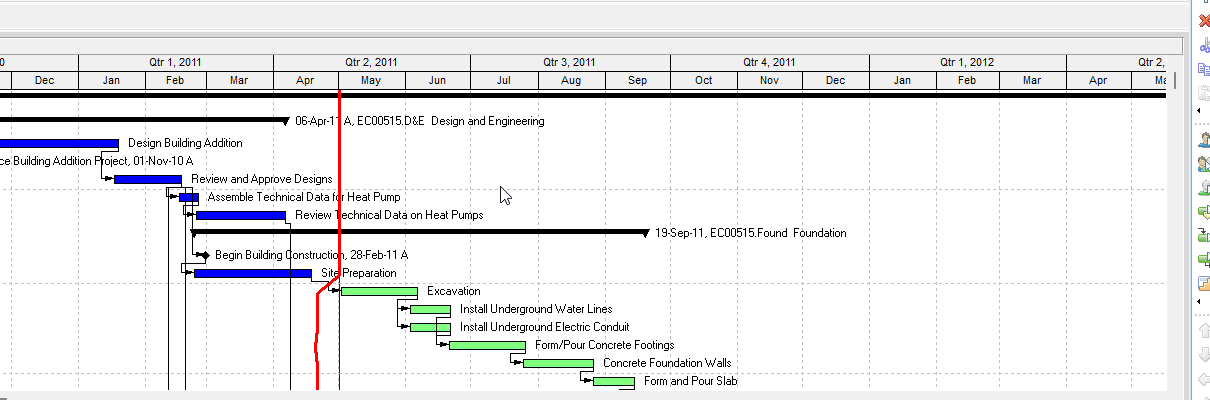
What a planner means
Show Relationships (Oracle: the Show Relationships checkbox on the General tab of Bar Chart Options) is a Gantt Chart decoration that shows or hides relationship lines between activity bars. Oracle: "Mark to display relationship lines in the Gantt Chart." It is not the stored TASKPRED table (TASKPRED (Activity Relationships)), not the FS/SS/FF/SF types (FS / SS / FF / SF + Lag (Planner Language)), not Sight Lines (Sight Lines Are Gantt Background Gridlines, Not an XER Table), not Gantt bars (Gantt Bars Are Layout Bar Definitions, Not an XER Table), not Trace Logic (Trace Logic), and not Activity Network (Activity Network).
Professional — Oracle Show or hide page: View, Barchart Options → Options → General tab. Mark Show Relationships to display relationship lines; clear it to hide them. "You can also click on the Top Layout toolbar to show or hide relationship lines." Apply "To view your changes without closing this dialog box."
General tab: Show Relationships "(Activity Layouts only) Mark to display relationship lines in the Gantt Chart."
Top Layout toolbar: "Shows or hides relationship lines in the Gantt Chart." Displays by default. Enabled when the active window is Activities. Corresponding menu command: None.
The same General tab also names Show Legend, Limit Text Label Characters To, Horizontal Lines (Show Major Lines / Show Minor Lines Every / Rows), and default notebook-item Width/Height. Those are different decorations. Horizontal Lines on this tab use the same "above each summary bar" / "specific row intervals" wording as Sight Lines — see Sight Lines Are Gantt Background Gridlines, Not an XER Table. Show Relationships is not a sight line.
Collapsed Bars tab: Show Relationships for Collapsed Bars — "show relationship lines from the collapsed bar to other collapsed and individual bars." "This setting is available if the Show Relationships checkbox is marked in the General tab."
View activity relationships — Oracle: "The Gantt Chart displays a graphical view of all activity relationships for a specific activity filter." Layout Options bar → Show on Top, Gantt Chart. "If no relationship lines are displayed for activity dependencies you have defined, change the Gantt Chart bar options to show relationship lines or click on the Top Layout toolbar."
"A line connecting two activity bars indicates an activity relationship. The point at which the line begins on the predecessor bar and the point at which the line ends on the successor bar indicates the type of activity relationship the line represents."
- Finish-to-start: begins on the right of the predecessor bar, ends on the left of the successor bar.
- Finish-to-finish: right to right.
- Start-to-finish: left to right.
- Start-to-start: left to left.
Create (when you can draw a line): drag from the edge of the predecessor bar (relationship pointer: "a vertical single-ended arrow") to the successor. Same four edge mappings. "A hint window is displayed while you are dragging the relationship line between two activities to tell you what kind of relationship will be created when you release the mouse button." Comments go on the Relationships, Predecessors, or Successors tabs in Activity Details. That creates a stored relationship (TASKPRED). It does not toggle the decoration.
Delete (the stored link, not the decoration): "Double-click the line representing the relationship you want to delete." Click Delete. Click Yes.
The Professional Show Relationships / View / Create / Delete / General-tab / Top Layout toolbar / Collapsed Bars pages fetched do not print driving / non-driving, solid vs dashed, critical relationship color, or a line-style / color picker. Do not invent them.
EPPM web — Configuring Activity View Gantt Chart (Customize View → Gantt tab): "Select the Relationship lines option to show lines between activities on the Gantt." "Select the Non-driving relationships option to draw lines between activities on the Gantt even where the relationship doesn't affect the successor's dates." That page also names Data date line, Sight Lines, Non-work time shading, and Timescale. It does not print View, Barchart Options, the General tab, Show Relationships, the Top Layout toolbar, or Show Relationships for Collapsed Bars. Do not copy those Professional menus onto EPPM.
Gantt View Format: Relationship Lines "Enable you to view the relationship between different activities. The point at which the relationship line touches each Gantt bar, whether the beginning or end, determines the type of relationship between the activities." Gantt Settings: Relationships "Show or hide relationships between activities in the Gantt." Show Legend "whether relationship lines are currently selected to show." "Hovering directly to the left or right of an activity bar when relationship lines are visible in the Gantt will display: Create Relationship." Those pages do not print View, Barchart Options or the Top Layout toolbar.
Working with the Activity Gantt Chart: "view the progression and relationships of activities or projects on a timeline." That page names the data-date line, vertical sightlines, non-work shading, and Progress Spotlight. It does not print the Relationship lines / Non-driving relationships checkboxes.
EPPM Non-driving relationships is an EPPM Gantt option. Do not copy it onto Professional.
XER
Show Relationships is a Gantt / layout setting. Oracle's project XER data map TOC lists no SHOWREL, RELLINE, RELATIONSHIPLINE, RELATIONSHIP_LINE, GANTT, LAYOUT, or VIEW table. Do not invent one. The stored links are TASKPRED. Layouts travel as .plf, not in a project XER. See Filters and Layouts Are a View, Not the Schedule.
Oracle did not name an XER column for show/hide, collapsed-bar relationship lines, or EPPM Non-driving relationships.
A Viewer parse of one XER cannot reconstruct whether the planner had relationship lines on.
Microsoft Project
Desktop Project has link lines. They are not the same object.
Microsoft: "When you link tasks, Project displays link lines on a Gantt Chart view that show the task dependencies of the linked tasks. You can change the way link lines appear or hide the link lines." Gantt Chart Format > Layout. "Under Links, select the type of link line that you want to use. If you choose the first type of link, then the link lines will not appear."
Microsoft Hide task links: View > Gantt Chart, Format > Layout, Links section, "the option on the left (the one with no link lines)." "This trick doesn't remove the dependencies between your tasks. It just hides the lines from view."
Microsoft Work with the Gantt Chart view: "If you have linked tasks together, the Gantt bars are connected on the chart with link lines."
Do not map P6 Show Relationships (General-tab checkbox / Top Layout toolbar; Activity Layouts only) to MSP Format > Layout Links and call them the same command. The pages fetched do not print Oracle's Show Relationships / Show Relationships for Collapsed Bars on the Microsoft Layout dialog. Do not claim MPXJ can write a real MPP.
Don't
- Treat Show Relationships as TASKPRED, as the relationship-type enum, as Sight Lines, as Gantt bars, as Trace Logic, or as Activity Network.
- Treat hide (clear Show Relationships) as Delete. Oracle Delete is double-click the line → Delete → Yes.
- Treat EPPM Relationship lines / Non-driving relationships as the Professional General-tab Show Relationships / Top Layout toolbar / Show Relationships for Collapsed Bars.
- Invent a SHOWREL / RELLINE / RELATIONSHIPLINE / GANTT / LAYOUT / VIEW XER table, or treat TASKPRED as this decoration.
- Copy Professional View, Barchart Options / General tab / Top Layout toolbar onto EPPM as if Oracle printed those menus there.
- Copy EPPM Non-driving relationships, Create Relationship hover, or Gantt Settings Relationships onto Professional as if Oracle printed them there.
- Map this object to MSP Format > Layout link lines and call them the same.
- Claim MPXJ writes a real MPP.
- Claim a Viewer reconstructed the planner's Show Relationships on/off from an XER.
Sources
- Oracle Show or hide relationship lines in the Gantt… [27 Aug 2026]
- Oracle General tab - Bar Chart Options [27 Aug 2026]
- Oracle Bar Chart Options dialog [27 Aug 2026]
- Oracle Top Layout toolbar [27 Aug 2026]
- Oracle View activity relationships in the Gantt Chart [27 Aug 2026]
- Oracle Create relationships in the Gantt Chart [27 Aug 2026]
- Oracle Delete relationships in the Gantt Chart [27 Aug 2026]
- Oracle Collapsed Bars tab - Bar Chart Options [27 Aug 2026]
- Oracle Configuring Activity View Gantt Chart [27 Aug 2026]
- Oracle Gantt View Format of the Activities Page [27 Aug 2026]
- Oracle Working with the Activity Gantt Chart [27 Aug 2026]
- Oracle XER project map TOC [27 Aug 2026]
- Oracle XER TASKPRED [27 Aug 2026]
- Oracle Exporting and Importing Layouts [27 Aug 2026]
- Microsoft Format the bar chart of a Gantt Chart view [27 Aug 2026]
- Microsoft Change a task link [27 Aug 2026]
- Microsoft Work with the Gantt Chart view [27 Aug 2026]