
In Primavera P6
Apply a Progress Line to the Gantt Chart
Apply a Progress Line to the Gantt Chart is View, Bar Chart Options; Progress Line; OK; View, Progress line

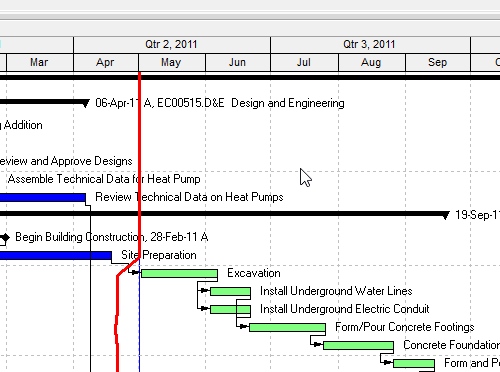
What a planner means
Apply a Progress Line to the Gantt Chart is Oracle Apply a Progress Line to the Gantt Chart. View, Bar Chart Options. Progress Line tab. Thickness 1 to 10 points. Color. Project baseline or Primary baseline. Variance (Current vs Baseline Start or Finish) or progress points (% Complete or Remaining Duration). OK. View, Progress line to display it. Activities window Gantt only. It is a how-to. It is not stored as its own table. It does not create, edit, or delete a relationship. It is not the Progress Line object note, not Progress Spotlight, not the Data Date, not Customize the data date line, not Update Progress, not TASKPRED, not EPPM About Progress Lines menus copied onto Professional, and not Microsoft Progress Lines.
Oracle does print a how-to titled Apply a Progress Line to the Gantt Chart. Oracle does not print a menu item named Apply a Progress Line. The menus that how-to prints are View, Bar Chart Options and View, Progress line. Do not invent View > Apply a Progress Line. Do not invent View, Barchart Options on this how-to (that page prints Bar Chart Options).
Oracle Apply a Progress Line to the Gantt Chart (Professional):
- "Applying a progress line to the Gantt chart enables you to quickly view the progress of activities with regard to their scheduled deadlines."
- "As a variance line, the progress line can represent a variance between the planned and actual start dates or finish dates of a task."
- "As a progress point line, the progress line shows either the remaining duration of an activity or the percent of the activity that has been completed."
- "In the Progress Line tab of the Bar Chart Options dialog box, you have complete control over how the line is drawn, whether it will be a variance line based on start or finish dates, or a progress point line based on remaining duration or completion percentages."
- "This feature applies to the Gantt Chart in the Activities window only."
- "The progress line will not be drawn if you do not display a baseline bar and you choose to base the line on activity % complete or remaining duration."
- "Select View, Bar Chart Options, and click the Progress Line tab."
- "Type or select the value between 1 and 10 points to set the thickness of your progress line."
- "Click the color button to choose a color for your Progress Line."
- "Select to use the Project baseline or Primary baseline when calculating the Progress Line."
- "If you want the progress line drawn based on the difference between activity start or finish dates in the current project and baseline project dates, select Based on Difference between Current and Baseline Activity's option. From the list, select Finish Date to calculate the progress line based on the variance between the baseline finish and the current finish, or select Start Date to calculate the progress line based on the variance between the baseline start and the current start."
- "If you want the progress line drawn by connecting progress points based on each activity's remaining duration or percent complete, select By Connecting Progress Points Based on Activity's option. From the list, select % Complete to calculate the progress point based on each activity's percent complete (which is the same as viewing the % Complete bar), or select Remaining Duration to calculate the progress point based on each activity's remaining duration. For Remaining Duration, the progress line is drawn to activities that have started or that should have started (when the project baseline start is earlier than the current data date) relative to the baseline start dates."
- "Click OK."
- "Choose View, Progress line to display the line."
- "When the progress line is drawn to the left of the data date, the activity is behind schedule. When the progress line is drawn to the data date, the activity is on schedule. When the progress line is drawn to the right of the data date, the activity is ahead of schedule."
That how-to fetched prints no Apply, no Save, no Yes, no View, Barchart Options, and no Layout Options bar. Do not invent those on this how-to. Quote View, Progress line (lowercase L).
Progress Line is a different object note. The decoration. Leave Progress Line as the object.
Progress Spotlight is a different object. The update-window band. See Progress Spotlight (a View, Not a Field).
Customize the data date line is a different how-to. Style / Size / Color of the as-of line. See Customize the Data Date Line.
Professional vs EPPM
Professional — View, Bar Chart Options; Progress Line tab; 1–10 points; color; Project or Primary baseline; variance or progress points; OK; View, Progress line. Activities window only. Baseline bar required for % Complete / Remaining Duration. No Apply on that page.
EPPM web — Oracle About Progress Lines prints the left / on / right of data date meaning and the progress-point vs variance split. That page fetched does not print View, Bar Chart Options or View, Progress line. Do not copy those Professional menus onto EPPM. EPPM Show Progress on a current bar is a bar setting, not this line.
Primavera Cloud is a different product. Do not copy it here.
XER
The how-to is not an XER table. Oracle’s project XER map TOC has no PROGRESSLINE / PROGLINE table. Do not invent a view %T. Applying a progress line does not write TASK. Layouts travel as .plf. A Viewer cannot reconstruct that the planner used this how-to.
Microsoft Project
Microsoft Project has Progress Lines. Do not map that as P6 Apply a Progress Line to the Gantt Chart. Do not claim MPXJ writes a real MPP.
Don't
- Invent View > Apply a Progress Line, View, Barchart Options, Apply, Save, or Yes on this how-to.
- Collapse this onto the Progress Line object, Progress Spotlight, or the Data Date line.
- Copy EPPM About Progress Lines (no menus) as if it printed View, Bar Chart Options.
- Invent a PROGRESSLINE XER table, or reconstruct the how-to from TASK dates.
- Map MSP Progress Lines as this how-to.
- Claim MPXJ writes a real MPP.