
In Primavera P6
Customize the Data Date Line
Customize the data date line is View, Bars; Options; Data Date; Style, Size, Color; OK or Apply

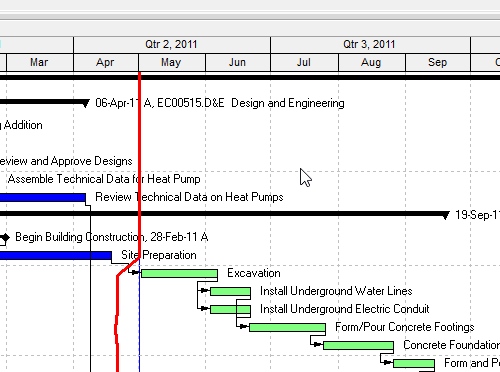
What a planner means
Customize the data date line is Oracle Customize the data date line. You can customize the data date line in the Activities and Tracking windows. Activities: View, Bars; or Layout Options bar → Bars. Tracking: display the layout, then View, Bars; or Display Options bar (right pane, Top Layout window) → Top Layout Options, Bars. Options. Data Date tab. Style (solid, or dashes and dots). Size 1 to 10 pixels (solid only; other styles switch to solid if size is greater than one). Color. OK, or Apply to view without closing. It is a how-to. It is not stored as its own table. It does not create, edit, or delete a relationship. It is not the Data Date line object note, not the Data Date itself, not Change the data date, not Progress Line, not Progress Spotlight, not Sight Lines, not Change the background lines in the Gantt Chart, not Show or hide relationship lines, not Display the Gantt Chart, not TASKPRED, not EPPM Data Date show/hide copied onto Professional, and not Microsoft Status Date line.
Oracle does print a how-to titled Customize the data date line. Oracle does not print a menu item named Customize the data date line. The menu that how-to prints is View, Bars. Do not invent View > Customize the data date line. Do not invent View, Barchart Options on this how-to.
Oracle Customize the data date line (Professional):
- "You can customize the data date line in the Activities and Tracking windows."
- "With the Activities window active, choose View, Bars. You can also click the Layout Options bar and choose Bars. With the Tracking window active, display the layout, then choose View, Bars. You can also click the Display Options bar (in the right pane) in the Top Layout window and choose Top Layout Options, Bars."
- "Click Options."
- "Click the Data Date tab."
- "To change the style for your data date line, select a style from the drop down list. The line can be solid, or contain dashes and dots."
- "To change the thickness of your data date line, select a value between 1 and 10 pixels. This option is only available when the solid line is selected as the style. If your line style is something other than the solid line and you increase the size to a number greater than one, the bar style will switch to a solid line."
- "To change the color of your data date line, choose a color from the color palette."
- "Click OK. To view your changes without closing this dialog box, click Apply."
That how-to fetched prints no View, Barchart Options, no Save, no last_recalc_date, no Change the data date, no Progress Line, and no Click Gantt View. Do not invent those on this how-to.
Data Date line is a different object note. Style / Size / Color as the decoration. Leave Data Date Line as the object.
Data Date is a different object. The as-of date (PROJECT.last_recalc_date). Customizing the line does not change the date. See P6 Data Date (Time-Now / As-Of).
Change the background lines in the Gantt Chart is a different how-to. Sight Lines tab. See Change the Background Lines in the Gantt Chart.
Professional vs EPPM
Professional — View, Bars / Layout Options bar → Bars (Tracking: Display Options bar → Top Layout Options, Bars); Options; Data Date; Style / Size / Color; OK or Apply. No Save on that page.
EPPM web — Oracle Gantt View Format of the Activities Page: Gantt Settings Data Date "Show or hide the vertical line representing the Data Date in the Gantt. If multiple projects are open, the line is drawn on the earliest data date for all open projects." Oracle Configuring Activity View Gantt Chart: "Select the Data date line option to show the data date on the Gantt." Those pages fetched do not print Style, Size 1–10 pixels, Color, or View, Bars. Do not copy Professional Style / Size / Color onto EPPM. Do not copy EPPM show/hide / earliest data date onto Professional.
Primavera Cloud is a different product. Do not copy it here.
XER
The how-to is not an XER table. The date is PROJECT.last_recalc_date. The line style is not an XER column. Oracle’s project XER map TOC has no DATADATELINE / DDLINE / LAYOUTDD table. Do not invent a view %T. Changing Style / Size / Color does not write TASK. Layouts travel as .plf. A Viewer cannot reconstruct that the planner used this how-to.
Microsoft Project
Microsoft Project has a Status Date line. Do not map that as P6 Customize the data date line. Do not claim MPXJ writes a real MPP.
Don't
- Invent View > Customize the data date line, or invent View, Barchart Options / Save on this how-to.
- Collapse this onto the Data Date, Data Date line object, Progress Line, or Sight Lines.
- Copy EPPM show/hide / earliest data date onto Professional, or Professional Style / Size / Color onto EPPM.
- Invent a DATADATELINE XER table, or reconstruct the how-to from last_recalc_date.
- Map MSP Status Date line as this how-to.
- Claim MPXJ writes a real MPP.