
In Primavera P6
Add WBS
Add WBS is Edit > Add of a child WBS element; not Add WBS from Template

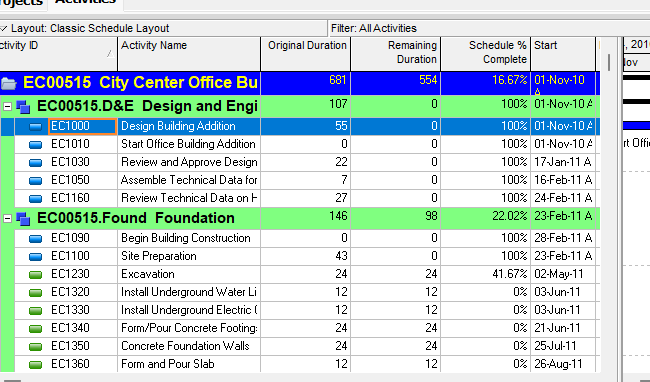
What a planner means
Add WBS is Edit > Add of a WBS element in Project > WBS. Oracle does not print a menu item named Add WBS. The how-to Oracle names is Add a WBS element. The new WBS is a child: "indented one level under the selected WBS element." It is a command. It is not stored data. It is not Add WBS from Template, not Copy WBS, not Edit a WBS element, not Cut WBS, not Delete WBS, not EPPM Add Sibling WBS / Add Child WBS, not the Move toolbar arrows, not Assign an OBS element to a WBS element, not Add Activity, not Dissolve, not Fill Down, not a WBS Summary activity, and not Primavera Cloud Add a WBS.
Oracle Add a WBS element (Professional):
- "Choose Project, WBS."
- "Select the WBS element to which you want to add a child WBS element, then click on the Edit toolbar or choose Edit, Add. The new WBS element is indented one level under the selected WBS element. You can change the position of the WBS element using the arrows on the Move toolbar."
- "Click the General tab, then type the element's code and name. Use the remaining fields on this tab as follows:"
- Status — "select the status for the selected WBS element." - Responsible Manager — "select the name of the selected WBS element's root OBS (organizational breakdown structure) element." - Anticipated Dates — "enter expected start and finish dates for the WBS element. These dates are used during the project planning stage and are not affected by scheduling. These dates are used to set Start and Finish dates for the WBS during the project planning stage when activities are not added to the WBS. When activities are added, WBS Start and Finish dates are rolled up from the earliest start and latest finish dates from the WBS activities."
- "To calculate the performance percent complete based on WBS weighted milestones, click the WBS Milestones tab."
Quote those names from the Add how-to. The Add how-to fetched prints code, name, Status, Responsible Manager, and Anticipated Dates. It does not print WBS Code / WBS Name / Anticipated Start / Anticipated Finish. Those four labels are on General tab - WBS Details. Quote both pages. Do not collapse "code and name" onto WBS Code / WBS Name. Do not collapse Anticipated Dates onto Anticipated Start / Anticipated Finish.
Oracle General tab - WBS Details (Professional):
- WBS Code — "The selected WBS element's code. You can type a new code."
- WBS Name — "The selected WBS element's name. You can type a new name."
- Status — "The selected WBS element's status. You can select a new status."
- Responsible Manager — "The selected WBS element's assigned, organizational breakdown structure (OBS) element. Click to select a new OBS element."
- Anticipated Start — "The user-defined date the project is expected to start; used during the project planning stage, and set at the WBS, EPS, or project level."
- Anticipated Finish — "The user-defined date the project is expected to finish; used during the project planning stage, and set at the WBS, EPS, or project level."
Do not invent other General-tab fields on Professional Add. The Details page fetched does not print Original Budget or WBS Category. Those names are on the EPPM WBS General Detail Window. Do not copy them onto this command. Anticipated Dates are PROJWBS planning dates; Calculate schedule does not move them; they are unused as Start/Finish once activities exist. See Anticipated Start/Finish Are WBS Planning Dates, Not Activity Dates.
The Add how-to fetched does not print Status tokens. Do not invent that it did. Oracle Determine a WBS element's status: "Choose from four status types for WBS elements: Planned, Active, Inactive, and What-If." Note on that page: "If a WBS element belongs to a parent WBS element, the element has the same status as its parent element." Quote that note from the status how-to. Do not invent that Add printed it. Oracle WBS status types: "P6 Professional recognizes four status types for WBS elements: Planned, Active, Inactive, and What-If." The What-If heading body prints "What -If" (space after What). Quote What-If (list) and What -If (that sentence). Do not collapse them. Do not invent default Status on Add.
WBS Milestones on this path are the WBS Milestones tab the Add how-to named. They are WBSSTEP, not TASK milestones. See WBS Milestones Are Weighted WBS Checkpoints, Not TASK Milestones. Do not invent milestone fields on Add.
Professional — Work Breakdown Structure window: "Use the Edit menu on the Menu bar, the Edit toolbar, or shortcut (right-click) menu to add, delete, cut, copy, and paste WBS elements." That is shortcut Add, not a printed item titled Add WBS. Edit Menu: Add "Adds a data item in the active window. For example, in the Activities window, choosing this command adds an activity." Enabled when the active window is "All." Corresponding toolbar: Edit Toolbar. This is the same Add as any other data object. Add WBS is that command when the selected object is a WBS element in the WBS window.
Edit Toolbar Add: "Adds a data item in the active window. For example, in the Activities window, clicking this icon adds an activity." Yes (displays by default). Enabled when "All except Tracking." Ins or Insert. Edit > Add. Do not collapse Edit Menu "All" and Edit Toolbar "All except Tracking" into one invented window list.
Hot keys: Alt-E, A = Add. Using Shortcut Keys lists Add with no Ctrl shortcut (empty cell). Quote the toolbar Ins or Insert, the empty Shortcut Keys cell, and Alt-E, A. Do not collapse them. Do not invent that Shortcut Keys printed Ins.
The Add how-to fetched does not print a default code or name. Do not invent one. Do not copy EPPM / Cloud auto-name sentences onto Professional Add.
Add WBS from Template is a different command. EPPM Activities-page Context / Row Actions → Add WBS from Template → Select WBS → Copy WBS Options. Professional how-tos fetched for Add a WBS element do not print that menu. See Add WBS from Template.
Copy WBS is a different command. Professional Project > WBS → Edit > Copy / Paste plus Copy WBS Options. That copies a WBS already in the open project. See Copy WBS.
Edit a WBS element is a different command. Oracle Edit a work breakdown structure element: "Choose Project, WBS." "Select the WBS element you want to edit. To change the element's position in the WBS, click the appropriate arrow buttons. Note that the maximum number of WBS levels is set in the Data Limits tab of the Admin Preferences dialog box when P6 Professional is connected to a P6 Professional database and is set in P6 Settings page when P6 Professional is connected to a P6 EPPM database." "Click the Display Options bar and choose Show on Bottom, WBS Details to view or modify information in the General and WBS Milestones tabs." Tip: "You can also directly edit some WBS information in the WBS table by double-clicking the information you want to change." That how-to does not print Edit, Add. The Add how-to fetched does not print maximum WBS levels, Display Options bar, or double-click. Do not invent that it did.
Move toolbar arrows are not this command. After Add, Oracle: "You can change the position of the WBS element using the arrows on the Move toolbar." Oracle Move Toolbar: "Use the Move toolbar to move the selected object around in hierarchy views." Functions Oracle printed: "Moves the selected object up one row in the hierarchy." "Moves the selected object down one row in the hierarchy." "Moves the selected object to the left in the hierarchy. Moving an object to the left moves it up to the next level in the hierarchy." "Moves the selected object to the right in the hierarchy. Moving an object to the right moves it down to the next level in the hierarchy." Tip: "The icons on this toolbar do not have corresponding shortcut keys or menu options." That is a later move, not Edit > Add. Do not invent Professional menu names Indent / Outdent.
Assign an OBS element to a WBS element is a different how-to. Oracle: Project, WBS → select → General tab → Responsible Manager → Select. That assigns OBS on an existing WBS. It is not Edit > Add.
Cut WBS / Delete WBS are different commands. See Cut WBS and Delete WBS.
Add Activity is a different command. Edit > Add in the Activities window adds a TASK. It is not Edit > Add of a PROJWBS node.
Dissolve is a different command. Edit > Dissolve removes an activity and joins its predecessors to its successors. See Dissolve Removes an Activity and Joins Its Predecessors to Its Successors.
Fill Down is a different command. Edit > Fill Down copies first-selected-row text down a column. See Fill Down Copies First-Selected-Row Text Down a Table Column.
WBS Summary is not this command. WBS Summary is a TASK activity type. It is not a PROJWBS node and not Edit > Add of a WBS. See P6 Activity Types (Six) — Not MSP Task Type and P6 WBS.
Professional vs EPPM
Professional — the how-to above. Add is always a child of the selected WBS (one indent). Sibling position is a later Move toolbar change. Do not invent a Professional menu named Add Sibling WBS / Add Child WBS / Add WBS.
EPPM web — Oracle Creating a WBS (G48897; Context wording):
- "On the Navigation Menu, expand Projects and click Activities."
- "On the Activities page:" "Select a WBS or project. The WBS can act as a sibling or a parent. The project will always act as a parent."
- "Click Context."
- "To add a sibling, select Add Sibling WBS." - "To add a child, select Add Child WBS." - "To add a WBS from a template, select Add WBS from Template."
- "Click Save."
Tip Oracle printed: "The WBS will automatically be assigned a name based upon the project or WBS you select. For example, if the project or WBS is named WBS: Business Project 1.5, the application will automatically name the new WBS: Business Project 1.6."
A later EPPM page (F88966) prints Row Actions then Add Sibling WBS / Add Child WBS / Add WBS from Template for the same steps (and Save). Oracle printed both Context and Row Actions. Do not collapse them. Do not invent that Professional prints those menu items. Do not copy the EPPM auto-name tip onto Professional Add (Professional says "type the element's code and name"). Do not copy Click Save onto Professional Add.
Creating a WBS from a Template is a different command on that same EPPM page. See Add WBS from Template.
Oracle Working with WBS Elements: if you have the Add/Edit/Delete WBS Except Costs/Financials project privilege, you can add, copy and paste, cut and paste, modify, or delete WBS elements. To add, copy and paste, cut and paste, edit, or delete WBS elements, the grouping Level 1 Field must be WBS. Add WBS elements: "Except for the top level element of the WBS hierarchy, which represents the project, you can add a WBS element at the same level as an existing element (sibling) or at a subordinate level (child). At the top level of the WBS, you can add only child elements." "In addition to creating a brand new WBS element, you can create one from a template, or by copying a current WBS element and modifying the content."
Oracle About Siblings and Children: "Siblings and children represent levels in a hierarchy. Elements at the same level are siblings, and are of equal importance. A subordinate element is a child."
Do not copy Professional Project > WBS / Edit > Add / Edit Toolbar / Ins / Alt-E, A / "indented one level" onto EPPM Context / Row Actions. Do not invent that Professional Add can create a sibling without a later Move.
EPPM WBS General Detail Window (Activities page) names WBS Code, WBS Name, Anticipated Start, Anticipated Finish, Responsible Manager, Project Status (not Status), Original Budget, and WBS Category. It also prints inherit-from-parent Project Status, and status values including Requested and Template. Quote that page for EPPM General. Do not copy Project Status / Original Budget / WBS Category / Requested / Template onto Professional Add. Professional Add names Status. EPPM names Project Status. Do not collapse them.
Oracle EPPM Configuring General WBS Information is the General detail window after a WBS exists ("Select an option or enter a value for each field." "Save your changes."). That is not Creating a WBS and not Professional Edit > Add.
Primavera Cloud — Add a WBS is a different product. Cloud names Add / Context Add Sibling WBS / Add Child WBS, auto-prefixed codes, Move Right / Move Left, and Add WBS from Project. Do not copy those onto P6 Professional or EPPM.
XER
None. Oracle’s project XER map TOC has no ADDWBS / ADD_WBS / ADDWBSELEMENT table. After the command you see another PROJWBS (parent_wbs_id = the selected node). Do not invent a command %T. Do not treat a new PROJWBS row as “the planner used Edit > Add.”
PROJWBS is the WBS node. Columns that match fields Oracle named on General (Oracle XER labels): wbs_short_name (WBS Code), wbs_name (WBS Name), status_code (Project Status), obs_id (Responsible Manager), anticip_start_date (Anticipated Start), anticip_end_date (Anticipated Finish), parent_wbs_id (Parent WBS). Oracle’s XER label for status_code is Project Status, not Status. Quote both. Do not collapse them. See P6 WBS and Anticipated Start/Finish Are WBS Planning Dates, Not Activity Dates.
A Viewer parse of one XER cannot reconstruct whether the planner used Edit > Add, Add Sibling / Add Child, Add WBS from Template, Copy WBS, typed a new WBS, or imported.
Microsoft Project
Desktop Project has no WBS table and no Edit > Add of a PROJWBS element. Microsoft Create and work with subtasks and summary tasks: "In Project, an indented task becomes a subtask of the task above it, which becomes a summary task." "To create a subtask or a summary task, indent a task below another one. In the Gantt Chart view, select the task you want to turn into a subtask, then select Task > Indent." Microsoft Basic tasks in Project: add a task by typing a name in an empty Task Name field; then Task > Indent Task to outline.
They are not the same command. P6 Add WBS is Edit > Add of a PROJWBS child plus General-tab fields Oracle named (code/name, Status, Responsible Manager, Anticipated Dates). Project adds a task and, if you indent it, the row above becomes a summary task. Microsoft did not print Status, Responsible Manager, or Anticipated Dates on a WBS node distinct from a summary task. Do not invent an analog named outline add. Do not map P6 Add WBS to MSP Insert Task / Indent as the same command. Do not claim MPXJ writes a real MPP.
Don't
- Treat Add WBS as Add WBS from Template, Copy WBS, Edit a WBS element, Cut WBS, Delete WBS, EPPM Add Sibling WBS / Add Child WBS, Move toolbar arrows, Assign OBS, Add Activity, Dissolve, Fill Down, a WBS Summary activity, or Cloud Add a WBS.
- Invent a Professional menu named Add WBS, Add Sibling WBS, or Add Child WBS. Oracle printed Edit > Add and, on EPPM, Add Sibling WBS / Add Child WBS.
- Invent General-tab fields the Add how-to did not print. That page names code, name, Status, Responsible Manager, Anticipated Dates.
- Collapse Add-how-to code / name / Anticipated Dates onto Details-tab WBS Code / WBS Name / Anticipated Start / Anticipated Finish.
- Invent that Add printed Status tokens. Planned, Active, Inactive, and What-If are on Determine a WBS element's status / WBS status types. Quote What-If and What -If. Do not collapse them.
- Invent that Add printed parent-status inheritance, a default Status, or a default code/name.
- Copy EPPM Project Status / Original Budget / WBS Category / Requested / Template / inherit-from-parent onto Professional Add.
- Copy EPPM auto-name / Click Save onto Professional, or copy Professional "type the element's code and name" / "indented one level" onto EPPM Add Sibling.
- Collapse EPPM Context and Row Actions into one invented control.
- Invent that Add printed maximum WBS levels, Display Options bar, or double-click. Those are on Edit a WBS element.
- Invent Professional Indent / Outdent menu names. Move toolbar has no corresponding shortcut keys or menu options.
- Collapse Edit Menu "All" and Edit Toolbar "All except Tracking" into one invented window list.
- Collapse toolbar Ins or Insert, the empty Shortcut Keys cell for Add, and hot key Alt-E, A.
- Invent an ADDWBS / ADD_WBS / ADDWBSELEMENT XER table, or treat a new PROJWBS row as “the planner used Edit > Add.”
- Collapse XER
status_codeProject Status onto the Add-how-to field Status. - Claim a Viewer reconstructed that the planner last used Add WBS from an XER.
- Map P6 Add WBS to MSP Insert Task / Indent / summary as the same command.
- Claim MPXJ writes a real MPP.
Sources
- Oracle Add a WBS element [27 Aug 2026]
- Oracle same how-to [27 Aug 2026]
- Oracle General tab - WBS Details [27 Aug 2026]
- Oracle Determine a WBS element's status [27 Aug 2026]
- Oracle WBS status types [27 Aug 2026]
- Oracle Edit a work breakdown structure element [27 Aug 2026]
- Oracle Work Breakdown Structure window [27 Aug 2026]
- Oracle Edit Menu [27 Aug 2026]
- Oracle Edit Toolbar [27 Aug 2026]
- Oracle Using Hot Keys [27 Aug 2026]
- Oracle Using Shortcut Keys [27 Aug 2026]
- Oracle Move Toolbar [27 Aug 2026]
- Oracle Assign an OBS element to a WBS element [27 Aug 2026]
- Oracle Creating a WBS [27 Aug 2026]
- Oracle Creating a WBS [27 Aug 2026]
- Oracle Creating a WBS [27 Aug 2026]
- Oracle Working with WBS Elements [27 Aug 2026]
- Oracle About Siblings and Children [27 Aug 2026]
- Oracle WBS General Detail Window of the Activities Page [27 Aug 2026]
- Oracle Configuring General WBS Information [27 Aug 2026]
- Oracle Creating a WBS from a Template [27 Aug 2026]
- Oracle Copy and paste a work breakdown structure element [27 Aug 2026]
- Oracle Primavera Cloud Add a WBS [27 Aug 2026]
- Oracle XER project map TOC [27 Aug 2026]
- Oracle PROJWBS [27 Aug 2026]
- Microsoft Create and work with subtasks and summary… [27 Aug 2026]
- Microsoft Basic tasks in Project [27 Aug 2026]
- Related [27 Aug 2026]