
In Primavera P6
Create Relationships in the Gantt Chart
Create relationships in the Gantt Chart is draw from bar edges; not Network create, Edit/Delete Gantt, Link, or Assign Predecessors

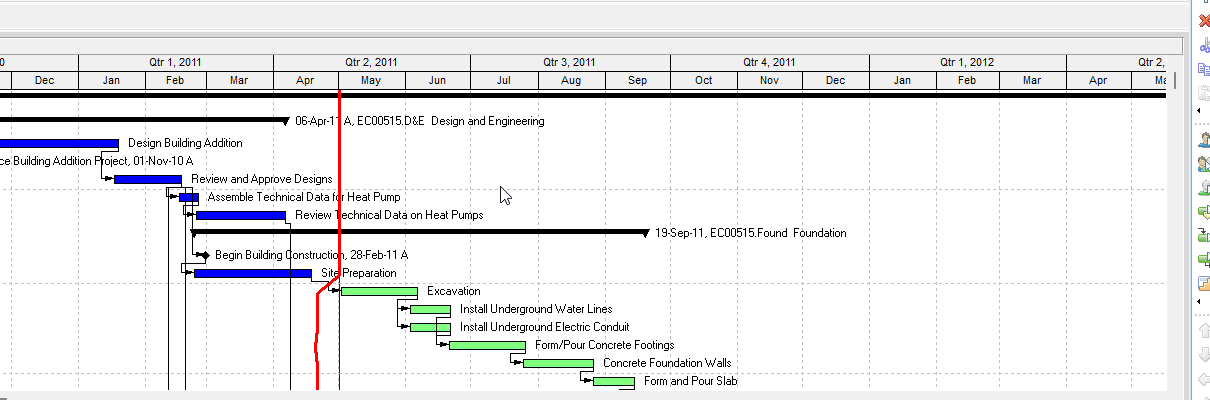
What a planner means
Create relationships in the Gantt Chart is Oracle Create relationships in the Gantt Chart. Draw from the edge of the predecessor activity bar (relationship pointer: "a vertical single-ended arrow") to the successor activity. It is a command. It is not stored as its own table. It is not Create relationships in the Activity Network, not Edit relationships in the Gantt Chart, not Delete relationships in the Gantt Chart, not View activity relationships in the Gantt Chart, not Link Activities, not Unlink Activities, not Assign Predecessors / Assign Successors, not Add predecessor relationships / Add successor relationships, not Show Relationships, not EPPM Creating Activity Relationships copied onto Professional, and not Primavera Cloud Gantt-bar circle drag.
Oracle does print a numbered how-to titled Create relationships in the Gantt Chart. Oracle does not print a menu item named Create relationships in the Gantt Chart. Do not invent Edit > Create relationships in the Gantt Chart.
Oracle Create relationships in the Gantt Chart (Professional):
- "Move the mouse pointer to the edge of the predecessor activity bar until it turns into a relationship pointer (a vertical single-ended arrow)."
- "Click and hold the mouse button while dragging to the successor activity. Release the mouse button."
Which edges (quote those sentences):
- "If you draw from the right edge of the predecessor to the left edge of the successor, you create a finish to start relationship."
- "If you draw from the right edge of the predecessor to the right edge of the successor, you create a finish to finish relationship."
- "If you draw from the left edge of the predecessor to the right edge of the successor, you create a start to finish relationship."
- "If you draw from the left edge of the predecessor to the left edge of the successor, you create a start to start relationship."
Tips on that page:
- "If no relationship lines are displayed for activity dependencies you have defined, change the Gantt Chart bar options to show relationship lines or click on the Top Layout toolbar."
- "A hint window is displayed while you are dragging the relationship line between two activities to tell you what kind of relationship will be created when you release the mouse button."
- "You can add comments about the relationship in the Relationships, Predecessors, or Successors tabs in Activity Details."
Quote those. Quote finish to start / finish to finish / start to finish / start to start as that page printed them. Do not invent that this how-to printed FS / FF / SF / SS codes, Finish-to-Start hyphens, or a stored pred_type. Do not invent that it printed a default type. Type comes from which edges you draw.
That how-to fetched prints no "Choose Project, Activities," no Display the Gantt Chart / Layout Options bar Show on Top, no Save, no lag, no Relationship Type picker, no Assign, no Select Project, no Yes, no OK, no circle, no Create Relationship hover, no privilege, and no Edit > Link Activities. Do not invent those on this how-to. Comments are on Activity Details tabs after the draw. Do not invent a Comments field on the drag.
Create relationships in the Activity Network is a different how-to. Same four edge sentences, but the pointer is on the predecessor activity box and you drag to the successor activity box. Tip: "A hint help window appears while you are dragging the relationship line between two activities to tell you what kind of relationship will be created when you release the mouse." Comments tip is the same Details-tabs sentence. That page fetched prints no Gantt Chart bar options / Top Layout toolbar show-relationship-lines tip. Quote activity box, hint help window, and when you release the mouse. Do not collapse them onto this how-to's activity bar, hint window, and when you release the mouse button.
Edit relationships in the Gantt Chart is a different how-to. Oracle: "Double-click the line representing the relationship you want to edit." "Select a different relationship type." "Specify a new number of lag days." "Click OK." That is one drawn line, not a new draw from bar edges. That page fetched prints no edge mappings, no hint window, and no comments. The Network counterpart is Edit relationships in the Activity Network ("Select a new relationship type").
Delete relationships in the Gantt Chart is a different how-to. Oracle: "Double-click the line representing the relationship you want to delete." "Click Delete." "Click Yes." That removes one line. It does not create. The Network counterpart is Delete relationships in the Activity Network.
View activity relationships in the Gantt Chart is a different how-to. Layout Options bar → Show on Top, Gantt Chart. "A line connecting two activity bars indicates an activity relationship. The point at which the line begins on the predecessor bar and the point at which the line ends on the successor bar indicates the type of activity relationship the line represents." Same four mappings worded as begins/ends on the right or left side. That page is view. It does not print the relationship pointer or "click and hold."
Show Relationships is a different command. Bar Chart Options General tab / Top Layout toolbar show-or-hide of relationship lines. Hiding lines is not this create. The create how-to's first tip points at that decoration. See Show Relationships.
Link Activities is a different command. Edit > Link Activities creates a finish-to-start in listed order when more than one activity is selected in the Activity Table or Activity Network. It does not draw from bar edges. See Link Activities.
Assign Predecessors / Assign Successors are different commands. Edit > Assign > Predecessors / Successors open the Assign dialogs. Oracle Add predecessor relationships / Add successor relationships are Details → Assign. Those how-tos print Relationship Type / Lag / Comments after assign. They do not print bar-edge draw. See Assign Predecessors and Assign Successors.
Adding relationships between activities is a different how-to. Oracle: "If you display relationship lines you can add relationships by drawing the relationship on the Gantt Chart from predecessor to successor. You can also add relationships using the Predecessors, Successors, and Relationships tabs in Activity Details, or using the Assign Toolbar." That page fetched does not print the four edge sentences, the relationship pointer, or Edit > Link Activities.
Oracle Activities window Working with activity relationships names Create relationships in the Gantt Chart and Create relationships in the Activity Network as separate tasks (with Edit / Delete / View Gantt and Network, Add / Change / Remove predecessor and successor, and View in Activity Details / Trace logic). Linking Activities with Relationships lists Create / Edit / Delete Gantt and Network as separate how-tos. Do not collapse those titles.
Add/Edit/Delete Activity Relationships privilege (Professional project profile): "Determines whether the profile will enable users to create, modify, and remove activity relationships assigned to projects." The Create relationships in the Gantt Chart how-to fetched does not print that privilege. Do not invent that it did.
Professional vs EPPM
Professional — the how-to above. Relationship pointer on the predecessor activity bar; four edge sentences; hint window; comments on Details tabs. Those pages fetched print no Save and no circle.
EPPM web — do not copy Professional vertical single-ended arrow / hint window / four "If you draw from the right edge…" sentences onto EPPM.
Oracle EPPM Creating Activity Relationships: "You can create activity relationships in the Gantt chart to show interdependencies between activities." "Drag the circle to the left or right end of a bar representing the activity you want to link." Note: "Where you drag the relationship on each bar determines the type of relationship." Navigation Menu → Projects → Activities; Gantt View; Gantt Settings and select to show relationships; "Hover either to the left or right of a bar"; Save. Tips fetched: "You can scroll through the Gantt chart while while dragging a relationship to find a related bar." "To delete a relationship, right-click the relationship line and select Delete Relationship." "If multiple projects are open, you can create external relationships." "You can also create new relationships and view or configure existing predecessor or successor relationships, from the Relationships detail window." That page fetched does not print the four Professional edge sentences, vertical single-ended arrow, hint window, or Activity Details Comments. Do not invent that it did. Do not invent that Professional printed circle, Gantt Settings, Save, Create Relationship, or Delete Relationship.
Oracle EPPM Gantt View Format (G48897): "Hovering directly to the left or right of an activity bar when relationship lines are visible in the Gantt will display: Create Relationship" — "Enables you to create a new relationship in the Gantt." Relationship Lines: "The point at which the relationship line touches each Gantt bar, whether the beginning or end, determines the type of relationship between the activities." Gantt Settings Relationships "Show or hide relationships between activities in the Gantt." That page fetched does not print the four Professional edge sentences. Do not invent that it did.
Oracle EPPM Assigning Predecessor Relationships tip: "Only Finish to Start relationships are created in the Assign Relationships panel. To create other types of relationships create the relationships in the Gantt View." That panel is not this command. See Assign Predecessors.
Oracle EPPM Activities Page Link Selected Activities is not Gantt-bar drag. See Link Activities.
Primavera Cloud — Modify Activity Details in the Gantt Chart: "To create a relationship, hover over the left edge or right edge of an activity bar. Select the circle that appears and drag it to an edge of a different activity bar. A popover shows the proposed relationship and its type." That is a different product. Do not copy Cloud circle / popover onto P6 Professional or EPPM.
XER
None. Oracle's project XER map TOC has no CREATEGANTT / CREATEREL / GANTTREL / CREATE_GANTT_RELATIONSHIP / CREATERELATIONSHIP table. After the command you see another TASKPRED. Do not invent a command %T. Do not treat a new TASKPRED row as "the planner used Create relationships in the Gantt Chart."
TASKPRED is the relationship. Columns that match names Oracle used elsewhere (Oracle XER labels): pred_type (Relationship Type), lag_hr_cnt (Lag), comments (Comments), task_id (Successor), pred_task_id (Predecessor). The Create relationships in the Gantt Chart how-to fetched does not print those column names, a lag value, or a stored pred_type code. It prints finish to start / finish to finish / start to finish / start to start from edges. Comments are a Details-tab tip, not a field on the draw. See TASKPRED (Activity Relationships) and FS / SS / FF / SF + Lag (Planner Language).
A Viewer parse of one XER cannot reconstruct whether the planner used Gantt-bar draw, Network-box draw, Edit > Link Activities, Assign Predecessors / Assign Successors, Activity Details Assign, import, or EPPM Creating Activity Relationships.
Microsoft Project
Desktop Project Predecessors (task field): "You can also link tasks by dragging from one task to the other on the chart portion of the Gantt Chart or Network Diagram. You can set other dependency types in the Task Information dialog box."
Microsoft Link tasks does not print Gantt-bar edge mappings. That page's drag how-tos are Network Diagram ("Point to the center of the predecessor task box." "Drag the line to the successor task box.") and Calendar ("Point to the predecessor task’s calendar bar." "Drag the line to the successor task's calendar bar."). Task > Link Tasks is Ctrl-select in the Task Name column, finish-to-start by default.
Microsoft Change a task link: "Double-click the link line between the two tasks." "Pick a dependency type from the Type list." That is edit, not create-by-edge.
Microsoft Link tasks troubleshooting: "If you create a task by dragging the pointer on the chart portion of a Gantt Chart view, a Start No Earlier Than (SNET) constraint is set on the task" (or FNLT if scheduled from the finish date). That creates a task, not a relationship.
Quote dragging from one task to the other on the chart portion, center of the predecessor task box, and Task > Link Tasks. Do not collapse them. Microsoft did not print right-edge-to-left-edge finish to start (or the other three Professional edge sentences). Do not invent that it did. They are not the same command as P6 Create relationships in the Gantt Chart. Do not map P6 Gantt-bar edge draw to MSP Gantt drag / Network Diagram center-box drag / Calendar-bar drag / Task > Link Tasks / Change a task link as the same command. Do not claim MPXJ writes a real MPP.
Don't
- Treat this as Create relationships in the Activity Network, Edit / Delete / View relationships in the Gantt Chart, Link Activities, Unlink Activities, Assign Predecessors / Assign Successors, Add predecessor / Add successor, Show Relationships, EPPM Creating Activity Relationships copied onto Professional, or Cloud Gantt circle drag.
- Collapse Network activity box / hint help window / when you release the mouse onto this how-to's activity bar / hint window / when you release the mouse button.
- Invent that this how-to printed FS / FF / SF / SS codes, a default type, lag, Save, Assign, Select Project, Yes, OK, a circle, Create Relationship, or Edit > Link Activities.
- Invent a menu item named Create relationships in the Gantt Chart, or invent that the how-to printed Choose Project, Activities / Show on Top, Gantt Chart.
- Invent that the create how-to printed Add/Edit/Delete Activity Relationships.
- Copy Professional vertical single-ended arrow / hint window / four "If you draw from the right edge…" sentences onto EPPM, or copy EPPM circle / Gantt Settings / Save / Create Relationship / Delete Relationship onto Professional.
- Invent that EPPM Creating Activity Relationships or Gantt View Format printed the four Professional edge sentences.
- Copy Cloud circle / popover onto Professional or EPPM.
- Invent a CREATEGANTT / CREATEREL / GANTTREL / CREATE_GANTT_RELATIONSHIP XER table, or treat a new TASKPRED row as "the planner used Create relationships in the Gantt Chart."
- Claim a Viewer reconstructed that the planner last used Gantt-bar draw from an XER.
- Map P6 Create relationships in the Gantt Chart to MSP Gantt drag / Network Diagram center-box drag / Calendar-bar drag / Task > Link Tasks / Change a task link as the same command.
- Invent that Microsoft printed the four Professional edge sentences.
- Claim MPXJ writes a real MPP.
Sources
- Oracle Create relationships in the Gantt Chart [27 Aug 2026]
- Oracle same how-to [27 Aug 2026]
- Oracle Create relationships in the Activity Network [27 Aug 2026]
- Oracle same Network how-to [27 Aug 2026]
- Oracle Edit relationships in the Gantt Chart [27 Aug 2026]
- Oracle Edit relationships in the Activity Network [27 Aug 2026]
- Oracle Delete relationships in the Gantt Chart [27 Aug 2026]
- Oracle View activity relationships in the Gantt Chart [27 Aug 2026]
- Oracle Adding relationships between activities [27 Aug 2026]
- Oracle same Adding relationships [27 Aug 2026]
- Oracle Activities window [27 Aug 2026]
- Oracle Linking Activities with Relationships [27 Aug 2026]
- Oracle Show or hide relationship lines in the Gantt… [27 Aug 2026]
- Oracle Top Layout toolbar [27 Aug 2026]
- Oracle Add predecessor relationships [27 Aug 2026]
- Oracle Add successor relationships [27 Aug 2026]
- Oracle Edit Menu [27 Aug 2026]
- Oracle Project Privilege Definitions [27 Aug 2026]
- Oracle Creating Activity Relationships [27 Aug 2026]
- Oracle same Creating Activity Relationships [27 Aug 2026]
- Oracle Gantt View Format of the Activities Page [27 Aug 2026]
- Oracle Assigning Predecessor Relationships [27 Aug 2026]
- Oracle Activities Page [27 Aug 2026]
- Oracle Primavera Cloud Modify Activity Details in the… [27 Aug 2026]
- Oracle XER project map TOC [27 Aug 2026]
- Oracle TASKPRED [27 Aug 2026]
- Microsoft Predecessors (task field) [27 Aug 2026]
- Microsoft Link tasks in a project [27 Aug 2026]
- Microsoft Change a task link [27 Aug 2026]
- Related [27 Aug 2026]