
In Primavera P6
Define Activity Table Columns
Define Activity Table columns is View, Columns; Available Columns and Selected Options; OK or Apply

What a planner means
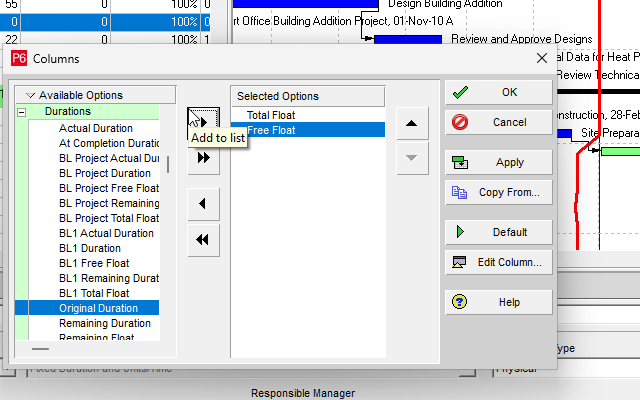
Define Activity Table columns is Oracle Define Activity Table columns. View, Columns; or Layout Options bar → Columns. It opens the Columns dialog. Add or remove fields between Available Columns and Selected Options, change order, Copy From another layout, then OK or Apply. Default restores the default column settings for this layout. It is a how-to. It is not stored as its own table. It does not create, edit, or delete a relationship. It is not The Activity Table view object, not Customize activity column titles, not Change activity information in the Activity Table, not Sort activity information in the Activity Table, not Change Activity Table font, color, and row height, not View activity relationships in the Activity Table, not Columns as a View Menu object copied onto this how-to, not Display the Gantt Chart, not Line Numbers, not Table Font and Row, not TASKPRED, not EPPM Configuring Activity View Columns / Configuring Activity Views copied onto Professional, and not Microsoft Insert Column / Hide Column.
Oracle does print a how-to titled Define Activity Table columns. Oracle does not print a menu item named Define Activity Table columns. The menu that how-to prints is View, Columns. Do not invent View > Define Activity Table columns.
Oracle Define Activity Table columns (Professional):
- "Choose View, Columns. You can also click the Layout Options bar and choose Columns."
- "To add a column to the Activity Table, select it in the Available Columns section, then click."
- "To add all available columns to the Activity Table, click."
- "To remove a column from the Activity Table, select it in the Selected Options section, then click."
- "To remove all current display columns from the Activity Table, click. You must select at least one column to display in the Activity Table."
- "To change the order in which columns display, in the Selected Options section, select a column you want to move: To move the column left, click. To move the column right, click."
- "To use a column display format from another activity layout, click Copy From, select a layout, then click Open."
- "To update columns in the Activity Table, click OK, or to view your changes without closing this dialog box, click Apply. To restore the default column settings for this layout, click Default."
That page fetched prints the move controls as click (icon buttons). Do not invent Add, Remove, or arrow button names.
Tip: "To locate a specific column in the Columns dialog box, to group and sort the available columns in the Columns dialog box, or to collapse or expand all the groupings in the dialog box, click the Available Columns Options bar."
The Activity Table is a different object. Table-format view. Show or hide is View > Show on Top > Table. See Display the Activity Table.
View activity relationships in the Activity Table is a different how-to. View, Columns; Predecessor Details / Successor Details. That how-to uses Columns to show relationship columns. This how-to is the general column list. See View Activity Relationships in the Activity Table.
Professional vs EPPM
Professional — View, Columns / Layout Options bar → Columns. Available Columns / Selected Options. Copy From; Open; OK or Apply; Default. No Save. No 30-column sentence on that page.
EPPM web — Oracle Configuring Activity View Columns: "Configure activity view columns to specify which columns are visible in the grid or table." Activities page; Customize View; Manage Views Columns tab; "Customize the Selected Columns list using values from the Available Columns list"; Save and Apply. Tip: "You can display a maximum of 30 columns." Also "Click the View menu and select Columns." That page fetched does not print Layout Options bar, Selected Options, Copy From, Open, Apply, or Default. Do not copy Professional View, Columns / Selected Options / Copy From onto EPPM. Do not copy EPPM Customize View / Save and Apply / 30-column limit onto Professional.
Primavera Cloud is a different product. Do not copy it here.
XER
The how-to is not an XER table. Oracle’s project XER map TOC has no COLUMNS / ACTCOLUMNS / TABLECOLUMNS / LAYOUT / DISPLAYCOLUMNS table. Do not invent a view %T. Changing which columns show does not write TASK. A Viewer cannot reconstruct that the planner used this how-to.
Microsoft Project
Microsoft Project has table column insert/hide on the Gantt table. Do not map that as P6 Define Activity Table columns. Do not claim MPXJ writes a real MPP.
Don't
- Invent View > Define Activity Table columns, or invent Add / Remove / arrow button names where Oracle printed click.
- Treat this as The Activity Table, Customize activity column titles, or View activity relationships in the Activity Table.
- Copy EPPM Customize View / Save and Apply / 30-column limit onto Professional, or Professional Selected Options / Copy From onto EPPM.
- Invent a COLUMNS XER table, or reconstruct the how-to from TASK rows.
- Map MSP Insert Column as P6 Define Activity Table columns.
- Claim MPXJ writes a real MPP.