
In Primavera P6
Line Numbers
Line Numbers is View > Line Numbers sequential visible-row numbers in a fixed first column (#); .plf not XER; not Columns, Table Font and Row, or Activity ID

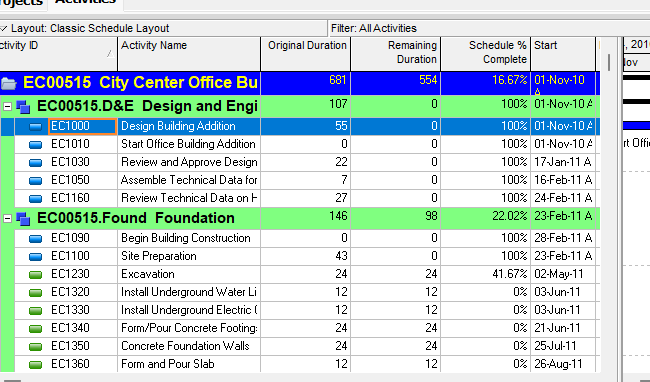
What a planner means
Line Numbers (Oracle: View > Line Numbers) is a view decoration that numbers each visible row in the Activities view. Oracle: "Add line numbers to number each row in the Activities view." "Line numbers appear to the far left of each row in a separate column." "Numbering is sequential, starting with number one." "Line numbers apply only to rows that are visible." It is not Columns (Columns — which fields appear, in what order, title/width/alignment), not Table Font and Row (Table Font and Row — text, color, and row height), not Group and Sort (Group and Sort), not Activity ID as data (TASK.task_code), and not Edit > Renumber Activity IDs. Turning Line Numbers on or off does not add, delete, or renumber activities.
Professional — Oracle names these commands (this is a toggle, not a dialog):
- View, Line Numbers
- Right-click in the grid → Line Numbers
- Layout toolbar icon
View menu Line Numbers: "Numbers each row in the Activities view." Enabled for Activities. Corresponding toolbar: Layout Toolbar.
Layout toolbar: "Numbers each row in the Activities view. This icon is enabled when you display an Activity table, Gantt Chart, or Activity Usage Spreadsheet in the active window." Displays by default. Enabled for Activities. Corresponding menu: View > Line Numbers.
Oracle Add line numbers:
- "This option is enabled only when the Activities view displays an Activity Table, Gantt Chart, or Activity Usage Spreadsheet."
- "Rows are automatically renumbered during data manipulation, such as when rows are added, deleted or when group data is expanded or collapsed."
- "Enabling or disabling the Line Numbers option enables or disables line numbers on all applicable grids in the Activities view. For example, if you have the Activity Table displayed on top and the Activity Usage Spreadsheet displayed on the bottom, enabling the option applies line numbering to both top and bottom grids, starting with #1 in each grid."
- "The heading for the Line Numbers column is a hash/number sign. It cannot be customized."
- "The Line Numbers column is always the first column, and it cannot be moved."
Activities window lists Add line numbers under General Layout Tasks (same list as Save a layout / Exporting and Importing Layouts). Oracle did not print a Line Numbers dialog, Font / Color / width, Edit Column, Layout Options bar → Line Numbers, that the heading is customizable, or that the column can be moved. Do not invent them.
Not these other commands
- Columns — Available/Selected field list; Edit Column title/width/alignment. Line Numbers is not a Columns pick. See Columns.
- Table Font and Row — table text, background color, and row height. See Table Font and Row.
- Activity ID — Oracle Activities: "Activity ID and name, which enables you to uniquely identify and describe the activity." XER:
TASK.task_codeis Activity ID. That is stored activity data. - Renumber Activity IDs — Edit > Renumber Activity IDs. Oracle: "This task renumbers activity IDs for the current project and, if applicable, renumbers the same activity IDs in baselines for this project." "You must have the Edit Activity ID project security privilege to renumber activity IDs." That rewrites Activity IDs. It is not this View option.
- Chart Font and Colors — View menu: "Enables you to customize fonts and colors in chart views. This command is disabled when you display a table or Gantt Chart in the active window." Enabled for Projects, Resources, Work Breakdown Structure. That is a chart command, not this column.
The Professional Line Numbers pages fetched do not print Manage Views, a Line Numbers tab, that group-title bands are numbered or skipped, a print rule, a font or width for the # column, or that enabling Line Numbers is a named .plf field. Do not invent them. Layouts travel as .plf. See Filters and Layouts Are a View, Not the Schedule.
EPPM web — Manage Views / Customize View tabs Oracle named: Columns, Filtering, Grouping, Sorting, Bars, Gantt, Activity Network, Access. Configuring Activity Views lists those tabs. It does not print Line Numbers.
Oracle Working with Tables names Sort Order Indicators, Column Resizing, Column Order, Grouping Levels, Selection Highlighting, Data Entry Features. That page does not print View > Line Numbers, a hash/number-sign heading, sequential visible-row numbers, or a fixed first column.
Those EPPM pages do not print View > Line Numbers, right-click → Line Numbers, the Layout toolbar icon, Activity Table / Gantt / Activity Usage Spreadsheet only, #1 per grid, hash/number-sign heading, or "always the first column." Do not copy those Professional menus onto EPPM.
XER
Line Numbers (View > Line Numbers / Layout toolbar; sequential visible-row column; hash/number-sign heading) is a view setting. Oracle's project XER data map TOC lists no LINENUMBERS, LINENUM, LINE_NUMBERS, LAYOUT, or VIEW table. Do not invent one. Layouts travel as .plf, not in a project XER. See Filters and Layouts Are a View, Not the Schedule.
Oracle did not name an XER column for Line Numbers on/off, the # heading, or per-grid starting at #1.
What a row can display is not this decoration:
- Activity ID:
TASK.task_code. See XER Tables That Matter for a Viewer or Converter. - Activity fields:
TASK. - Assignment fields:
TASKRSRC.
A Viewer parse of one XER cannot reconstruct whether the planner had Line Numbers on.
Microsoft Project
Desktop Project has an ID field and a Unique ID field. They are not the same object as P6 Line Numbers.
Microsoft ID fields: "The ID field contains the identifier number that Microsoft Office Project automatically assigns to each task or resource as you add them to the project. The ID indicates the position of a task with respect to the other tasks or a resource in relation to other resources." "As you create tasks, Project automatically assigns the next number in the sequence of tasks as listed. This becomes the task ID." "When you insert, move, or delete a task, Project automatically updates the ID numbers so that the ID numbers always reflect the current task order." "Use the ID field in a task view when you want to display or filter the task ID."
Microsoft Unique ID fields: "The Unique ID field contains the number that Microsoft Office Project automatically designates whenever a new task, resource, or assignment is created in the current project. This number indicates the sequence in which the task, resource, or assignment was created, regardless of placement in the schedule." "This number is unique in that it is never rearranged or reused if the task is moved or deleted." "If tasks are moved, inserted, or deleted, the task IDs change to reflect the new task sequence. However, the Unique ID always remains constant, regardless of any editing."
Do not map P6 Line Numbers (View toggle; visible rows only; auto-renumber on expand/collapse; hash/number-sign heading; Activity Table / Gantt / Activity Usage Spreadsheet only; not TASK.task_code) to MSP ID or Unique ID and call them the same command. MSP ID is a stored field you can display or filter; P6 Line Numbers is a View option. The pages fetched do not print Oracle's hash/number-sign heading, #1 per grid, or "apply only to rows that are visible" on the Microsoft ID or Unique ID fields. Do not claim MPXJ can write a real MPP.
Don't
- Treat Line Numbers as Columns, as Table Font and Row, as Group and Sort, as Activity ID (
TASK.task_code), or as Edit > Renumber Activity IDs. - Treat the
#column as an Edit Column / Columns pick, or invent a customizable heading or a movable position. - Treat Chart Font and Colors (disabled for table or Gantt) as this column.
- Invent a LINENUMBERS / LINENUM / LINE_NUMBERS / LAYOUT / VIEW XER table, or treat any TASK / TASKRSRC column as this decoration.
- Treat EPPM Customize View (Columns / Filtering / Grouping / Sorting / Bars / Gantt / Activity Network / Access) or Working with Tables (sort / drag-resize / drag-reorder) as the Professional View > Line Numbers command.
- Copy Professional View > Line Numbers / right-click → Line Numbers / Layout toolbar onto EPPM as if Oracle printed those menus there.
- Map this object to MSP ID or Unique ID and call them the same.
- Claim MPXJ writes a real MPP.
- Claim a Viewer reconstructed the planner's Line Numbers on/off from an XER.
Sources
- Oracle Add line numbers [27 Aug 2026]
- Oracle View Menu [27 Aug 2026]
- Oracle Layout toolbar [27 Aug 2026]
- Oracle Activities Window [27 Aug 2026]
- Oracle Activities [27 Aug 2026]
- Oracle Renumber activity IDs in the Activity Table [27 Aug 2026]
- Oracle Configuring Activity Views [27 Aug 2026]
- Oracle Working with Tables [27 Aug 2026]
- Oracle XER project map TOC [27 Aug 2026]
- Oracle XER data map — TASK [27 Aug 2026]
- Oracle Exporting and Importing Layouts [27 Aug 2026]
- Microsoft ID fields [27 Aug 2026]
- Microsoft Unique ID fields [27 Aug 2026]