
Views, Filters & Print
Columns
Columns is Layout Options bar / View > Columns Available/Selected list plus Edit Column title/width/alignment; .plf not XER; not Group and Sort or…
What a planner means
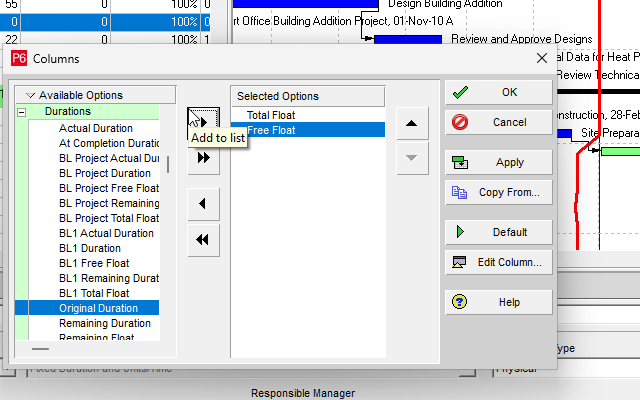
Columns (Oracle: the Columns dialog) is a layout setting that picks which fields appear in the current table, in what order, and (via Edit Column) under what title, width, and alignment. Oracle: "Use the Columns dialog box to specify which columns you want to display and their order." It is not Group and Sort (Group and Sort — grouping bands and within-group sort; clicking a column label to sort is a different command), not a filter (Filters and Layouts Are a View, Not the Schedule — a filter hides or highlights rows), not Gantt bars (Gantt Bars Are Layout Bar Definitions, Not an XER Table), not Timescale (Timescale — that dialog's Font & Color also formats "column headings"; it is not this list), not Table Font and Row (View > Table Font and Row — text, color, and row height), not Line Numbers (View > Line Numbers), not UDFs as data (UDFs Are Typed Extra Fields, Not Activity Codes — a UDF can appear as a column), not activity codes as data (Activity Codes Are a Pick-List, Not a UDF), and not the TASK / TASKRSRC values a column can display. Changing Columns does not add or delete activities.
Professional — Activities (and other table windows). Oracle names these menus:
- View, Columns (Define Activity Table columns; Customize activity column titles)
- Layout Options bar → Columns ("You can also click the Layout Options bar and choose Columns.")
- Layout toolbar: "Enables you to select a predefined column layout or to customize the columns that display in the active window. The available options vary for each window. To customize columns, click the icon, then choose Customize." "This icon is enabled when you display a table view in the active window." Corresponding menu: View > Columns. Enabled for All except Reports. "You can also click the Display or Layout options bar in the active window to access most of the functionality available from this toolbar."
- View menu Columns: "Opens the Columns dialog box. Use the Columns dialog box to customize the columns that display in the active window. The available options vary for each window." "This command is enabled when you display a table view in the active window."
Oracle names these Columns dialog fields:
- Search — "Type to search for a column by name."
- Available Options — "Lists columns that do not appear in the current display." Define Activity Table columns labels the same list Available Columns.
- Selected Options — "Lists columns that appear in the current display."
- Add (right) — "Includes the selected available column in the display."
- Add all — "Includes all available columns in the display."
- Remove (left) — "Removes the selected column from the display."
- Remove all — "Removes all columns from the display." Define page: "You must select at least one column to display in the Activity Table."
- Move Up — "Changes the selected column's position in the display to the left."
- Move Down — "Changes the selected column's position in the display to the right."
- Apply — "Applies your changes without closing this dialog box."
- Copy From — "(Activities window only) Copies column selections from a layout you select." Define page: "To use a column display format from another activity layout, click Copy From, select a layout, then click Open."
- Default — "Applies the default column layout to your current display." Define page: "To restore the default column settings for this layout, click Default."
- Edit Column — "Allows you to edit the selected column's title and choose its alignment in the display."
Available Columns Options bar — Define page tip: "To locate a specific column in the Columns dialog box, to group and sort the available columns in the Columns dialog box, or to collapse or expand all the groupings in the dialog box, click the Available Columns Options bar." That bar organizes the pick list. It is not View > Group and Sort.
The Columns dialog pages fetched do not print a list of every available field, alignment tokens (left / center / right), a numeric width range, drag-to-resize, a 30-column cap, Rename Column, or pin. Do not invent them.
Edit Column (Customize activity column titles) — Oracle: View, Columns or Layout Options bar → Columns. "In the Available Columns or Selected Options section, select the column whose title you want to change." "Click Edit Column." "In the Edit Column dialog box, type a new title, then click OK." "You can also specify a new width and alignment for the column." Apply "To view your changes without closing the Columns dialog box."
Notes Oracle printed:
- "The default column title appears in parentheses after the new title in the Columns dialog box; however, only your revised title appears in the actual layout."
- "To restore the default column title, click Default in the Edit Column dialog box."
The Edit Column pages fetched do not print Left / Center / Right, a width unit on the Activities dialog (Tracking Create a Project Table says "in number of characters"), or that width is pixels. Do not invent them.
Click a column label to sort — Oracle Sort activity information in the Activity Table: "To sort the display, click a column label." "An up arrow in the column title indicates that the Activity Table is sorted in ascending order (lowest to highest for a numerical column or A to Z for an alphabetical column). A down arrow in the column title indicates that the Activity Table is sorted in descending order." That is sort, not this dialog. See Group and Sort.
Financial Period Value group — Oracle Edit past period actual data: "The available financial period columns are listed in the Financial Period Value group of columns in the Columns dialog box." Activity Table fields Oracle named as (Period Name): Actual Expense Cost / Actual Labor Cost / Actual Labor Units / Actual Material Cost / Actual Nonlabor Cost / Actual Nonlabor Units / Earned Value Cost / Earned Value Labor Units / Planned Value Cost / Planned Value Labor Units. "The Columns dialog box lists all the fields listed above for the range of financial periods you select in the User Preferences, Application tab. You must define a range of financial periods to display; otherwise, financial period columns are not available." That is a display group in this dialog. It is not FINDATES itself and not Store Period. See Financial Periods Are Named Buckets, Not the Data Date and Store Period Performance Posts This Period, Then Zeros It.
Tracking — Oracle Define columns for a tracking layout: Top Layout Display Options bar → Top Layout Options, Columns; Bottom Layout right-click → Columns. Presets: Default ("the standard columns for the current layout type"); Cost; OBS; Customize ("Displays the Columns dialog box"). Customize uses Available Options / Selected Options / Default / Apply. "To change a column title, width, or heading alignment, click Edit Column. Type a new title and width, select an alignment option, then click OK." Create a Project Table: "Type a new title, specify a new width (in number of characters), and choose an alignment." Tip: "The Summary columns category contains several columns that you can include to identify layouts that display summarized data and identify when data were last summarized." Do not copy the Activities Copy From / Available Columns Options bar onto Tracking, or the Tracking Default / Cost / OBS presets onto Activities. See Tracking.
Resource Assignment Columns (Activity Details Resources tab) — Oracle: "Use the Resource Assignment Columns dialog box to specify which columns you want to display under the Resources tab of the Activity Details." Available Options / Selected Options / add / remove / move / Apply / Default. Edit Column: "Allows you to change the selected column's title and alignment in the display." Change Resources tab columns: right-click → Customize Resource Columns. That page does not print Copy From. Do not copy Activities Copy From onto this dialog.
The Professional Columns pages fetched do not print Manage Views, a Columns tab, View menu → Columns as an EPPM-style Customize View, a 30-column maximum, Rename Column / New Name, pin, or drag-to-resize. Do not invent those menus on this dialog.
EPPM web — Manage Views / Customize View: Columns tab. Oracle Configuring Activity Views lists that tab separately from Filtering, Grouping, Sorting, Bars, Gantt, Activity Network, Access.
Oracle Configuring Activity View Columns: Customize View → Columns tab. "Customize the Selected Columns list using values from the Available Columns list." "You can display a maximum of 30 columns." "You can customize activity view columns from the View menu. Click the View menu and select Columns."
Oracle Working with Activity Views: "On the Activities page, to quickly rearrange the columns currently displayed in a view, drag and drop them." Cost columns "dashed out" if the user cannot see costs.
Oracle Working with Tables: Column Resizing — "You can directly drag to resize column widths." Column Order — "You can directly drag and drop column headings to customize your tables." Sort Order Indicators — click a column header; "the sort order toggles from ascending order, to descending order, and, for some tables, it cycles back to unsorted order."
Oracle Selecting Items from a List of Available Items: Available Items → Selected Items; Move Item Right / Left / Up / Down. "You can add new columns where you need them by first selecting a column in the Selected Columns list. When you add columns to the list, they will be added directly below the column you selected." "You can also directly click and drag columns in tables to configure their order of appearance."
Oracle Renaming Columns: right-click a column heading → Rename Column. New Name or Default. "You can rename columns and save the customized names with views. The same column can have a different name in different views, but if you save a renamed column in the Assignments view of either the Projects or Resources sections, the customized name will show in both views." "When you click Download, your customized column names appear in the Excel file. When you export a view, your customized column names are saved with the exported view." "If a renamed column is removed from a view, the column name is returned to the default for that view." "When you rename a code or UDF column and save the view, your customized name remains with that column in the view even if the code or UDF name is changed in the Enterprise Data page."
Oracle Rename Column dialog (Activities, EPS, or Assignments): Default Column ("The default name for the column."); New Name ("The new name to assign to the column in this view."); Default button. "The application saves customized column names as part of the view. All users who have access to the view will see the customized column name." "The Select Columns, Group, Sort, Filter and Activity Network Options dialog boxes will also show the customized column name while you have that view open. Other views will show the default column name."
Oracle About Columns (Fields): "Pages with tables often permit you to configure the fields that make up the columns of the table. Some pages with grid views also allow you to pin columns to the start of the column list so they are always visible, even when you scroll." "The list of columns available for you to add to a view may depend on the circumstances. For example, some baseline fields (such as actual baseline cost fields, and many baseline date fields) can only be added to the view if you have assigned a baseline to the project (rather than using the current project as the baseline)." EPS / Activities / Assignments: Show Hint Help (Alt+F1) "to view a description of a column when you hover over the column heading."
Oracle Showing or Hiding Columns in a Table: when the list is short, Select Columns in the toolbar; or Customize View → Columns tab. "You might have to scroll to the right end of a table to see all the columns."
Oracle Configuring EPS View Columns: same Available Columns / Selected Columns pattern; "You can display a maximum of 30 columns." "The top-to-bottom order of fields in the Selected Columns list corresponds to the left-to-right display order of the columns on the EPS page."
Those EPPM pages do not print View > Columns / Layout Options bar → Columns, Copy From, Edit Column title/width/alignment, Available Columns Options bar, Available Options / Selected Options, Default (restore default column layout), or Tracking Default / Cost / OBS. Do not copy those Professional menus onto EPPM.
XER
Columns (Available/Selected Options, order, Copy From, Default, Edit Column title/width/alignment, Financial Period Value group) is a layout setting. Oracle's project XER data map TOC lists no COLUMNS, COLUMN, LAYOUT, or VIEW table. Do not invent one. Layouts travel as .plf, not in a project XER. See Filters and Layouts Are a View, Not the Schedule.
Oracle did not name an XER column for which fields are showing, their order, titles, widths, or alignment.
What a column can display is not this dialog:
- Activity fields:
TASK(Activity ID, Activity Name, dates, float, …). See XER Tables That Matter for a Viewer or Converter. - Assignment fields:
TASKRSRC. - Activity-code values:
ACTVTYPE/ACTVCODE/TASKACTV. - UDF values:
UDFTYPE/UDFVALUE. - Past-period actuals:
TASKFIN/TRSRCFIN. Named periods:FINDATES.
A Viewer parse of one XER cannot reconstruct the planner's Columns dialog.
Microsoft Project
Desktop Project has columns on a table. They are not the same object.
Microsoft Hide or unhide a column: "Project has a wide range of field-based columns you can add to your view." "Hiding a column doesn’t delete any data from your project; it only removes the column from your view until you need it again. Unlike Excel, Project doesn't have an Unhide command—to unhide a column, you just need to insert it again." Sheet view (example Gantt Chart): right-click the header → Hide Column. Reinsert: right-click the header to the right → Insert Column → pick the field. Add New Column: Undo, or View > Tables > More Tables → Edit → Table Definition → Show 'Add New Column' interface.
Microsoft Available fields: "If you want to add a field to a view, click the Format tab. In the Columns group, click Insert Column." A field "is part of a table, a form view, or the timephased area of a usage view."
Microsoft Overview of Project views: a view is a table + filter + group (and details). Custom tables live in the MPP (Organizer / Global.mpt). That is the opposite of P6: the schedule file often does carry the table.
Do not map P6 Columns (one dialog; Available/Selected Options; Copy From; Edit Column title/width/alignment; .plf) to MSP Hide Column / Insert Column / View > Tables / Table Definition and call them the same command. The pages fetched do not print Oracle's Available Options / Selected Options / Copy From / Edit Column on the Microsoft Hide or Insert Column commands. Do not claim MPXJ can write a real MPP.
Don't
- Treat Columns as Group and Sort, as a filter, as Gantt bars, as Timescale, as Table Font and Row, as Line Numbers, as UDF/activity-code data, or as the TASK values a column can display.
- Treat Available Columns Options bar (group/sort the pick list) as View > Group and Sort.
- Treat click-a-column-label sort as this dialog.
- Treat Financial Period Value columns as FINDATES or as Store Period.
- Treat print All Columns as this dialog. See P6 Schedule Print / PDF (Table + Gantt).
- Invent a COLUMNS / COLUMN / LAYOUT / VIEW XER table, or treat any TASK / TASKRSRC / UDFVALUE column as the column list.
- Treat EPPM Manage Views Columns (30-column max; Rename Column / New Name; pin; drag-resize / drag-reorder; View → Columns) as the Professional View > Columns / Layout Options bar dialog (Available Options / Selected Options, Copy From, Edit Column title/width/alignment, Available Columns Options bar, Default).
- Copy Professional View > Columns / Layout Options bar → Columns / Copy From / Edit Column onto EPPM as if Oracle printed those menus there.
- Copy EPPM 30-column max, Rename Column, pin, or drag-to-resize onto Professional as if Oracle printed them there.
- Copy Activities Copy From onto Tracking or Resource Assignment Columns, or Tracking Default / Cost / OBS presets onto Activities.
- Map this object to MSP Hide Column / Insert Column / View > Tables and call them the same.
- Claim MPXJ writes a real MPP.
- Claim a Viewer reconstructed the planner's Columns dialog from an XER.
Sources
- Oracle Columns dialog box [27 Aug 2026]
- Oracle Define Activity Table columns [27 Aug 2026]
- Oracle Customize activity column titles [27 Aug 2026]
- Oracle Layout toolbar [27 Aug 2026]
- Oracle View Menu [27 Aug 2026]
- Oracle Sort activity information in the Activity Table [27 Aug 2026]
- Oracle Edit past period actual data [27 Aug 2026]
- Oracle Define columns for a tracking layout [27 Aug 2026]
- Oracle Modify a column's title, width, and alignment [27 Aug 2026]
- Oracle Create a Project Table [27 Aug 2026]
- Oracle Resource Assignment Columns dialog box [27 Aug 2026]
- Oracle Change Resources tab columns [27 Aug 2026]
- Oracle Configuring Activity View Columns [27 Aug 2026]
- Oracle Configuring Activity Views [27 Aug 2026]
- Oracle Working with Activity Views [27 Aug 2026]
- Oracle Working with Tables [27 Aug 2026]
- Oracle Selecting Items from a List of Available Items [27 Aug 2026]
- Oracle Renaming Columns [27 Aug 2026]
- Oracle Rename Column Dialog Box of the Activities, EPS… [27 Aug 2026]
- Oracle About Columns (Fields) [27 Aug 2026]
- Oracle Showing or Hiding Columns in a Table [27 Aug 2026]
- Oracle Configuring EPS View Columns [27 Aug 2026]
- Oracle XER project map TOC [27 Aug 2026]
- Oracle Exporting and Importing Layouts [27 Aug 2026]
- Microsoft Hide or unhide a column in a Project view in… [27 Aug 2026]
- Microsoft Available fields reference [27 Aug 2026]
- Microsoft Overview of Project views [27 Aug 2026]