
Views, Filters & Print
Group and Sort
Group and Sort is Layout Options bar / View > Group and Sort grouping bands and within-group sort; .plf not XER; not a filter or Collapse To

What a planner means
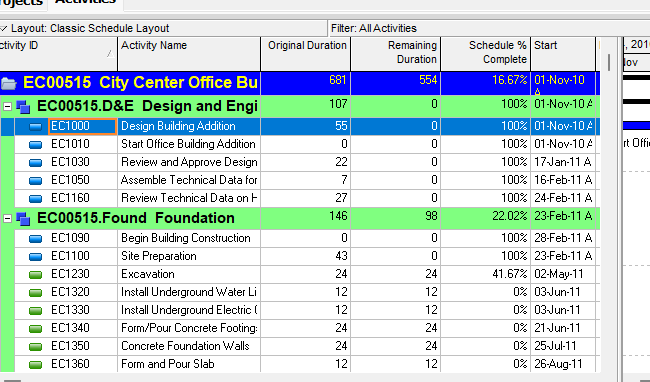
Group and Sort (Oracle: the Group and Sort dialog) is a layout setting that puts visible rows into grouping bands and then sorts the rows under each band. Oracle: "Use the Group and Sort dialog box to group and sort items in your current display." "When you use both grouping and sorting to organize your layout, the data are grouped first and then sorted." It is not a filter (Filters and Layouts Are a View, Not the Schedule — a filter hides or highlights rows), not Collapse To (P6 View > Collapse to (WBS Level) — that command picks a band already on the current layout), not the WBS tree as data (P6 WBS), not activity codes as data (Activity Codes Are a Pick-List, Not a UDF — grouping by a code is a view of TASKACTV), not Columns (View > Columns), and not Visualizer Group & Sort (Visualizer — a .vlf setting). Changing Group and Sort does not add or delete activities.
Professional — Activities (and other windows). Oracle names these menus:
- View, Group and Sort (Change group row fonts; Set Page Breaks from Activities)
- View, Group and Sort By (Group activities by field; Sort activities; Show Title; Show or hide empty title bands)
- View, Group and Sort By, Customize (Tracking custom; Resource Assignments; Projects / Resources / Resource Assignments page breaks)
- Layout Options bar → Group and Sort (Change group row fonts: "You can also click the Layout Options bar and choose Group and Sort.")
- Layout toolbar: "Enables you to select a predefined grouping and sorting option, or to specify your own grouping and sorting criteria. The available options vary for each window. To customize grouping and sorting, click the icon, then choose Customize." Corresponding menu: View > Group and Sort By. Enabled for All windows. "You can also click the Display or Layout options bar in the active window to access most of the functionality available from this toolbar."
Oracle names these Group and Sort dialog fields:
- Show Group Totals — "Mark to display totals in the grouping bands. Clear the checkbox to hide all totals in the grouping bands."
- Show Grand Totals — "Mark to show a grand total row at the top of the layout."
- Show Summaries Only — "Mark to show summarized grouping bands only; details under the grouping bands will be hidden. Clear to show grouping bands with details displayed below each group."
- Shrink vertical grouping bands — "Mark to decrease the space taken by indenting levels on the hierarchy. Use this feature to allow additional room for the display of data."
- Group By — "Lists grouping data items for the current display. To select or change a data item, double-click it."
- Indent — "Automatically marked if the item selected in the Group By column is hierarchical. Each level of the hierarchy is indented." Tracking custom: "If you select WBS, mark the Indent checkbox to list the WBS levels you select in the To Level column."
- To Level — "Indicates the number of levels to indent when grouping by a hierarchical code."
- Group Interval — "Indicates the group interval when grouping by fields. For example, group by Remaining Duration. Type 5d in the Group Interval field. The data items are grouped according to the length of their remaining durations — 0.0d to 5.0d, 5.0d to 10.0d, etc. For date fields, choose from Day, Week, Month, Quarter, Year."
- Page Break — "Mark to indicate that this group should cause a page break when printing this layout."
- Font & Color — "Lists each grouping's display color and font. To change a color or font, double-click it."
- Hide if empty — "Mark to hide group title bands that do not contain data items within the group. Mark if you are grouping by a hierarchical field, such as EPS or WBS, and the project has empty EPS or WBS bands. For example, mark this checkbox if you are grouping by WBS in the Activities window and the project has empty WBS bands. Hiding the empty bands ensures that the rolled up data is accurate."
- Sort bands alphabetically — "Mark to sort the grouping bands alphabetically rather than their order in their respective hierarchy. This checkbox is disabled for any grouping that is not hierarchical."
- Show Title — "Mark to display the field name on the grouping band."
- Show ID/Code — "Mark to display the ID or Code value on the grouping band."
- Show Name/Description — "Mark to display the Name or Description on the grouping band."
- Apply — "Applies your changes without closing this dialog box."
- Delete — "Deletes the selected row's grouping parameters."
- Sort — "Allows you to specify the sort order of the data items listed within each group."
- Default — "Applies the default grouping and sorting parameters (by WBS code)."
The dialog pages fetched do not print a list of every Group By field, a Group Interval token list beyond the Remaining Duration 5d example and the date list Day / Week / Month / Quarter / Year, or what "rolled up data is accurate" computes. Do not invent them.
Grouping levels — Oracle Group activities by field: "To group by additional items (up to 20 levels), repeat step 2." Tip: "To remove a field, select the field you want to remove, then click Delete."
Sort (Sort button) — Oracle Sort activities: Add; Field Name; Sort Order "ascending (A to Z or lowest to highest), descending (Z to A or highest to lowest), or hierarchical (this option only appears for fields that are hierarchical)." "If you use both grouping and sorting to organize your layout, the items are grouped first and then sorted." Apply "To preview your changes."
Oracle Sorting page:
| Data | Ascending Order | Descending Order | Hierarchical |
|---|---|---|---|
| Dates | Sorts chronologically, from earliest to latest dates. | Sorts chronologically, from latest to earliest dates. | Dates can not be sorted hierarchically. |
| Numbers | Sorts from largest negative number to largest positive number. | Sorts from largest positive number to largest negative number. | Numbers can not be sorted hierarchically. |
| Codes and Text | Sorts alphanumerically, from 0 to 9, and then A to Z. | Sorts alphanumerically, from Z to A, and then from 9 to 0. | Sorts codes in the order in which they occur in their respective hierarchy. |
Note: "The option to sort Hierarchical only appears for fields that are hierarchical (for example, WBS or Responsible Manager)."
WBS Path — Oracle: "You can organize multiple projects that use the same WBS structure by grouping their identical WBS levels. The WBS path lists activities grouped by WBS levels, without displaying the project level node. Group by WBS path in the Activities and WBS views. You can also filter or display the WBS Path as a column in your projects and reports." Procedure: Group By → WBS Path. That is a grouping pick, not the PROJWBS tree and not Collapse To.
Page Break vs Page Setup — Oracle Set Page Breaks by Group Band: Projects, Resources, Activities "(except for the Activity Network layout)", and Resource Assignments. "When you set page breaks by group band for a layout, the Break Page Every Group option on the Page Setup dialog box Options tab is disabled for that layout." "Page breaks are only visible in Print Preview and in published layouts." "Page break settings are saved with the layout." Setting-page-breaks page: hierarchy vs non-hierarchy vs mixed rules (last Group By page break is used for non-hierarchy; mixed last-band precedence with a higher-band override when the lower band does not fall under it). That is this checkbox, not print-layout Break Page Every Group. See P6 Schedule Print / PDF (Table + Gantt).
Collapse To — Oracle: "The selection available in the list is based on the grouping bands displayed in the current layout." Collapse To consumes this dialog's bands. It is a different command. See P6 View > Collapse to (WBS Level).
Activity Network — Oracle Group activities by field: "In the Activity Network, when you select a field grouping, the hierarchy on the left side of the window contains the WBS hierarchy so you can filter activities according to the hierarchy." See Activity Network.
Tracking — Standard: "Choose View, Group and Sort By, and the group and sort option you want to use." Oracle: "when viewing project-level information you can group and sort by project, EPS/ WBS, OBS, or WBS category." "The Group and Sort options list the name of the WBS category, for example, Phase." Custom: View, Group and Sort By, Customize (or Display Options bar → Top Layout Options, Group and Sort By, Customize). Do not copy the Activities field list onto Tracking. See Tracking.
Resource Assignments — Oracle: View, Group and Sort By, Customize, or Display Options bar → Group and Sort By. "Choose one of the predefined group and sort options, or, to customize grouping and sorting, choose Customize." The page fetched does not name those predefined options. Do not invent them.
The Professional Group and Sort pages fetched do not print Manage Views, a Grouping tab / Sorting tab, View menu → Group, a five-column sort limit, "to sort by a column it must be showing," or a summary bar from earliest Early Start to latest Early Finish. Do not invent those menus on this dialog.
EPPM web — Manage Views / Customize View: Grouping tab and Sorting tab. Oracle Configuring Activity Views lists those tabs separately from Columns, Filtering, Bars, Gantt, Activity Network, Access.
Oracle Grouping and Sorting Information: "In the Grouping tab, select a field you want to use to group other data." Hierarchical field: "select whether to show the hierarchy in the default order, or to apply ascending or descending sorting to elements within the same hierarchical level." "select either to show all levels, or a number of levels to show" (example: ten WBS levels, enter 2 "to restrict the list to the top two levels of WBS values"). Sorting tab: "select a field and sort order." "Ascending sorts from A to Z, from smaller numbers to larger numbers, or from earlier dates to most recent." "Descending sorts from Z to A, from larger numbers to smaller numbers, or from most recent to older dates." "You can click a column header in a table you customized to change the column used to sort the data rows under each band."
Oracle Configuring Activity View Grouping: Customize View → Grouping tab. "When activities are grouped, the Gantt chart on the Activities page displays a summary bar for each group. The summary bar represents the time period from the earliest Early Start to the latest Early Finish for the group." "Use the To Level list to select the number of hierarchy levels when grouping by a hierarchical field. When grouping by dates, use the To Level list to select a time interval." "The band color you select will display in the table and the Activity Network." "You can also access activity view grouping from the View menu. Click the View menu, then select Group." "Grouping bands are displayed by default when you group by a project code or EPS even if the bands are empty. Select the Hide if empty option in the Customize View or Customize Groupings dialog boxes to remove these bands from view." "Empty bands are hidden, even if the Hide if empty option is not selected, when the view is grouped by multiple data items and one of the data items is hierarchical."
Oracle Configuring Activity View Sorting: Sorting tab. "To sort by a column it must be showing in the view."
Oracle Working with Activity Views: group by Project then Primary Resource, then sort (example Start Date). "You can sort EPS, Activities, and Assignments views by up to five columns." "In the Gantt chart, when you group activities, a summary bar appears for each group." "In the table, when you group activities, each grouping level is identified and separated by a colored band or background. You can elect to show aggregates, for each group."
Oracle Working with Group and Sort Features: "Most groupings support up to 10 levels with some pages such as the Activities, EPS, and Resource Assignments pages supporting up to 20 levels of grouping by one or more fields." "Because projects can be in two different portfolios, the same project can appear in two different group bands when you are grouped by portfolio. If you edit one of these bands, the other bands will automatically be updated." Hierarchical fields: "a 3 in the level field" example; "You can also choose Ascending or Descending for hierarchical fields to sort sibling nodes of the hierarchy while maintaining the hierarchical structure. To sort the data within each group, configure the Sorting tab."
Those EPPM pages do not print View > Group and Sort / Group and Sort By, Layout Options bar → Group and Sort, Show Group Totals / Show Grand Totals / Show Summaries Only / Shrink vertical grouping bands, Indent, Group Interval, Page Break, Sort bands alphabetically, Show Title / Show ID/Code / Show Name/Description, Default (by WBS code), a Sort button with Hierarchical as a Sort Order token, or WBS Path. Do not copy those Professional menus onto EPPM.
XER
Group and Sort (Group By, Indent, To Level, Group Interval, Page Break, Font & Color, Hide if empty, Sort bands alphabetically, Show Title / ID/Code / Name/Description, Show Group/Grand Totals, Show Summaries Only, Shrink vertical grouping bands, Sort Field Name / Sort Order) is a layout setting. Oracle's project XER data map TOC lists no GROUPANDSORT, GROUPSORT, GROUPBY, LAYOUT, or VIEW table. Do not invent one. Layouts travel as .plf, not in a project XER. See Filters and Layouts Are a View, Not the Schedule.
Oracle did not name an XER column for Group By, sort fields, To Level, Group Interval, Page Break, Hide if empty, or the totals / summaries checkboxes.
What a grouping can display is not this dialog:
- WBS nodes:
PROJWBS.PROJWBS.seq_numis labeled Sort Order — the WBS node's order. Oracle did not say that is this dialog. - Activity-code values:
ACTVTYPE/ACTVCODE/TASKACTV.seq_numthere is the code's Sort Order, not this dialog. - OBS / Responsible Manager:
OBS. See OBS.
A Viewer parse of one XER cannot reconstruct the planner's Group and Sort.
Microsoft Project
Desktop Project has Group by and Sort. They are not the same object.
Microsoft Group tasks or resources: View tab, Data group, Group by box. One criterion from the list, or More Groups → Task or Resource → Edit / New. Group By / Then By rows: Field Name; Order Ascending or Descending; Font, Cell background, Pattern. "Add more levels of grouping by completing additional Then By rows." Save, Apply. No Group removes grouping. Assignments: Task Usage or Resource Usage; Group assignments, not tasks / Group assignments, not resources. Network Diagram: View > Group by.
Microsoft Sort: column-heading Sort A to Z; View > Sort > Sort By for multiple columns. Sort By box; Ascending; Keep outline structure "to make sure you can restore your project to its original form later." "Project alphabetizes summary tasks first and then alphabetizes the subtasks under each summary task." Sort dialog Reset then Sort. Undo: Ctrl+Z; add ID and sort numerically; Shift+F3 "reset order to ID order, or the original sort order." Date columns: Sort Earliest to Latest / Sort Latest to Earliest.
Do not map P6 Group and Sort (one dialog; group first then sort; Hierarchical sort for WBS / Responsible Manager; Default by WBS code; up to 20 Group By levels) to MSP View > Group by plus View > Sort > Sort By (Keep outline structure / No Group / Reset) and call them the same command. The pages fetched do not print Oracle's Show Group Totals / Indent / To Level / Group Interval / Page Break / Sort bands alphabetically / Show Title / ID/Code / Name/Description on the Microsoft Group or Sort dialogs. Microsoft's outline / summary-task structure is not P6 WBS grouping. Do not claim MPXJ can write a real MPP.
Don't
- Treat Group and Sort as a filter, as Collapse To, as the WBS tree, as activity-code data, as Columns, or as Visualizer Group & Sort.
- Treat Show Summaries Only or Hide if empty as deleting activities.
- Treat this Page Break checkbox as Page Setup Break Page Every Group.
- Treat
PROJWBS.seq_numor anyseq_numSort Order column as this dialog. - Invent a GROUPANDSORT / GROUPSORT / GROUPBY / LAYOUT / VIEW XER table.
- Treat EPPM Manage Views Grouping / Sorting (View → Group; five-column sort; column must be showing; summary bar Early Start–Early Finish; Customize Groupings) as the Professional View > Group and Sort / Layout Options bar dialog (Show Group Totals, Indent, Group Interval, Page Break, Sort bands alphabetically, Default by WBS code, Hierarchical Sort Order).
- Copy Professional View > Group and Sort By / Layout Options bar → Group and Sort onto EPPM as if Oracle printed those menus there.
- Copy EPPM five-column sort, "column must be showing," portfolio dual-band, or Customize Groupings onto Professional as if Oracle printed them there.
- Map this object to MSP View > Group by or View > Sort > Sort By and call them the same.
- Claim MPXJ writes a real MPP.
- Claim a Viewer reconstructed the planner's Group and Sort from an XER.
Sources
- Oracle Group and Sort dialog box [27 Aug 2026]
- Oracle Group activities by field [27 Aug 2026]
- Oracle Sort activities [27 Aug 2026]
- Oracle Sorting [27 Aug 2026]
- Oracle Grouping activities by WBS path [27 Aug 2026]
- Oracle Group activities by WBS path [27 Aug 2026]
- Oracle Change group row fonts and colors [27 Aug 2026]
- Oracle Show field titles in grouping bands [27 Aug 2026]
- Oracle Show or hide empty title bands [27 Aug 2026]
- Oracle Set Page Breaks by Group Band [27 Aug 2026]
- Oracle Setting Page Breaks by Group Band [27 Aug 2026]
- Oracle Layout toolbar [27 Aug 2026]
- Oracle Group and sort a tracking layout using custom… [27 Aug 2026]
- Oracle Group and sort a tracking layout using standard… [27 Aug 2026]
- Oracle Group and sort resource assignments [27 Aug 2026]
- Oracle Configuring Activity View Grouping [27 Aug 2026]
- Oracle Configuring Activity View Sorting [27 Aug 2026]
- Oracle Grouping and Sorting Information [27 Aug 2026]
- Oracle Working with Group and Sort Features [27 Aug 2026]
- Oracle About Grouping and Sorting [27 Aug 2026]
- Oracle Working with Activity Views [27 Aug 2026]
- Oracle Configuring Activity Views [27 Aug 2026]
- Oracle XER project map TOC [27 Aug 2026]
- Oracle Exporting and Importing Layouts [27 Aug 2026]
- Microsoft Group tasks or resources [27 Aug 2026]
- Microsoft Sort tasks, resources, or dates in Project… [27 Aug 2026]