
In Primavera P6
Move Around a Gantt Chart
Move around a Gantt Chart is drag the timescale; major unit pans, minor unit expands or contracts

What a planner means
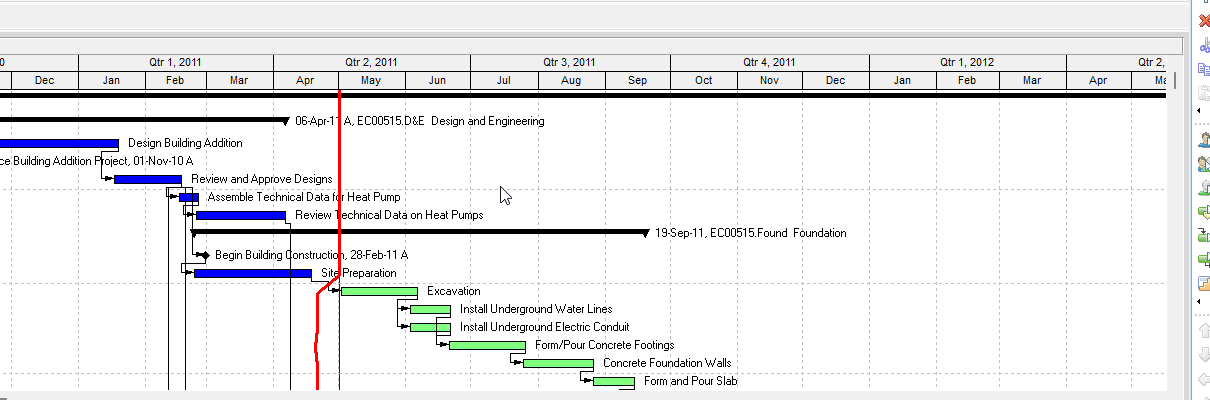
Move around a Gantt Chart is Oracle Move around a Gantt Chart. Drag the major time unit of the timescale (pointer becomes a hand) to change the timeperiod. Drag right to move backward in time. Drag left to move forward in time. Drag the minor time unit to expand or contract the visible area (right expands, left contracts). The horizontal scroll bar at the bottom also changes the timeperiod. It is a how-to. It is not stored as its own table. It does not create, edit, or delete a relationship. It is not Display the Gantt Chart, not The Gantt Chart view object, not the Timescale dialog, not Change a layout's timescale format, not Zoom In / Zoom Out / Zoom to Best Fit, not Change an activity's start and finish dates in the Gantt Chart, not Change an activity's duration in the Gantt Chart, not View activity relationships in the Gantt Chart, not Create / Edit / Delete relationships in the Gantt Chart, not Progress Line, not a curtain, not Sight Lines, not TASKPRED, not EPPM Configuring Gantt Charts / Working with the Activity Gantt Chart copied onto Professional, and not Microsoft Gantt scroll/zoom.
Oracle does print a how-to titled Move around a Gantt Chart. Oracle does not print a menu item named Move around a Gantt Chart. Do not invent View > Move around a Gantt Chart.
Oracle Move around a Gantt Chart (Professional):
- "To change the timeperiod for which the Gantt Chart displays activities, move the mouse pointer over the major time unit of the timescale until the mouse pointer turns into a hand. Click and hold the mouse button while dragging it. To move backward in time, drag the mouse pointer to the right. To move forward in time, drag the mouse pointer to the left."
- "To expand or contract the Gantt chart's visible area, move the mouse over the minor time unit of the timescale. Click the mouse button down and hold it. To expand the Gantt Chart, drag the mouse pointer to the right. To contract the Gantt Chart, drag the mouse pointer to the left."
Tip: "You can also use the horizontal scroll bar at the bottom of the Gantt Chart to change the timeperiod for which the layout is displaying information."
That how-to fetched prints no View, Timescale, no Zoom In, no Zoom Out, no Zoom to Best Fit, no double-headed arrow, no Save, no OK, no bar drag, no constraint, and no Click Gantt View. Do not invent those on this how-to.
Display the Gantt Chart is a different how-to. View, Show on Top or Show on Bottom, Gantt Chart. It opens the view. See Display the Gantt Chart.
Timescale is a different object. The Timescale dialog sets Calendar / Fiscal / Week of Year and Date Interval. Dragging the timescale is not opening that dialog. See Timescale.
Zoom to Best Fit is a different command. View > Zoom > Zoom to Best Fit. See Zoom to Best Fit.
Professional vs EPPM
Professional — Major time unit: hand; drag right backward, left forward. Minor time unit: expand / contract. Horizontal scroll bar. No Save on that page.
EPPM web — Oracle Configuring Gantt Charts: "To expand a specific area of the Gantt chart, hover over the timescale at the top of the Gantt chart (the pointer will become a double-headed arrow), move the pointer to select the portion of the timescale you want to expand, and click again." Also resize bars and drag a bar for a Start On or After constraint; Save. That page fetched does not print major time unit, hand, drag right to move backward, or minor time unit expand/contract. Do not copy Professional hand / major-minor drag onto EPPM. Do not copy EPPM double-headed arrow / bar resize / Save onto Professional.
Primavera Cloud is a different product. Do not copy it here.
XER
The how-to is not an XER table. Oracle’s project XER map TOC has no MOVEGANTT / PAN / TIMESCROLL / LAYOUTPAN table. Do not invent a view %T. Panning or expanding the timescale does not write TASK. A Viewer cannot reconstruct that the planner used this how-to.
Microsoft Project
Microsoft Project can scroll and zoom a Gantt. Do not map that as P6 Move around a Gantt Chart. Do not claim MPXJ writes a real MPP.
Don't
- Invent View > Move around a Gantt Chart, or invent Zoom In / double-headed arrow / Save on this how-to.
- Collapse this onto Display the Gantt Chart, the Timescale dialog, or Zoom to Best Fit.
- Copy EPPM double-headed arrow / bar resize / Save onto Professional, or Professional hand / major-minor drag onto EPPM.
- Invent a MOVEGANTT XER table, or reconstruct the how-to from TASK dates.
- Map MSP Gantt scroll as this how-to.
- Claim MPXJ writes a real MPP.