
In Primavera P6
Display the Gantt Chart
Display the Gantt Chart is View, Show on Top or Show on Bottom, Gantt Chart; it opens the view

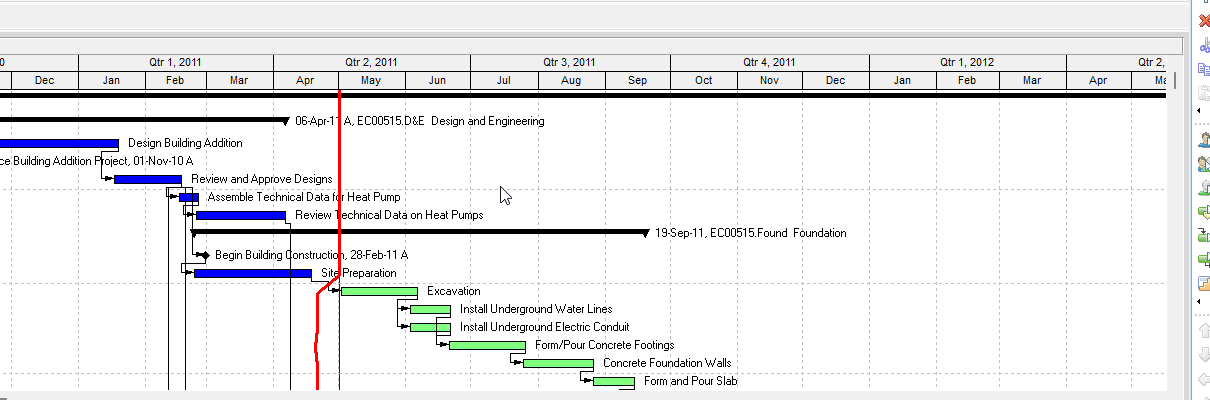
What a planner means
Display the Gantt Chart is Oracle Display the Gantt Chart. With the Activities, Projects, or Work Breakdown Structure windows active: View, Show on Top or Show on Bottom, Gantt Chart; or Layout Options bar → Show on Top or Show on Bottom, Gantt Chart; or the Top Layout toolbar. It opens the view. It is a how-to. It is not stored as its own table. It does not create, edit, or delete a relationship. It is not The Gantt Chart view object, not View activity relationships in the Gantt Chart, not Gantt bars, not Show Relationships, not Create / Edit / Delete relationships in the Gantt Chart, not Change an activity's start and finish dates in the Gantt Chart, not Change an activity's duration in the Gantt Chart, not Move around a Gantt Chart, not Timescale, not Progress Line, not a curtain, not a text attachment, not Sight Lines, not Show Legend, not the Data Date line, not Display the Activity Network, not Display Trace Logic, not the Activity Network view, not Trace Logic, not View activity relationships in the Activity Network / Activity Details / Activity Table / Trace logic, not Chart View, not Tracking, not Visualizer, not TASKPRED, not EPPM Working with the Activity Gantt Chart / Gantt View Format of the Activities Page / Configuring Activity View Gantt Chart / Configuring Gantt Charts copied onto Professional, and not Microsoft View > Gantt Chart.
Oracle does print a how-to titled Display the Gantt Chart. Oracle does not print a menu item named Display the Gantt Chart. The menu that how-to prints is View, Show on Top or Show on Bottom, Gantt Chart. Do not invent View > Display the Gantt Chart.
Oracle Display the Gantt Chart (Professional):
- "With the Activities, Projects, or Work Breakdown Structure windows active, do one of the following:"
- "Choose View, Show on Top or Show on Bottom, Gantt Chart."
- "Click the Layout Options bar and choose Show on Top or Show on Bottom, Gantt Chart."
- "Click on the Top Layout toolbar."
Tip: "In the Projects and Work Breakdown Structure windows, you can only display the Gantt Chart in the top layout."
Tip: "To hide the Activity Table and display only the Gantt Chart, drag the split bar that separates the Activity Table from the Gantt Chart all the way to the left."
Quote those. Quote Activities, Projects, or Work Breakdown Structure, View, Show on Top or Show on Bottom, Gantt Chart, Layout Options bar, Show on Top or Show on Bottom, Gantt Chart, Top Layout toolbar, Projects and Work Breakdown Structure windows, only display the Gantt Chart in the top layout, hide the Activity Table, display only the Gantt Chart, split bar that separates the Activity Table from the Gantt Chart, and all the way to the left. That how-to fetched prints no "Choose Project, Activities,", no "Layout bar", no "Shows or hides the Gantt chart in the top layout", no Bottom Layout toolbar, no "A line connecting activity bars indicates a relationship", no "A line connecting two activity bars indicates an activity relationship", no four begins-on / ends-on sentences, no finish to start / finish to finish / start to finish / start to start, no FS / FF / SF / SS codes, no activity bars as a type map, no View, Bars, no Bar Chart Options, no Show Relationships, no Timescale, no Progress Line, no curtain, no text attachment, no Sight Lines, no Show Legend, no Data Date line, no Change an activity's start and finish dates, no Change an activity's duration, no Move around, no draw, no Double-click, no Delete, no Yes, no OK, no lag days, no Relationship Type, no comments, no privilege, no Save, no Click Gantt View, no Navigation Menu, no Gantt Settings, no Create Relationship, no Non-driving relationships, no Chart View, and no menu item named Display the Gantt Chart. Do not invent those on this how-to.
The Gantt Chart view is a different object. Oracle The Gantt Chart: "Use the Gantt Chart to view a graphical display of the open project's schedule information or the order in which activities occur over the course of the project." "The Gantt Chart shows each activity's duration, using the timescale specified, as a horizontal bar." "A line connecting activity bars indicates a relationship." Use in combination with the Activity Table to view activities both graphically and in table format, establish relationships, and track progress (planned and actual start and finish; percentage complete). To use it more effectively: change columns; distinguish schedule dates with different formats and colors for the bars and endpoints; change the timescale; change background lines. This Display how-to fetched prints none of those object sentences. Opening the view is not the view object. Do not copy the object page onto this how-to. See Gantt Bars Are Layout Bar Definitions, Not an XER Table for the Bars dialog, not this open.
View activity relationships in the Gantt Chart is a different how-to. Layout Options bar → Show on Top, Gantt Chart. "The Gantt Chart displays a graphical view of all activity relationships for a specific activity filter." "A line connecting two activity bars indicates an activity relationship." Four begins-on / ends-on predecessor activity's bar / successor activity's bar sentences. Missing-lines sentence points at Gantt Chart bar options / Top Layout toolbar. That how-to assumes the Gantt is already up. This Display how-to only opens it. That view how-to fetched prints no "With the Activities, Projects, or Work Breakdown Structure windows active", no Show on Top or Show on Bottom, no hide-the-Activity-Table split-bar tip, and no Projects / WBS top-layout-only tip. This Display how-to fetched prints no "a line connecting two activity bars" and no four begins/ends sentences. Do not collapse them. See View Activity Relationships in the Gantt Chart.
Gantt bars are a different object. View > Bars / Layout Options bar → Bars. Display / Name / Timescale / Filter / Bar Style / Bar Settings / Bar Labels. That is which date ranges draw, not this open. This Display how-to fetched prints no View, Bars and no Timescale / Filter / necking. See Gantt Bars Are Layout Bar Definitions, Not an XER Table.
Show Relationships is a different command. Bar Chart Options General tab / Top Layout toolbar Gantt relationship-line show/hide. The Top Layout toolbar page lists that icon separately from Shows or hides the Gantt chart. See Show Relationships.
Create relationships in the Gantt Chart is a different how-to. Draw from the edge of the predecessor activity bar. That creates a line. This opens the view. See Create Relationships in the Gantt Chart.
Edit / Delete relationships in the Gantt Chart are different how-tos. Double-click the line. See Edit Relationships in the Gantt Chart and Delete Relationships in the Gantt Chart.
Change an activity's start and finish dates in the Gantt Chart / Change an activity's duration in the Gantt Chart / Move around a Gantt Chart are different how-tos. Those edit dates or navigate after the Gantt is up. This Display how-to fetched prints none of those titles.
Timescale, Progress Line, curtain, text attachment, Sight Lines, Show Legend, and the Data Date line are different objects. Layout Options bar → Timescale; Bar Chart Options Progress Line / Sight Lines / General / Data Date; View > Attachments → Curtain / Text. This Display how-to fetched prints none of those. See Timescale, Progress Line, Curtain Attachment, Text Attachment, Sight Lines Are Gantt Background Gridlines, Not an XER Table, Show Legend, and Data Date Line.
Display the Activity Network is a different how-to. "With the Activities window active, do one of the following:" View, Show on Top, Activity Network; Layout Options bar → Show on Top, Activity Network; Top Layout toolbar. Tip: "To hide the left pane and display only the Activity Network, drag the split bar separating the right and left panes all the way to the left." Quote Activities window only, Show on Top only, left pane, and right and left panes. This Display how-to prints Activities, Projects, or Work Breakdown Structure, Show on Top or Show on Bottom, Activity Table, and the Gantt split-bar sentence. Do not collapse left pane onto Activity Table. Do not invent that Display the Gantt Chart printed Activities window only or Show on Top only. See Display the Activity Network.
Display Trace Logic is a different how-to. "With the Activities window active, do one of the following:" Bottom Layout toolbar; View, Show on Bottom, Trace Logic; Layout Options bar → Show on Bottom, Trace Logic. Note: "The activity boxes in Trace Logic display the same information as the boxes defined for the current Activity Network layout." That is Show on Bottom, Trace Logic, Activities window only. This Display how-to fetched prints no Trace Logic, no Bottom Layout toolbar, and no boxes-equal-Activity-Network-layout note. Do not collapse them. See Display Trace Logic.
The Activity Network view is a different object. Show-on-Top WBS diagram of activities and relationships. Box positions save as .ANP. It is not this Gantt open. See Activity Network.
Trace Logic is a different view. Show on Bottom; "displays a graphical view of only the selected activity's relationships." It is not this Gantt open. See Trace Logic.
View activity relationships in Activity Details / the Activity Table / Trace logic / the Activity Network are different how-tos. Details tabs; Predecessor Details / Successor Details columns; Show on Bottom selected-activity boxes; hierarchy table and boxes. None of those open the Gantt. See View Activity Relationships in Activity Details, View Activity Relationships in the Activity Table, View Activity Relationships in Trace Logic, and View Activity Relationships in the Activity Network.
Chart View is a different command. Top Layout toolbar: "Shows or hides a chart view." Enabled when Projects, Resources, WBS. Corresponding menu: View > Show on Top > Chart View. That is not Gantt Chart. Gantt Chart on that toolbar is enabled when the active window is Activities, Projects, WBS.
Tracking / Visualizer are different objects. Enterprise > Tracking Project Gantt/Profile; Tools > Visualizer (.vlf). Neither is this Activities / Projects / WBS Display how-to. See Tracking and Visualizer.
Oracle Activities window Available activity layouts names The Gantt Chart. Working with the Gantt Chart names Display the Gantt Chart as a separate task from Add a bar, Change a bar, Create / Edit / Delete relationships in the Gantt Chart, Show or hide relationship lines, Show or hide the Gantt Chart legend, View activity relationships in the Gantt Chart, Change an activity's start and finish dates / duration, Move around, Timescale, Progress Line, curtain, and text attachment. Working with the Activity Network names Display the Activity Network as a separate task. Working with Trace Logic names Display Trace Logic as a separate task. Do not collapse those titles.
Oracle Viewing activity relationships lists five View how-tos. It does not list Display the Gantt Chart. Do not invent that it did.
Oracle Linking Activities with Relationships lists Create / Edit / Delete Gantt and Network. It does not list Display. Do not invent that it did.
Oracle View Menu Show on Top: "Enables you to choose the type of layout you want to display in the top portion of the active window. The available options correspond to the currently active window." Corresponding toolbar: Top Layout Toolbar. Show on Bottom: "Enables you to choose the type of layout you want to display in the bottom portion of the active window." Corresponding toolbar: Bottom Layout Toolbar. Those rows fetched print no menu item named Display the Gantt Chart. Do not invent one. This Display how-to prints View, Show on Top or Show on Bottom, Gantt Chart and Top Layout toolbar. It does not print Bottom Layout toolbar.
Oracle Top Layout toolbar: "Shows or hides the Gantt chart in the top layout." Enabled when active window is Activities, Projects, WBS. Corresponding menu: View > Show on Top > Gantt Chart. That toolbar page fetched prints no how-to titled Display the Gantt Chart, no Show on Bottom, no Projects / WBS top-layout-only tip, and no hide-the-Activity-Table split-bar tip. This Display how-to fetched prints no "Shows or hides the Gantt chart in the top layout." Do not copy the toolbar function sentence onto this how-to.
Add/Edit/Delete Activity Relationships privilege (Professional project profile): "Determines whether the profile will enable users to create, modify, and remove activity relationships assigned to projects." The Display the Gantt Chart how-to fetched does not print that privilege. Do not invent that it did.
The Professional Display the Gantt Chart page fetched does not print driving / non-driving, solid vs dashed, critical relationship color, a milestone diamond, status icons, or PERT. Do not invent them.
Professional vs EPPM
Professional — the how-to above. View, Show on Top or Show on Bottom, Gantt Chart / Layout Options bar / Top Layout toolbar. Activities, Projects, or Work Breakdown Structure. Projects and WBS: top layout only. Hide-the-Activity-Table split-bar tip. That page fetched prints no Save, no Click Gantt View, no Navigation Menu, no Gantt Settings, no Create Relationship, and no Non-driving relationships.
EPPM web — do not copy Professional View, Show on Top or Show on Bottom, Gantt Chart / Layout Options bar / Top Layout toolbar / hide-the-Activity-Table tip / Projects and WBS top-layout-only tip onto EPPM.
Oracle EPPM Working with the Activity Gantt Chart: "Use the Activity Gantt chart to view the progression and relationships of activities or projects on a timeline." Resize or move current bars; remaining duration recalculated on Save from the activity or project calendar; Start On or After constraint if you drag a bar or milestone; vertical blue data-date line; vertical sightlines; non-work shading from the global default calendar; Progress Spotlight. That page fetched does not print View, Show on Top or Show on Bottom, Gantt Chart, Layout Options bar, Top Layout toolbar, the Projects / WBS top-layout-only tip, or the hide-the-Activity-Table split-bar tip. Do not invent that it did. Do not copy Working with the Activity Gantt Chart onto this Professional Display how-to.
Oracle EPPM Gantt View Format of the Activities Page: "Use the Gantt View to view the dates, progress, and relationships of activities in a project." Getting Here: Navigation Menu → Projects → Activities; Click Gantt View. Relationship Lines; Create Relationship hover; Gantt Settings (Data Date / Relationships / Sight Lines / Progress Spotlight / Timescale); Zoom to fit. That page fetched does not print View, Show on Top or Show on Bottom, Layout Options bar, Top Layout toolbar, the Projects / WBS top-layout-only tip, or the hide-the-Activity-Table split-bar tip. Do not invent that it did. Do not invent that Professional printed Click Gantt View, Getting Here, Gantt Settings, or Create Relationship.
Oracle EPPM Configuring Activity View Gantt Chart: Customize View → Gantt tab; Data date line; Relationship lines; Non-driving relationships; Sight Lines; Non-work time shading; Timescale. Tip: "The Gantt chart only prints if it is displayed." That page fetched does not print View, Show on Top or Show on Bottom, Layout Options bar, Top Layout toolbar, or the hide-the-Activity-Table tip. Do not invent that it did. EPPM Non-driving relationships is an EPPM Gantt option. Do not copy it onto Professional.
Oracle EPPM Configuring Gantt Charts: resize bars; expand the timescale; apply a Start On or After constraint by dragging. That page fetched does not print this Professional Display how-to. Do not invent that it did.
Primavera Cloud is a different product. Do not copy Cloud Gantt view onto P6 Professional or EPPM.
XER
None. Oracle's project XER map TOC has no DISPLAYGANTT / DISPLAY_GANTT_CHART / GANTT / GANTTCHART / LAYOUT / DISPLAY_GANTT table. This how-to does not write TASKPRED. Do not invent a view %T. Do not treat a TASKPRED row as "the planner used Display the Gantt Chart."
TASKPRED is the relationship. The Display the Gantt Chart how-to fetched does not print those column names. Opening the view does not create a relationship. See TASKPRED (Activity Relationships).
Layouts travel as .plf, not in a project XER. See Filters and Layouts Are a View, Not the Schedule.
A Viewer parse of one XER cannot reconstruct whether the planner used this Display how-to, had Show on Top or Show on Bottom set to Gantt Chart, used View activity relationships in the Gantt Chart, Display the Activity Network, Display Trace Logic, or EPPM Click Gantt View.
Microsoft Project
Desktop Project has a Gantt Chart view. Microsoft: "The Gantt Chart view is the most commonly used view in Project." "It lists the tasks in your project, and illustrates their relationship to one another and the schedule using Gantt bars." "The Gantt Chart view is the default view for new projects." "To access the Gantt Chart view, on the View menu, click Gantt Chart." "If you have linked tasks together, the Gantt bars are connected on the chart with link lines." Basic tasks: View > Gantt Chart. Overview: "Gantt Chart views consist of a table and a bar chart."
Quote View > Gantt Chart, Gantt Chart view, Gantt bars, link lines, and default view for new projects. P6 printed View, Show on Top or Show on Bottom, Gantt Chart, Layout Options bar, Top Layout toolbar, Activities, Projects, or Work Breakdown Structure, only display the Gantt Chart in the top layout (Projects / WBS), and hide the Activity Table. Do not collapse them. Microsoft pages fetched print no View, Show on Top or Show on Bottom, Gantt Chart, no Layout Options bar, no Top Layout toolbar, no "In the Projects and Work Breakdown Structure windows, you can only display the Gantt Chart in the top layout," and no "To hide the Activity Table and display only the Gantt Chart." Do not invent that they did. They are not the same command as P6 Display the Gantt Chart. Do not map P6 Display the Gantt Chart to MSP View > Gantt Chart as the same how-to. Do not claim MPXJ writes a real MPP.
Don't
- Treat this as The Gantt Chart view object, View activity relationships in the Gantt Chart, Gantt bars, Show Relationships, Create / Edit / Delete Gantt, Change start and finish / duration, Move around, Timescale, Progress Line, curtain, text attachment, Sight Lines, Show Legend, Data Date line, Display the Activity Network, Display Trace Logic, the Activity Network view, Trace Logic, View Network / Details / Table / Trace, Chart View, Tracking, Visualizer, TASKPRED, EPPM Working with / Gantt View Format / Configuring Activity View Gantt Chart / Configuring Gantt Charts copied onto Professional, or MSP View > Gantt Chart.
- Collapse this how-to's Layout Options bar / Choose View, Show on Top or Show on Bottom, Gantt Chart onto the object page's graphical-display / horizontal-bar / line-connecting-activity-bars sentences.
- Collapse Display Network left pane / Show on Top / Activities window onto this how-to's Activity Table / Show on Top or Show on Bottom / Activities, Projects, or Work Breakdown Structure.
- Collapse Display Trace Logic Show on Bottom, Trace Logic / boxes-equal-Activity-Network-layout note onto this Gantt open.
- Collapse View Gantt a line connecting two activity bars / four begins/ends sentences onto this open.
- Invent that this how-to printed a line connecting activity bars, four type sentences, FS / FF / SF / SS codes, View, Bars, Bar Chart Options, Show Relationships, Timescale, Progress Line, curtain, draw, Double-click, Click Gantt View, Gantt Settings, Create Relationship, Non-driving relationships, Bottom Layout toolbar, or a menu item named Display the Gantt Chart.
- Invent that Viewing activity relationships or Linking Activities with Relationships listed this Display how-to.
- Invent that the Display how-to printed Add/Edit/Delete Activity Relationships, or that it printed the Top Layout toolbar "Shows or hides the Gantt chart in the top layout" sentence.
- Copy Professional View, Show on Top or Show on Bottom / Layout Options bar / hide-the-Activity-Table tip / Projects and WBS top-layout-only onto EPPM, or copy EPPM Click Gantt View / Getting Here / Gantt Settings / Create Relationship / Non-driving relationships / vertical blue data-date line / Start On or After drag onto Professional.
- Invent a DISPLAYGANTT / DISPLAY_GANTT_CHART / GANTT / GANTTCHART / LAYOUT XER table, or treat a TASKPRED row as "the planner used Display the Gantt Chart."
- Claim a Viewer reconstructed that the planner last used this Display how-to or had Show on Top or Show on Bottom set to Gantt Chart from an XER.
- Map P6 Display the Gantt Chart to MSP View > Gantt Chart as the same how-to.
- Invent that Microsoft printed View, Show on Top or Show on Bottom, Gantt Chart or the hide-the-Activity-Table tip.
- Claim MPXJ writes a real MPP.
Sources
- Oracle Display the Gantt Chart [27 Aug 2026]
- Oracle same how-to [27 Aug 2026]
- Oracle The Gantt Chart [27 Aug 2026]
- Oracle View activity relationships in the Gantt Chart [27 Aug 2026]
- Oracle Show or hide relationship lines in the Gantt… [27 Aug 2026]
- Oracle Create relationships in the Gantt Chart [27 Aug 2026]
- Oracle Edit relationships in the Gantt Chart [27 Aug 2026]
- Oracle Delete relationships in the Gantt Chart [27 Aug 2026]
- Oracle Display the Activity Network [27 Aug 2026]
- Oracle Display Trace Logic [27 Aug 2026]
- Oracle Top Layout toolbar [27 Aug 2026]
- Oracle View Menu [27 Aug 2026]
- Oracle Activities window [27 Aug 2026]
- Oracle Viewing activity relationships [27 Aug 2026]
- Oracle Linking Activities with Relationships [27 Aug 2026]
- Oracle Project Privilege Definitions [27 Aug 2026]
- Oracle Working with the Activity Gantt Chart [27 Aug 2026]
- Oracle Gantt View Format of the Activities Page [27 Aug 2026]
- Oracle Configuring Activity View Gantt Chart [27 Aug 2026]
- Oracle Configuring Gantt Charts [27 Aug 2026]
- Oracle XER project map TOC [27 Aug 2026]
- Oracle XER TASKPRED [27 Aug 2026]
- Oracle Exporting and Importing Layouts [27 Aug 2026]
- Microsoft Work with the Gantt Chart view [27 Aug 2026]
- Microsoft Overview of Project views [27 Aug 2026]
- Microsoft Basic tasks in Project [27 Aug 2026]
- Related [27 Aug 2026]