
In Primavera P6
Save a Tracking Layout
Save a tracking layout is View, Layout, Save or Save As

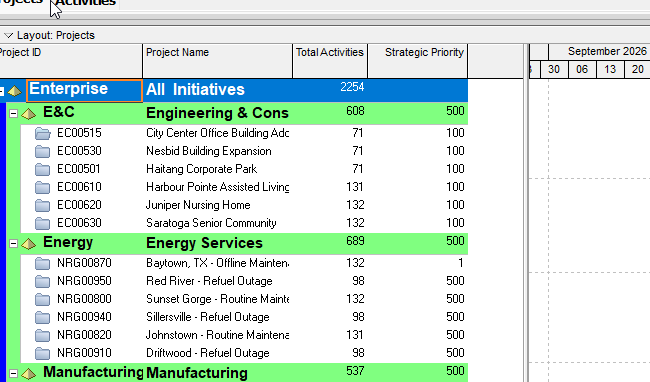
What a planner means
Save a tracking layout is Oracle Save a tracking layout. View, Layout, Save or Save As. Or Display Options bar in the Layout window, then Layout, Save or Save As. Save As: type a new name and indicate All Users, the Current User, or Another User. Another User: click in the User field, then select the user. It is a how-to. It is not stored as its own table. It does not create, edit, or delete a relationship. It is not the Tracking object note, not Open a tracking layout, not Share a layout with other users, not Export a tracking layout, not Types of tracking layouts, not Activities Show on Bottom, not EPPM copied onto Professional, and not Microsoft Project Save.
Oracle does print a how-to titled Save a tracking layout. Oracle does not print a menu item named Save a tracking layout. The path that how-to prints is View, Layout, Save or Save As (or Display Options bar in the Layout window, Layout, Save or Save As). Do not invent View > Save a tracking layout.
Oracle Save a tracking layout (Professional):
- "Choose View, Layout, Save or Save As."
- "You can also click the Display Options bar in the Layout window and choose Layout, Save or Save As."
- "If you choose Save As, type a new name for the layout and indicate whether the layout should be available to All Users, the Current User, or Another User."
- "If you select Another User, click in the User field, then select the user."
That how-to fetched prints no OK, Apply, Cancel, Save, or Yes. It prints no Save As dialog title, no file extension, and no Enterprise, Tracking. Do not invent those on this how-to. The object note already quotes Display Options bar in the Top Layout window, Layout, Save or Save As from the Tracking window page. This how-to prints Layout window, not Top Layout window. Quote both. Do not invent Top Layout on this how-to. See Tracking.
The live client_help page concatenates the first two sentences as Save As.You (no space after the period). Quote the sentences as printed above.
Save As on this page prints All Users, the Current User, and Another User. The Share how-to does not print Current User. The object note quotes Current User / All Users from Create a tracking layout. Quote each page. Do not invent Current User on Share, and do not invent that Save (not Save As) asks All Users / Current User / Another User.
The Tracking window is a different object note. Leave Tracking as the object.
Open a tracking layout is a different how-to. View, Layout, Open. Do not collapse Save onto Open. See Open a Tracking Layout.
Share a layout with other users is a different how-to. All Users on first create (Tracking only); save existing as All Users or Another User; export then Email; or publish. Do not collapse Save onto that catalog. See Share a Layout With Other Users.
Export a tracking layout is a different how-to. Layouts travel as .plf. This Save page does not print .PLF. Do not invent a file export on Save.
Professional vs EPPM
Professional — View, Layout, Save or Save As; or Display Options bar in the Layout window, Layout, Save or Save As; Save As names All Users, the Current User, or Another User; Another User uses the User field.
EPPM web — the Professional how-to page is the source for this note. Do not invent an EPPM Save a tracking layout dialog. Do not copy Professional View, Layout, Save onto EPPM.
Primavera Cloud is a different product. Do not copy it here.
XER
The how-to is not an XER table. Oracle’s project XER map TOC has no TRACKING / TRACK / LAYOUT table. Do not invent a view %T. Saving a tracking layout does not write TASK. Layouts travel as .plf. PROJISSU.track_view_id and PROJTHRS.track_view_id are labeled Tracking Layout — a pointer on the issue/threshold, not the layout definition. A Viewer cannot reconstruct that the planner used this how-to.
Microsoft Project
Microsoft Project can save a view. Do not map that as P6 Save a tracking layout. Do not claim MPXJ writes a real MPP.
Don't
- Invent View > Save a tracking layout, OK, Apply, Cancel, Yes, a Save As dialog title, a file extension, Enterprise, Tracking, or Top Layout window on this how-to.
- Invent that Save (not Save As) asks All Users / Current User / Another User.
- Collapse this onto the Tracking object, Open a tracking layout, Share a layout with other users, Export a tracking layout, or Types of tracking layouts.
- Copy Professional View, Layout, Save onto EPPM.
- Invent a TRACKING / LAYOUT XER table, or reconstruct the how-to from TASK or track_view_id.
- Map MSP Save as this how-to.
- Claim MPXJ writes a real MPP.