
In Primavera P6
Add a Curtain Attachment in a Gantt Chart
Add a curtain attachment in a Gantt Chart is Layout Options bar; Attachments, Curtain, Add Curtain; OK

What a planner means
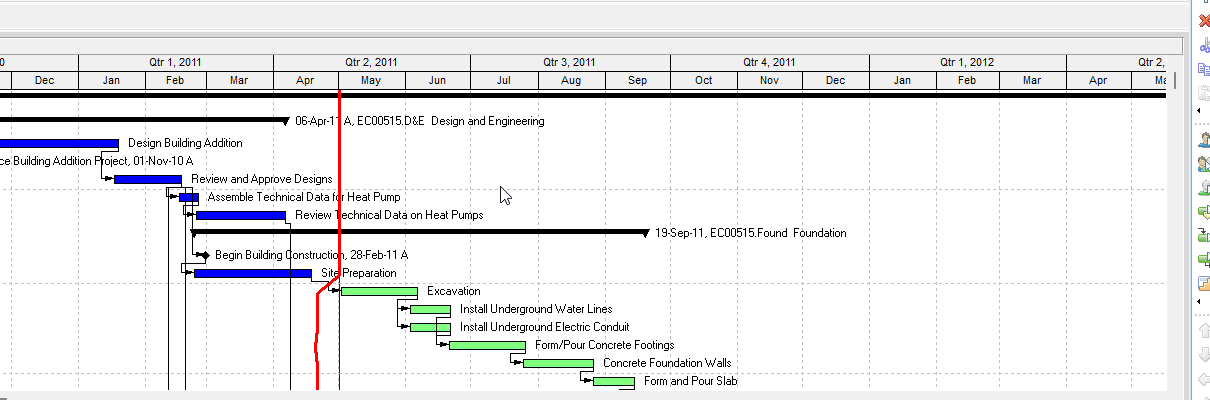
Add a curtain attachment in a Gantt Chart is Oracle Add a curtain attachment in a Gantt Chart. Activities window. Layout Options bar → Attachments, Curtain, Add Curtain. Mark Display curtain attachment. Pick Start and Finish Dates, color, and fill pattern. OK. The curtain is added to the open layout, not the open project. Save the layout to keep it. It is a how-to. It is not stored as its own table. It does not create, edit, or delete a relationship. It is not the Curtain object note, not Hide / Hide All / Display all / Delete a curtain attachment, not Progress Spotlight, not Progress Line, not a text attachment, not a look-ahead filter, not TASKPRED, not EPPM non-work shading copied onto Professional, and not Microsoft timescaled highlight.
Oracle does print a how-to titled Add a curtain attachment in a Gantt Chart. Oracle does not print a menu item named Add a curtain attachment in a Gantt Chart. The path that how-to prints is Layout Options bar → Attachments, Curtain, Add Curtain. Do not invent View > Add a curtain attachment. Do not invent View, Attachments on this how-to (that page fetched does not print View, Attachments).
Oracle Add a curtain attachment in a Gantt Chart (Professional):
- "In the Activities window, click the Layout Options bar and choose Attachments, Curtain, Add Curtain."
- "Mark the 'Display curtain attachment' checkbox."
- "Click to select the Start and Finish Dates."
- "Select the color to use for the curtain."
- "Select the fill pattern for the curtain date range."
- "Click OK."
- Tip: "When you add curtains, they are added to the open layout, not the open project. If you save the open layout after adding a curtain attachment, the attachment is saved as part of the layout. The curtain attachment is then displayed whenever you view the layout, unless you subsequently choose to delete or hide the curtain attachment."
- "The data range defaults to the longest date interval. For example, if the date interval is Month/Week, the default range will be one month."
- "You can manually shift the entire curtain or change the start and finish dates of the curtain display. Move the mouse pointer over the curtain and click and drag the curtain to the new dates."
- "Click Cancel to close the dialog box without saving any changes."
Quote Oracle's data range wording. That how-to fetched prints no Apply, no Save, no Yes, no View, Attachments, no Delete, and no Hide All. Do not invent those on this how-to.
Curtain is a different object note. The decoration and the dialog. Leave Curtain Attachment as the object.
Hide a curtain attachment is a different how-to. Double-click; clear Display; OK. Hide does not delete.
Progress Spotlight is a different object. The update-window band. See Progress Spotlight (a View, Not a Field).
Text attachment is a different object. Custom text on the Gantt. See Text Attachment.
Professional vs EPPM
Professional — Activities window; Layout Options bar → Attachments, Curtain, Add Curtain; Display; Start / Finish; color; fill pattern; OK or Cancel. Save the layout to keep it. No Apply on that page.
EPPM web — Oracle Working with the Activity Gantt Chart documents a data-date line, sightlines, non-work shading, and Progress Spotlight. That page fetched does not print Layout Options bar → Attachments, Curtain, Add Curtain, or the Curtain Attachment dialog. Do not copy Professional Add Curtain onto EPPM. Do not copy EPPM non-work shading onto this how-to.
Primavera Cloud is a different product. Do not copy it here.
XER
The how-to is not an XER table. Oracle’s project XER map TOC has no CURTAIN / ATTACH / ATTACHMENT / LAYOUT table. Do not invent a view %T. Adding a curtain does not write TASK. Layouts travel as .plf. A Viewer cannot reconstruct that the planner used this how-to.
Microsoft Project
Microsoft Project can shade a date range on a Gantt. Do not map that as P6 Add a curtain attachment in a Gantt Chart. Do not claim MPXJ writes a real MPP.
Don't
- Invent View > Add a curtain, View, Attachments, Apply, Save, or Yes on this how-to.
- Collapse this onto the Curtain object, Hide / Delete / Hide All, Progress Spotlight, or a text attachment.
- Treat the curtain as stored in the project XER.
- Copy EPPM non-work shading onto Professional, or Professional Add Curtain onto EPPM.
- Invent a CURTAIN XER table, or reconstruct the how-to from TASK dates.
- Map MSP date-range shading as this how-to.
- Claim MPXJ writes a real MPP.