
Views, Filters & Print
Text Attachment
Text attachment is custom Gantt text (View > Attachments → Text); not a notebook or curtain; no XER table
What a planner means
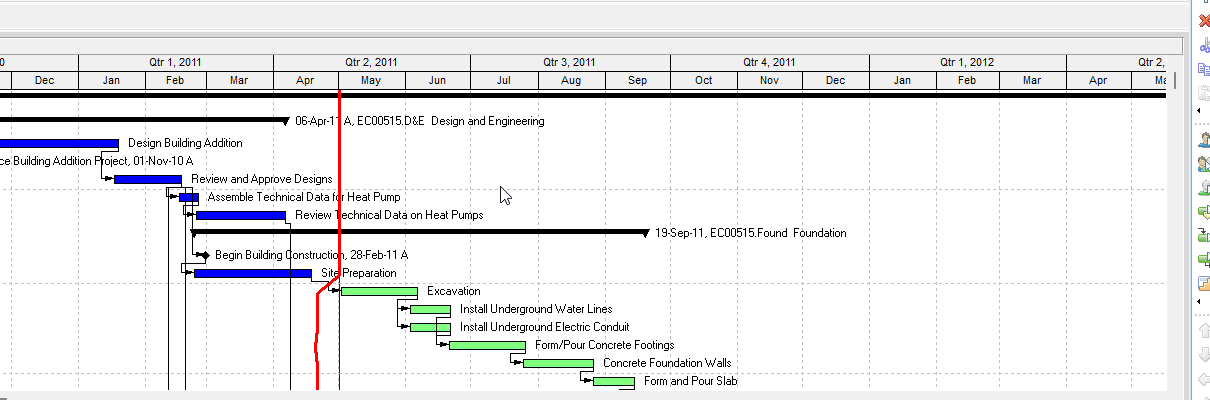
Text (Oracle: text attachment) is a Gantt Chart decoration. Oracle View menu: "text attachments display custom text you enter in a Gantt Chart." It is not a curtain attachment (the other Attachments object: "highlight a specific time period in a Gantt Chart" — Curtain Attachment), not a notebook (Notebooks (MEMOTYPE / TASKMEMO / WBSMEMO) — Not Schedule Logic), not attaching a notebook item to a bar (Bars → Bar Labels), not Activity Feedback (Activity Feedback), and not a filter (Filters and Layouts Are a View, Not the Schedule).
Professional — Activities window Gantt only. Oracle View menu: Attachments "is enabled when you display a Gantt Chart in the Activities window." Display toolbar corresponding menu: View > Attachments. Add path on the Add page: Activities window, Layout Options bar → Attachments, Text.
Oracle Text Attachment dialog: "create formatted text and insert it in a layout." Fields Oracle names:
- Font — "Click to select the font and font style of the text attachment."
- OK — "Click to accept changes."
- Cancel — "Click to close the dialog box without saving changes."
Add page: "select the activity to which you want to add the attachment." Layout Options bar → Attachments, Text. Font, OK. Oracle: "The attachment text displays in the foreground of the Gantt Chart, wherever you click in the layout." "To modify an existing text attachment, double-click to select it, then modify it in the Text Attachment dialog box." Oracle did not name a Display checkbox, Start/Finish dates, color, or fill pattern on this dialog (those are curtain fields).
Display toolbar: icon → Text opens the Text Attachment dialog. "Use the Text Attachment dialog box to create formatted text and insert it in a Gantt Chart." Same command as View > Attachments.
Remove — in the Gantt Chart, click the text attachment, press Delete. Oracle printed no Hide / Show All command for text. View menu Hide/Show All is curtain-only: "add curtain and text attachments, and to show or hide all curtain attachments."
Oracle's text add/remove pages do not print the curtain save-the-layout tip. Dialog wording is "insert it in a layout." Layouts travel as .plf, not in a project XER. See Filters and Layouts Are a View, Not the Schedule.
Not notebook-on-bar — Oracle's separate "Attach notebook items to bars" path is Layout Options bar → Bars → Bar Labels: add a label, pick a notebook item. "Only one notebook item can be attached to each bar." "Notebook items can be printed with the layout or published with the layout to the project Web site." That is a bar label of a notebook topic, not this Text attachment.
EPPM web — Oracle's Working with the Activity Gantt Chart page fetched documents a data-date line, sightlines, "timescale background is shaded to indicate non-work time based on the global default calendar," and Progress Spotlight. That page does not print View > Attachments, Layout Options bar → Text, or the Text Attachment dialog. Do not copy those Professional menus onto EPPM as if Oracle printed them there.
XER
The text attachment is a Gantt / layout decoration. Oracle's project XER data map TOC lists no TEXT, ATTACH, ATTACHMENT, or LAYOUT table. Do not invent one. Layouts travel as .plf, not in a project XER. See Filters and Layouts Are a View, Not the Schedule.
Oracle did not name an XER column for the typed text, font, or click position.
A Viewer parse of one XER cannot reconstruct whether the planner had a text attachment on the Gantt.
Microsoft Project
Desktop Project has Drawing / Text Box, not a P6 text attachment. Microsoft: "In a project with a Gantt chart, click the Format tab and click Drawing." "Click Text Box, and then drag in the Gantt chart to draw the text box to the size you want." "To add text, click inside the box and type or paste your text." Format: Task tab Font group. Delete: click the border, press Delete.
They are not the same object. Do not map this P6 decoration to an MSP Text Box and call them the same. Do not claim MPXJ can write a real MPP.
Don't
- Treat a text attachment as a curtain, as a notebook (
TASKMEMO), as notebook-on-bar labels, as Activity Feedback (TASKFDBK/TASKNOTE), or as Discussion. - Treat EPPM data-date line, sightlines, non-work shading, or Progress Spotlight as this Professional text attachment.
- Invent a TEXT / ATTACH / ATTACHMENT / LAYOUT XER table, or treat any TASKMEMO / TASKFDBK / TASKNOTE column as this decoration.
- Copy Professional View > Attachments / Layout Options bar → Text onto EPPM as if Oracle printed those menus there.
- Treat curtain Hide All / Show All as applying to text. Oracle printed those only for curtains.
- Map this object to an MSP Drawing Text Box and call them the same.
- Claim MPXJ writes a real MPP.
- Claim a Viewer reconstructed the planner's text attachments from an XER.
Sources
- Oracle Add a text attachment to a Gantt Chart [27 Aug 2026]
- Oracle Text Attachment dialog [27 Aug 2026]
- Oracle Remove a text attachment [27 Aug 2026]
- Oracle View Menu [27 Aug 2026]
- Oracle Display toolbar [27 Aug 2026]
- Oracle Add a curtain attachment [27 Aug 2026]
- Oracle Attach notebook items to bars [27 Aug 2026]
- Oracle Working with the Activity Gantt Chart [27 Aug 2026]
- Oracle XER project map TOC [27 Aug 2026]
- Oracle Exporting and Importing Layouts [27 Aug 2026]
- Microsoft Add, copy, or delete a text box [27 Aug 2026]