
In Primavera P6
Edit WBS
Edit WBS is Project > WBS select plus Move arrows and/or WBS Details; not Add WBS

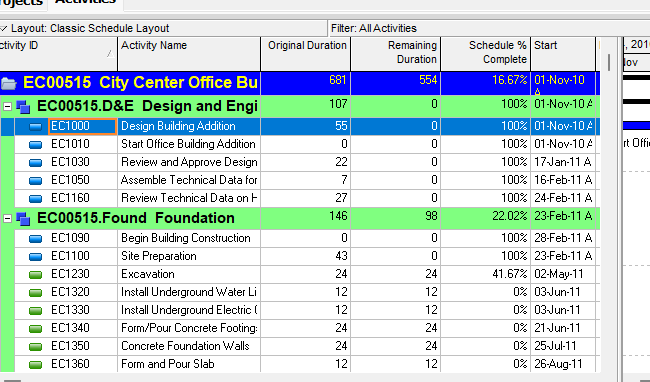
What a planner means
Edit WBS is Oracle Edit a work breakdown structure element. Oracle does not print a menu item named Edit WBS. It is Project > WBS, select the element, then the Move toolbar arrows and/or Display Options bar → Show on Bottom, WBS Details. Double-click in the WBS table edits some information. It is a command. It is not stored data. It is not Add WBS, not Add WBS from Template, not Copy WBS, not Cut WBS, not Delete WBS, not Change an activity's WBS assignment, not Fill Down, and not a WBS Summary activity.
Oracle Edit a work breakdown structure element (Professional):
- "Choose Project, WBS."
- "Select the WBS element you want to edit. To change the element's position in the WBS, click the appropriate arrow buttons. Note that the maximum number of WBS levels is set in the Data Limits tab of the Admin Preferences dialog box when P6 Professional is connected to a P6 Professional database and is set in P6 Settings page when P6 Professional is connected to a P6 EPPM database."
- "Click the Display Options bar and choose Show on Bottom, WBS Details to view or modify information in the General and WBS Milestones tabs."
Tip Oracle printed: "You can also directly edit some WBS information in the WBS table by double-clicking the information you want to change." Do not invent which columns can be double-clicked.
Move toolbar is how Oracle names those arrow buttons. WBS window: "Use the arrows on the Move toolbar to move the selected WBS element around in the hierarchy." Oracle Move Toolbar (quote the four functions; do not invent names for the icons):
- "Moves the selected object up one row in the hierarchy."
- "Moves the selected object down one row in the hierarchy."
- "Moves the selected object to the left in the hierarchy. Moving an object to the left moves it up to the next level in the hierarchy."
- "Moves the selected object to the right in the hierarchy. Moving an object to the right moves it down to the next level in the hierarchy."
Oracle tip: "The icons on this toolbar do not have corresponding shortcut keys or menu options." Do not invent Ctrl+Alt+Arrow. Move after the row exists is this command. It is not Add WBS and not Cut WBS.
Maximum WBS levels — quote the Edit how-to. Professional database: Admin Preferences Data Limits tab, field EPS/WBS tree maximum levels, valid values 1-50. Professional connected to an EPPM database: P6 Settings page. Do not invent that the Edit how-to printed 1-50 or named the field EPS/WBS tree maximum levels. Do not collapse P6 Settings page onto EPPM Application Settings Data Limits. See Admin Preferences.
WBS Details — Edit how-to names Display Options bar and Show on Bottom, WBS Details, and only the General and WBS Milestones tabs. Display work breakdown structure details: "Choose Project, WBS, then choose View, Show on Bottom, Details." WBS window: "View, Show on Bottom, Details, or click on the Bottom Layout toolbar." Quote both. Do not collapse Display Options bar / Show on Bottom, WBS Details onto View, Show on Bottom, Details / Bottom Layout toolbar.
Oracle General tab - WBS Details (quote those field names; do not invent others on this tab):
- WBS Code — "The selected WBS element's code. You can type a new code."
- WBS Name — "The selected WBS element's name. You can type a new name."
- Status — "The selected WBS element's status. You can select a new status."
- Responsible Manager — "The selected WBS element's assigned, organizational breakdown structure (OBS) element. Click to select a new OBS element."
- Anticipated Start / Anticipated Finish — "user-defined date the project is expected to start/finish; used during the project planning stage, and set at the WBS, EPS, or project level."
The Edit how-to and this General-tab page do not print Status tokens. Oracle Determine a WBS element's status / WBS status types name four: Planned, Active, Inactive, What-If. Quote those pages for the tokens. Do not invent others. Determine also: "If a WBS element belongs to a parent WBS element, the element has the same status as its parent element." Anticipated Dates are PROJWBS planning dates, unused as Start/Finish once activities exist. See Anticipated Start/Finish Are WBS Planning Dates, Not Activity Dates. WBS Milestones are WBSSTEP, not TASK milestones. See WBS Milestones Are Weighted WBS Checkpoints, Not TASK Milestones.
Oracle WBS Details lists more tabs than the Edit how-to names: Notebook; Budget Log; Spending Plan; Budget Summary; WBS Milestones; WPs & Docs; Earned Value; when connected to a P6 EPPM database, Planning Resources; User Defined Fields. The Edit how-to fetched does not print those extra tab names. Do not invent that it did. Showing WPs & Docs is Customize WBS Details (right-click Details → Available Tabs), not this how-to.
Add WBS is a different command. Edit > Add of a child WBS element. See Add WBS.
Add WBS from Template is a different command. EPPM Context / Row Actions → Add WBS from Template. See Add WBS from Template.
Copy WBS is a different command. Edit > Copy / Paste plus Copy WBS Options. See Copy WBS.
Cut WBS is a different command. Edit > Cut / Paste. A move that pastes under a selected node. It is not the Move toolbar arrows. See Cut WBS.
Delete WBS is a different command. Edit > Delete plus Merge or Delete. See Delete WBS.
Change an activity's WBS assignment is a different command. Oracle Change an activity's work breakdown structure assignment: Project, Activities → Activity Details General tab → WBS field → Select. That is not Project > WBS Edit of a PROJWBS node.
Define earned value settings for a specific WBS is a different how-to. That is the Earned Value tab, not the Edit how-to's General / WBS Milestones pair.
WBS Summary is not this command. WBS Summary is a TASK activity type. See P6 Activity Types (Six) — Not MSP Task Type and P6 WBS.
Professional vs EPPM
Professional — the how-to above. Do not invent a printed item titled Edit WBS.
EPPM web — Working with WBS Elements: if you have the Add/Edit/Delete WBS Except Costs/Financials project privilege, you can add, copy and paste, cut and paste, modify, or delete WBS elements. To add, copy and paste, cut and paste, edit, or delete WBS elements, the grouping Level 1 Field must be WBS. Configuring General WBS Information: Projects → Activities → select a WBS → General detail window → add or remove columns → enter values → Save. Do not copy Professional Project > WBS / Display Options bar / Show on Bottom, WBS Details / Move toolbar / double-click tip onto EPPM Context / Row Actions / General detail window.
EPPM Application Settings Data Limits page field EPS/WBS is "the maximum number of levels for the EPS and WBS hierarchies." Getting Here: Administration → Application Settings → Data Limits. Tip: "If you change maximum hierarchy level settings, the new settings apply only when you add new elements or edit existing elements." That page fetched does not print 1-50. Do not invent that it did. Do not collapse that page onto the Professional Edit how-to's P6 Settings page.
XER
None. Oracle’s project XER map TOC has no EDITWBS / EDIT_WBS table. After the command you see a changed PROJWBS row (code, name, parent_wbs_id, seq_num, status_code, anticipated dates). Do not treat a changed PROJWBS row as “the planner used Edit.” A Viewer cannot tell Edit from Add-then-type, import, Cut, or Move.
PROJWBS is the WBS node. TASK.wbs_id is the owning WBS. See P6 WBS. Change an activity's WBS assignment writes TASK.wbs_id, not this command.
Microsoft Project
Desktop Project has no WBS table. Microsoft indent makes a subtask; the row above becomes a summary. Outdent promotes it. Microsoft WBS Code Definition is a code mask on tasks (Project → WBS → Define Code). That is outline indent / a task WBS field, not PROJWBS Edit. Do not map P6 Edit WBS to MSP Indent / Outdent or WBS Define Code as the same command. Do not claim MPXJ writes a real MPP.
Don't
- Treat Edit WBS as Add WBS, Add WBS from Template, Copy WBS, Cut WBS, Delete WBS, Change an activity's WBS assignment, Fill Down, Define earned value settings, or a WBS Summary activity.
- Invent a printed menu item titled Edit WBS.
- Invent which WBS-table columns can be double-clicked. Oracle said some information.
- Invent Move-toolbar shortcut keys. Oracle: the icons have no corresponding shortcut keys or menu options.
- Collapse Display Options bar / Show on Bottom, WBS Details onto View, Show on Bottom, Details / Bottom Layout toolbar.
- Invent that the Edit how-to listed WBS Details tabs beyond General and WBS Milestones.
- Invent Status tokens on the Edit how-to or General tab. Planned / Active / Inactive / What-If are on Determine / WBS status types.
- Invent an EDITWBS XER table, or treat a changed PROJWBS row as “the planner used Edit.”
- Copy Professional Project > WBS / Move toolbar / Display Options bar onto EPPM Activities General detail window, or copy EPPM Configuring General WBS Information onto Professional.
- Collapse Professional P6 Settings page (EPPM database) onto EPPM Application Settings Data Limits.
- Claim a Viewer reconstructed Edit from an XER.
- Map P6 Edit WBS to MSP Indent / Outdent or WBS Define Code as the same command.
- Claim MPXJ writes a real MPP.
Sources
- Oracle Edit a work breakdown structure element [27 Aug 2026]
- Oracle same how-to [27 Aug 2026]
- Oracle Work Breakdown Structure window [27 Aug 2026]
- Oracle Move Toolbar [27 Aug 2026]
- Oracle Display work breakdown structure details [27 Aug 2026]
- Oracle WBS Details [27 Aug 2026]
- Oracle General tab - WBS Details [27 Aug 2026]
- Oracle Determine a WBS element's status [27 Aug 2026]
- Oracle WBS status types [27 Aug 2026]
- Oracle Data Limits tab - Admin Preferences [27 Aug 2026]
- Oracle Define maximum hierarchy levels [27 Aug 2026]
- Oracle Add a WBS element [27 Aug 2026]
- Oracle Change an activity's work breakdown structure… [27 Aug 2026]
- Oracle Working with WBS Elements [27 Aug 2026]
- Oracle Configuring General WBS Information [27 Aug 2026]
- Oracle Data Limits Page [27 Aug 2026]
- Oracle XER project map TOC [27 Aug 2026]
- Oracle PROJWBS [27 Aug 2026]
- Microsoft Create and work with subtasks and summary… [27 Aug 2026]
- Microsoft WBS Code Definition dialog box [27 Aug 2026]
- Related [27 Aug 2026]