
In Primavera P6
Set Trace Logic Preferences
Set Trace Logic preferences is View, Bottom Layout Options; predecessor and successor counts

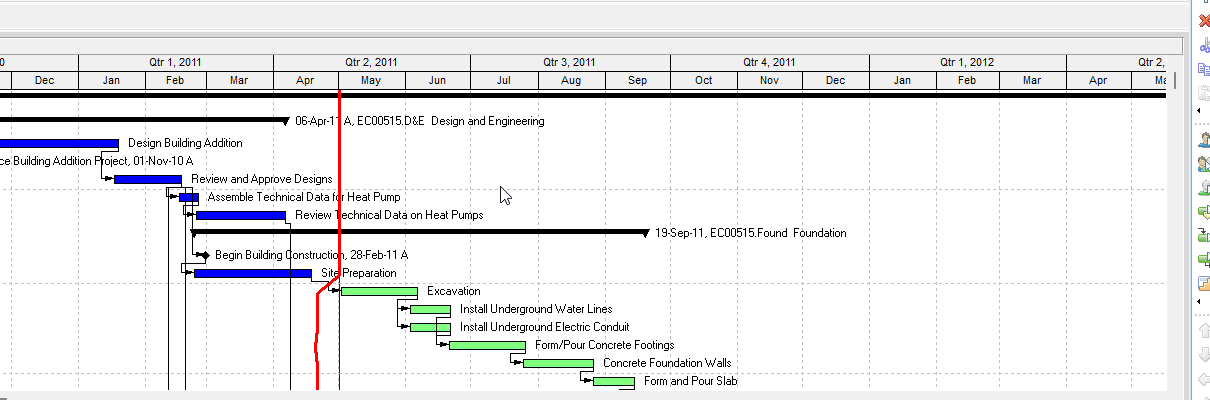
What a planner means
Set Trace Logic preferences is Oracle Set Trace Logic preferences. View, Bottom Layout Options (or Layout Options bar → Bottom Layout Options). "Specify the number of predecessors you want to display." "Specify the number of successors you want to display." Apply "To preview your changes." It is a how-to. It is not stored as its own table. It does not create, edit, or delete a relationship. It is not Display Trace Logic, not View activity relationships in Trace logic, not the Trace Logic view object, not Move around in Trace Logic, not Customize Activity Details, not User Preferences, not Display the Activity Network, not Display the Gantt Chart, not TASKPRED, not EPPM Predecessor Levels / Successor Levels / Trace Logic Detail Window copied onto Professional, and not Microsoft Task Path, Task Inspector, or Network Diagram.
Oracle does print a how-to titled Set Trace Logic preferences. Oracle does not print a menu item named Set Trace Logic preferences. The menu that how-to prints is View, Bottom Layout Options. Do not invent View > Set Trace Logic preferences.
Oracle Set Trace Logic preferences (Professional):
- "You can specify the number of activity relationships you want to display in Trace Logic."
- "Choose View, Bottom Layout Options." "You can also click the Layout Options bar, then choose Bottom Layout Options."
- "Specify the number of predecessors you want to display."
- "Specify the number of successors you want to display."
- "To preview your changes, click Apply."
Quote those. Quote View, Bottom Layout Options, Layout Options bar, number of activity relationships, number of predecessors, number of successors, and Apply. That how-to fetched prints no default count, no min / max, no field label named Predecessor Levels or Successor Levels, no "levels", no Display Options bar, no OK, no Cancel, no Save, no "With the Activities window active", no "Choose Project, Activities,", no Show on Bottom, no View, Show on Bottom, Trace Logic, no Bottom Layout toolbar, no blue border, no left pred / right succ, no red border, no critical, no "A line connecting activity boxes", no step forward or backward, no lower layout / upper layout, no "boxes display the same information as the current Activity Network layout", no Zoom, no driving / non-driving, no solid vs dashed, no Available Tabs / Display Tabs, no Activity Details, no User Preferences, no privilege, and no menu item named Set Trace Logic preferences. Do not invent those on this how-to.
Display Trace Logic is a different how-to. "With the Activities window active, do one of the following:" Bottom Layout toolbar; View, Show on Bottom, Trace Logic; Layout Options bar → Show on Bottom, Trace Logic. Note: "The activity boxes in Trace Logic display the same information as the boxes defined for the current Activity Network layout." That opens the view. This preferences how-to does not open the view. This how-to fetched prints no Show on Bottom, no Bottom Layout toolbar, and no boxes-equal-Activity-Network-layout note. Do not collapse them. See Display Trace Logic.
View activity relationships in Trace logic is a different how-to. Select the activity; Layout Options bar → Show on Bottom, Trace Logic; blue border; left pred / right succ; "only the selected activity's relationships." That page is view-relationships, not this counts page. This how-to fetched prints no blue border, no left / right, and no Show on Bottom. See View Activity Relationships in Trace Logic.
The Trace Logic view object is a different page. Oracle Trace Logic: it "enables you to step forward or backward through a sequence of activities to focus on predecessor/successor relationships." It is "displayed in the lower layout." "A red border around an activity box indicates a critical activity." "A line connecting activity boxes indicates an activity relationship." Tip: "Choose View, Bottom Layout Options or click the Display Options bar and choose Bottom Layout Options to specify how many levels of predecessors and successors you want to view." That object tip says Display Options bar and levels. This how-to says Layout Options bar, number of predecessors, number of successors, and Apply. Do not collapse Display Options bar onto Layout Options bar. Do not invent that this how-to printed levels. See Trace Logic.
Move around in Trace Logic is a different how-to. "To view an activity's relationships in Trace Logic, click the activity in the Activity Table, Gantt Chart, Activity Usage Spreadsheet, Activity Network, or Trace Logic window." Clicking another activity is not setting counts. This how-to fetched prints no those window names.
Customize Activity Details is a different how-to. "With Activity Details displayed in the Activities window, choose View, Bottom Layout Options." Available Tabs / Display Tabs; OK; Apply "To view your changes without closing this dialog box." Same View, Bottom Layout Options menu; different dialog (Activity Details tabs, not predecessor / successor counts). This preferences how-to fetched prints no Activity Details, no Available Tabs, and no OK. Do not collapse them.
Oracle View Menu Bottom Layout Options: "Enables you to customize the tabs that display in Activity Details." Enabled when the active window is Activities. Corresponding toolbar: None. That row fetched prints no predecessor / successor counts, no Apply preview sentence, and no menu item named Set Trace Logic preferences. Do not invent that it did. Do not collapse View Menu Bottom Layout Options (Activity Details tabs) onto this how-to's View, Bottom Layout Options (number of predecessors / successors).
User Preferences is a different dialog. Edit > User Preferences (time / date / currency / session). This how-to is View, Bottom Layout Options. This how-to fetched prints no User Preferences. See User Preferences.
Display the Activity Network is a different how-to. View, Show on Top, Activity Network / Top Layout toolbar. Show on Top, not Bottom Layout Options. See Display the Activity Network.
Display the Gantt Chart is a different how-to. View, Show on Top or Show on Bottom, Gantt Chart. That opens the Gantt. This sets Trace Logic predecessor / successor counts.
Oracle Activities window Working with Trace Logic names Display Trace Logic, Move around in Trace Logic, Set Trace Logic preferences, and View activity relationships in Trace logic as separate tasks. Available activity layouts: Trace Logic (bottom layout only). Do not collapse those titles.
Oracle Viewing activity relationships lists five View how-tos. It does not list Set Trace Logic preferences. Do not invent that it did.
Professional vs EPPM
Professional — the how-to above. View, Bottom Layout Options / Layout Options bar → Bottom Layout Options; number of predecessors; number of successors; Apply to preview. That page fetched prints no Save, no Predecessor Levels / Successor Levels, no "levels", no Display Options bar, and no Trace Logic detail window.
EPPM web — do not copy Professional View, Bottom Layout Options / Layout Options bar / number of predecessors / number of successors / Apply onto EPPM.
Oracle EPPM Trace Logic Detail Window of the Activities Page (G48897): Predecessor Levels field / Successor Levels field: "The number of predecessor [successor] levels to show for the selected activity." Getting Here: Navigation Menu → Projects → Activities; select an activity; click the Trace Logic detail window. That page fetched does not print View, Bottom Layout Options, Layout Options bar, "number of predecessors you want to display", "number of successors you want to display", or Apply. Do not invent that it did. Do not invent that Professional printed Predecessor Levels, Successor Levels, levels, or Trace Logic detail window.
Oracle EPPM About Trace Logic (G48897) and Viewing Relationships with Trace Logic (G48897) print the detail window, highlighted in blue / heavy blue border, driving solid / non-driving dashed. Those pages fetched do not print View, Bottom Layout Options or Apply. Do not copy them onto this Professional how-to.
Primavera Cloud is a different product. Do not copy Cloud Predecessor Levels / Successor Levels onto P6 Professional or EPPM.
XER
None. Oracle's project XER map TOC has no TRACEPREF / TRACELEVEL / SETTRACE / TRACE / TRACELOGIC / TRACE_LOGIC / PREDLEVEL / SUCCLEVEL table. This how-to does not write TASKPRED. Do not invent a preferences %T. Do not treat a TASKPRED row as "the planner used Set Trace Logic preferences."
TASKPRED is the relationship. The Set Trace Logic preferences how-to fetched does not print those column names. Changing display counts does not create a relationship. See TASKPRED (Activity Relationships).
TASK.driving_path_flag is labeled Longest Path, not this how-to. The cited TASKPRED map has no driving column. Oracle did not name an XER table or column for predecessor/successor count settings.
Layouts travel as .plf, not in a project XER. See Filters and Layouts Are a View, Not the Schedule.
A Viewer parse of one XER cannot reconstruct the last predecessor count, successor count, or whether the planner used Set Trace Logic preferences, Display Trace Logic, View activity relationships in Trace logic, Move around in Trace Logic, Customize Activity Details, or EPPM Predecessor Levels / Successor Levels.
Microsoft Project
Desktop Project has three different objects. None is P6 Set Trace Logic preferences.
Task Path — Gantt Chart Format tab > Task Path. Microsoft: "display a task path to highlight how tasks link to each other." Picks: Predecessors; Driving Predecessors; Successors; Driven Successors; Remove Highlighting. That is Gantt-bar highlighting. Microsoft pages fetched print no View, Bottom Layout Options, no Layout Options bar, no "number of predecessors you want to display", no "number of successors you want to display", and no Apply preview.
Task Inspector — Task tab > Inspect Task. A per-task pane of drivers. See Check Schedule.
Network Diagram — View > Network Diagram. Closer to P6 Activity Network (Show on Top) than to this Bottom Layout Options counts how-to.
They are not the same command as P6 Set Trace Logic preferences. Do not map them as the same how-to. Do not claim MPXJ writes a real MPP.
Don't
- Treat this as Display Trace Logic, View activity relationships in Trace logic, the Trace Logic view object, Move around in Trace Logic, Customize Activity Details, User Preferences, Display the Activity Network, Display the Gantt Chart, TASKPRED, EPPM Predecessor Levels / Successor Levels / Trace Logic Detail Window copied onto Professional, or MSP Task Path / Task Inspector / Network Diagram.
- Invent that this how-to printed levels, Predecessor Levels, Successor Levels, Display Options bar, a default count, min / max, OK, Save, blue border, left / right, red border, Show on Bottom, View, Show on Bottom, Trace Logic, Bottom Layout toolbar, or a menu item named Set Trace Logic preferences.
- Collapse Display Options bar (Trace Logic object tip) onto this how-to's Layout Options bar.
- Collapse View Menu Bottom Layout Options (Activity Details tabs) or Customize Activity Details Available Tabs onto this how-to's predecessor / successor counts.
- Copy Professional View, Bottom Layout Options / Layout Options bar / number of predecessors / number of successors / Apply onto EPPM, or copy EPPM Predecessor Levels / Successor Levels / Trace Logic detail window onto Professional.
- Invent a TRACEPREF / TRACELEVEL / SETTRACE / TRACE / TRACELOGIC XER table, or treat a TASKPRED row or
TASK.driving_path_flagas "the planner used Set Trace Logic preferences." - Claim a Viewer reconstructed the last predecessor / successor counts from an XER.
- Map this to MSP Task Path / Task Inspector / Network Diagram as the same how-to.
- Claim MPXJ writes a real MPP.
Sources
- Oracle Set Trace Logic preferences [27 Aug 2026]
- Oracle same preferences [27 Aug 2026]
- Oracle Display Trace Logic [27 Aug 2026]
- Oracle View activity relationships in Trace logic [27 Aug 2026]
- Oracle Trace Logic [27 Aug 2026]
- Oracle Move around in Trace Logic [27 Aug 2026]
- Oracle Customize Activity Details [27 Aug 2026]
- Oracle View Menu [27 Aug 2026]
- Oracle Activities window [27 Aug 2026]
- Oracle Display the Activity Network [27 Aug 2026]
- Oracle Display the Gantt Chart [27 Aug 2026]
- Oracle User Preferences dialog box [27 Aug 2026]
- Oracle Trace Logic Detail Window of the Activities Page [27 Aug 2026]
- Oracle About Trace Logic [27 Aug 2026]
- Oracle Viewing Relationships with Trace Logic [27 Aug 2026]
- Oracle XER project map TOC [27 Aug 2026]
- Oracle XER TASKPRED [27 Aug 2026]
- Oracle XER TASK [27 Aug 2026]
- Oracle Exporting and Importing Layouts [27 Aug 2026]
- Microsoft Highlight how tasks link to other tasks [27 Aug 2026]
- Microsoft View and track scheduling factors [27 Aug 2026]
- Microsoft Create a Network Diagram in Project desktop [27 Aug 2026]
- Related [27 Aug 2026]